Tip & Trick
Microsoft OneNote 2013 remains a powerhouse for digital note-taking, but many users overlook its most powerful features. These seven hidden tips and tricks will transform how you organize ideas, capture information, and streamline workflows—saving you hours weekly.
Quick Capture with OneNote’s Clipper Extension
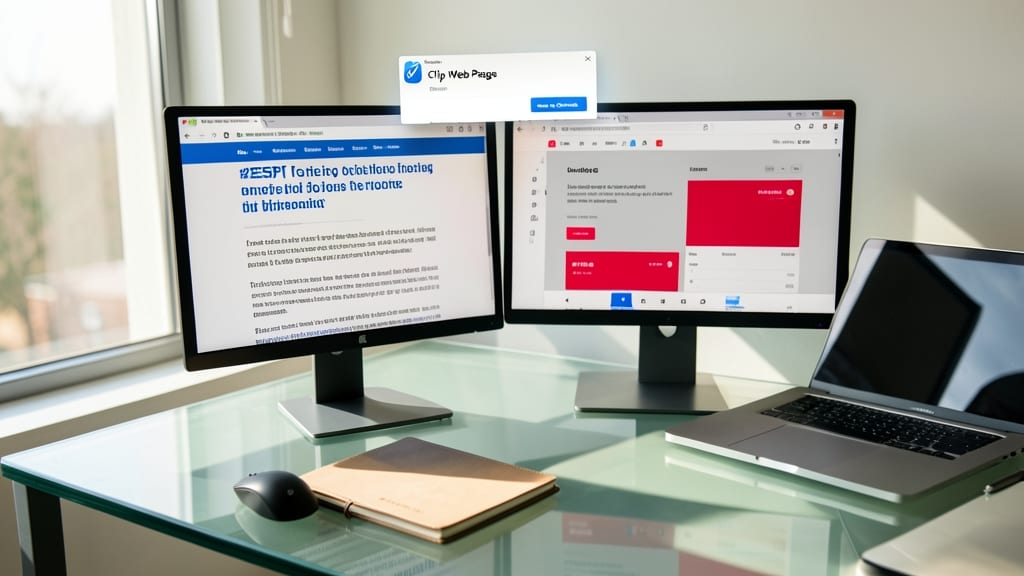
Tired of losing track of important web articles or screenshots while multitasking? The OneNote Clipper Extension lets you save entire web pages, screenshots, or even email content directly into your notebook—without leaving your browser. This browser-based tool integrates seamlessly with Chrome, Firefox, and Edge, turning your digital clutter into organized notes in seconds.
Install the extension from Microsoft’s official site, then click the Clipper icon in your browser toolbar to capture full articles, specific sections, or even screenshots. You can tag content, choose a notebook section, and even highlight key text before saving. The best part? It works offline too, so you’re never stuck waiting for syncs. For researchers or professionals juggling multiple tabs, this eliminates the need to switch apps or risk losing unsaved work.
Perfect for journalists clipping sources, students saving lecture slides, or project managers archiving meeting notes, the Clipper turns passive browsing into active knowledge capture. Try it today and reclaim hours of lost productivity. ⚡
Handwriting to Text Conversion for Notes
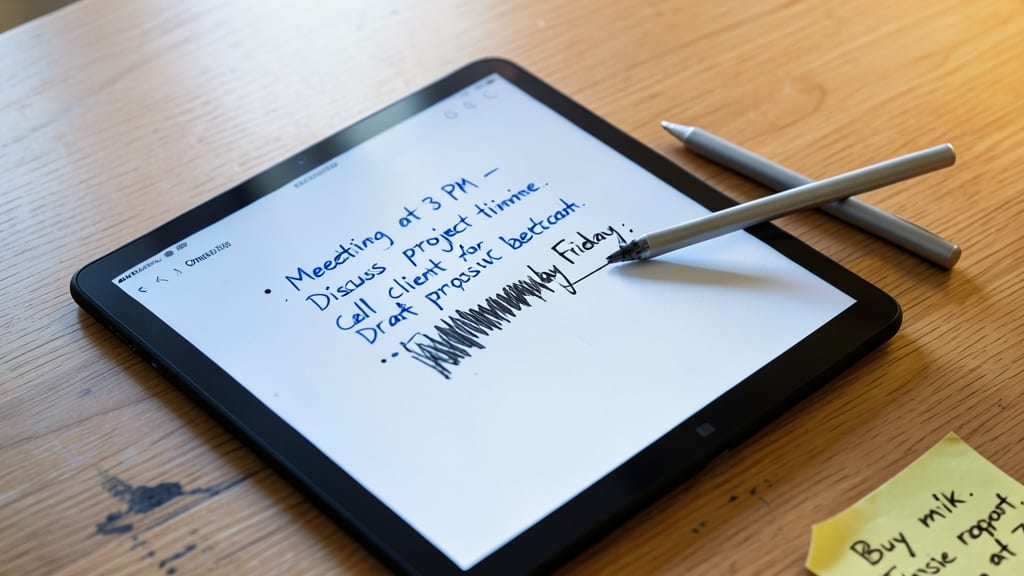
Still clinging to paper for brainstorming or sketching? OneNote 2013’s handwriting-to-text conversion bridges the gap between analog and digital workflows with minimal effort. Whether you’re jotting down lecture notes with a stylus or sketching wireframes, this feature transforms your ink into editable text—no retyping required.
Simply write as you normally would using a touchscreen, stylus, or even a mouse. After saving, right-click your handwritten content and select "Copy Text from Picture" (or "Recognize Text in Selection" in some versions). OneNote’s OCR (Optical Character Recognition) engine converts your notes into searchable, editable text—complete with proper formatting. For best results, use clear, legible handwriting and avoid overlapping strokes. The accuracy improves with practice, making it ideal for hybrid note-takers.
This trick is a game-changer for students transcribing notes, designers documenting ideas, or professionals mixing sketches and text. No more scanning or manual retyping—just seamless integration between your hand and your digital workspace. ✨
Section Tabs for Organized Notebooks
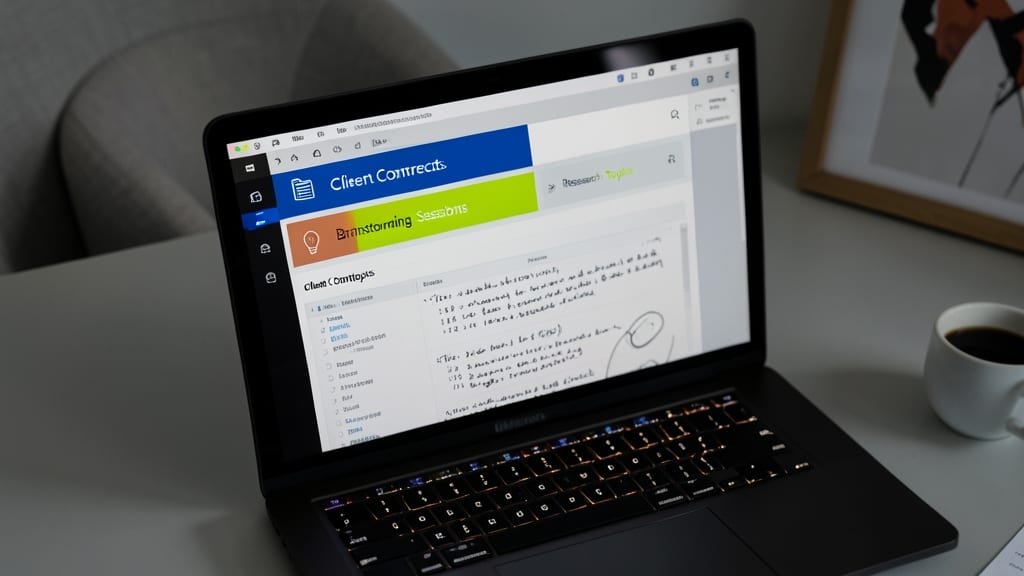
Juggling multiple projects or meeting notes? Color-coded section tabs in OneNote 2013 turn chaos into clarity with a single click. These customizable tabs let you instantly categorize content—whether it’s client contracts, brainstorming sessions, or research topics—using vibrant colors and labels.
To set them up, right-click any section header and select "Add Section"—then assign a color and name (e.g., red for "Urgent," blue for "Meetings"). The visual hierarchy helps you spot priorities at a glance, while drag-and-drop reordering keeps workflows flexible. Teams can even sync tabs across shared notebooks for consistency.
Perfect for project managers, students, or freelancers drowning in digital clutter, section tabs eliminate the need for endless scrolling. Try assigning a unique color to each client or topic—your future self will thank you. ✨
Audio and Video Recording Directly in Notes
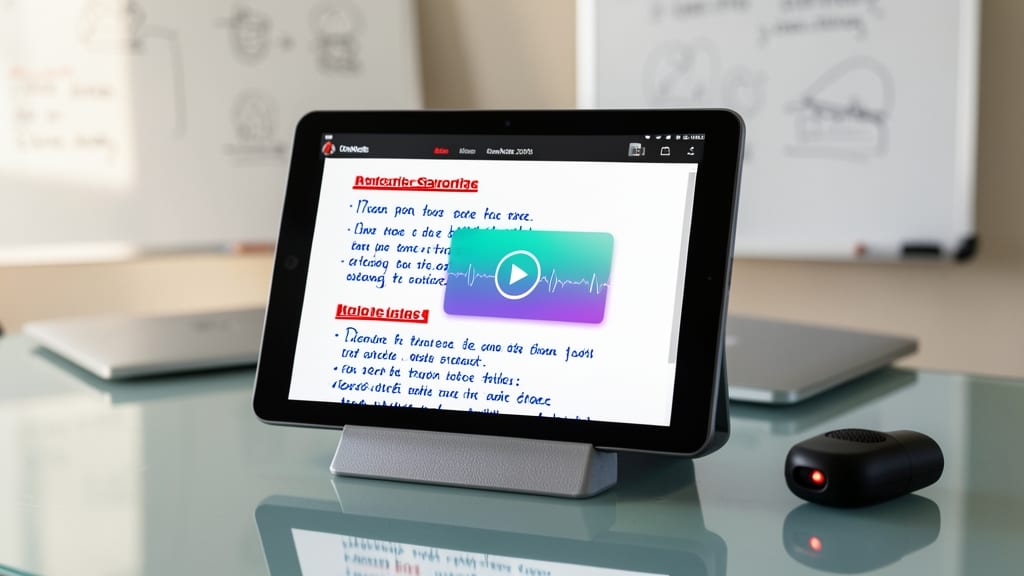
Forget juggling separate apps for notes and recordings—OneNote 2013 lets you embed audio and video directly into your notes with just a few clicks. Whether you're capturing a lecture, brainstorming with a client, or documenting a quick tutorial, this feature keeps everything in one place.
Start by clicking the audio or video recording button in the ribbon (looks like a microphone or camera icon). OneNote will prompt you to name your recording and choose where to save it within your notebook. Once embedded, recordings play inline like any other media, and you can even add timestamps or annotations to highlight key moments. The best part? No extra software needed—it’s built right into the desktop app for Windows.
This is a game-changer for educators recording lectures, remote workers documenting client calls, or anyone who wants to preserve context alongside their notes. No more scattered files or lost audio—just seamless integration. ✨
Math and Equation Tools for Problem-Solving
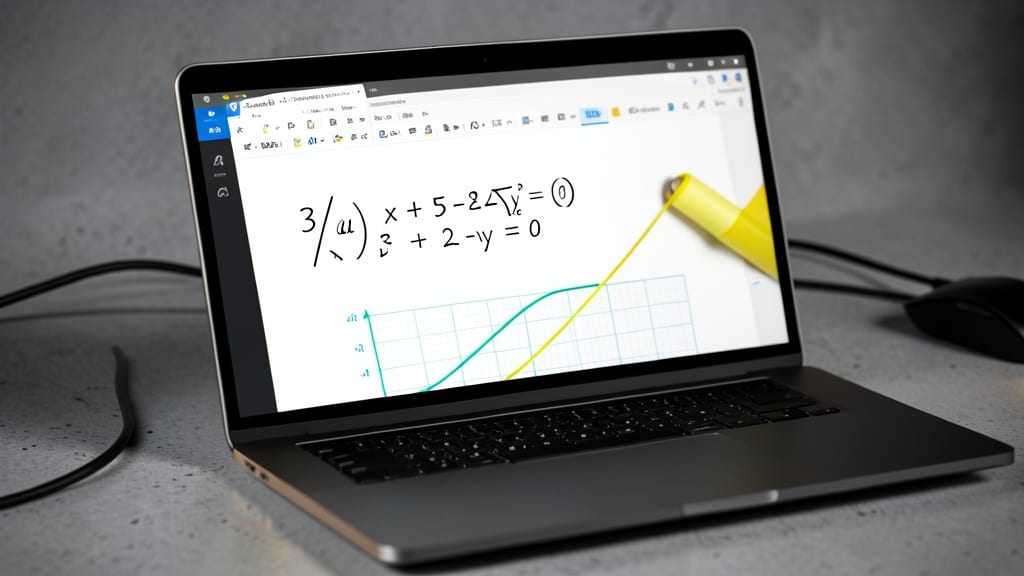
Struggling to solve equations or graph functions on the fly? OneNote 2013’s built-in math tools turn your notebook into a digital scratchpad for engineers, students, and data analysts. With the Equation button (Insert > Equation), you can insert symbols, variables, and even complex expressions like ∫ or Σ with just a few clicks.
Take it further by using Ink Math—write equations by hand, and OneNote converts them to digital text. Graph functions instantly with the Graph Paper tool, or solve step-by-step problems with the Math Assistant (if using the desktop app). The Wolfram|Alpha integration (via add-in) lets you compute results directly in your notes, from calculus to statistics.
Perfect for homework help, lab notes, or technical documentation, this feature eliminates the need for separate apps. 💡
Quick Search Across All Notebooks
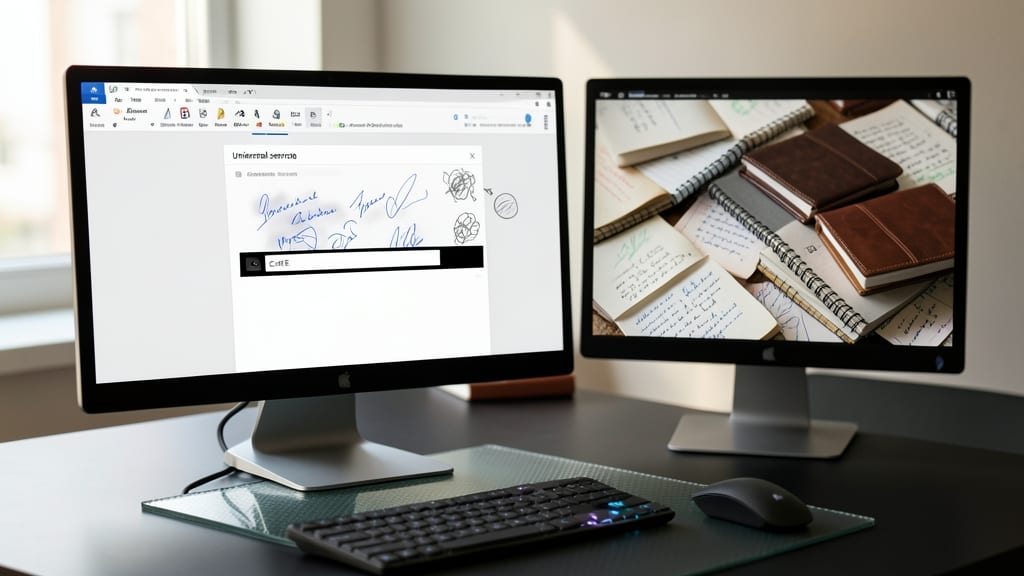
Tired of digging through endless notebooks to find that one critical note? OneNote 2013’s universal search lets you find text, handwritten scribbles, or even sketches across all your notebooks in seconds—no manual flipping required.
Simply press Ctrl+E (Windows) or Cmd+E (Mac) to open the search bar, then type your query. The system instantly indexes text, ink, and images, even if they’re buried in old notebooks. Need that client’s email from last quarter? Search for keywords like “Q3 revenue” and let OneNote surface the exact page—no more guessing games.
This feature is a lifesaver for consultants, researchers, or anyone juggling multiple projects. Spend less time searching and more time creating. ✨
Password-Protect Sensitive OneNote Sections
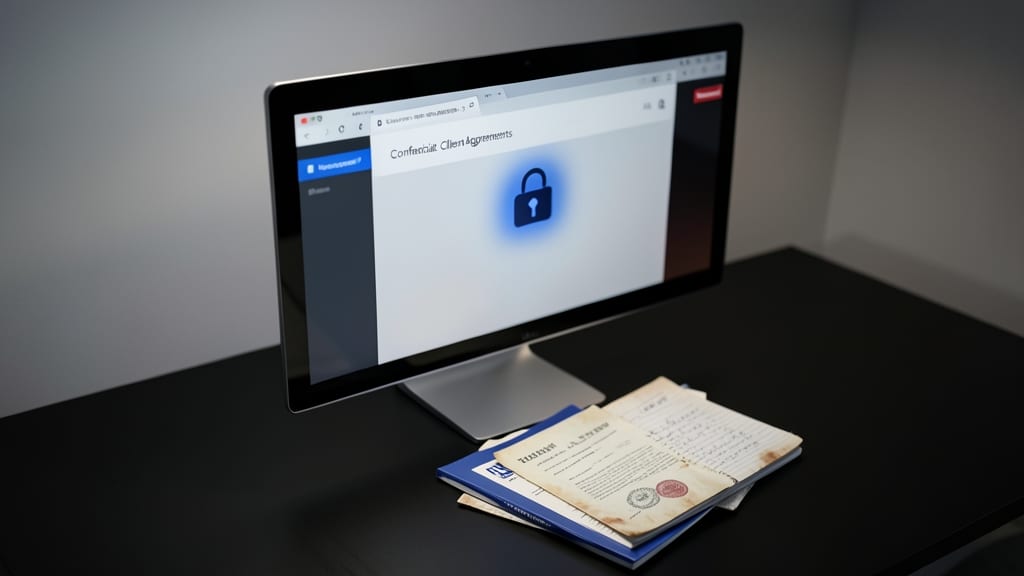
Not every note deserves to be public—especially when handling client contracts, HR documents, or legal strategies. OneNote 2013’s built-in section-level password protection lets you lock down sensitive content with a simple click, ensuring only authorized eyes see the details.
To enable it, right-click any section tab, select Password Protect Section, then set a strong password (OneNote won’t store it—you’ll need to remember it!). The section will then appear grayed out until unlocked. This feature works seamlessly with local notebooks (not cloud-synced), making it ideal for offline confidentiality. Perfect for professionals who need to share devices but keep certain notes private.
Legal teams, HR managers, and freelancers juggling multiple clients will appreciate this zero-config security layer—no third-party tools required. Just lock, share, and rest easy knowing your notes stay private. 🔧