
Tip & Trick
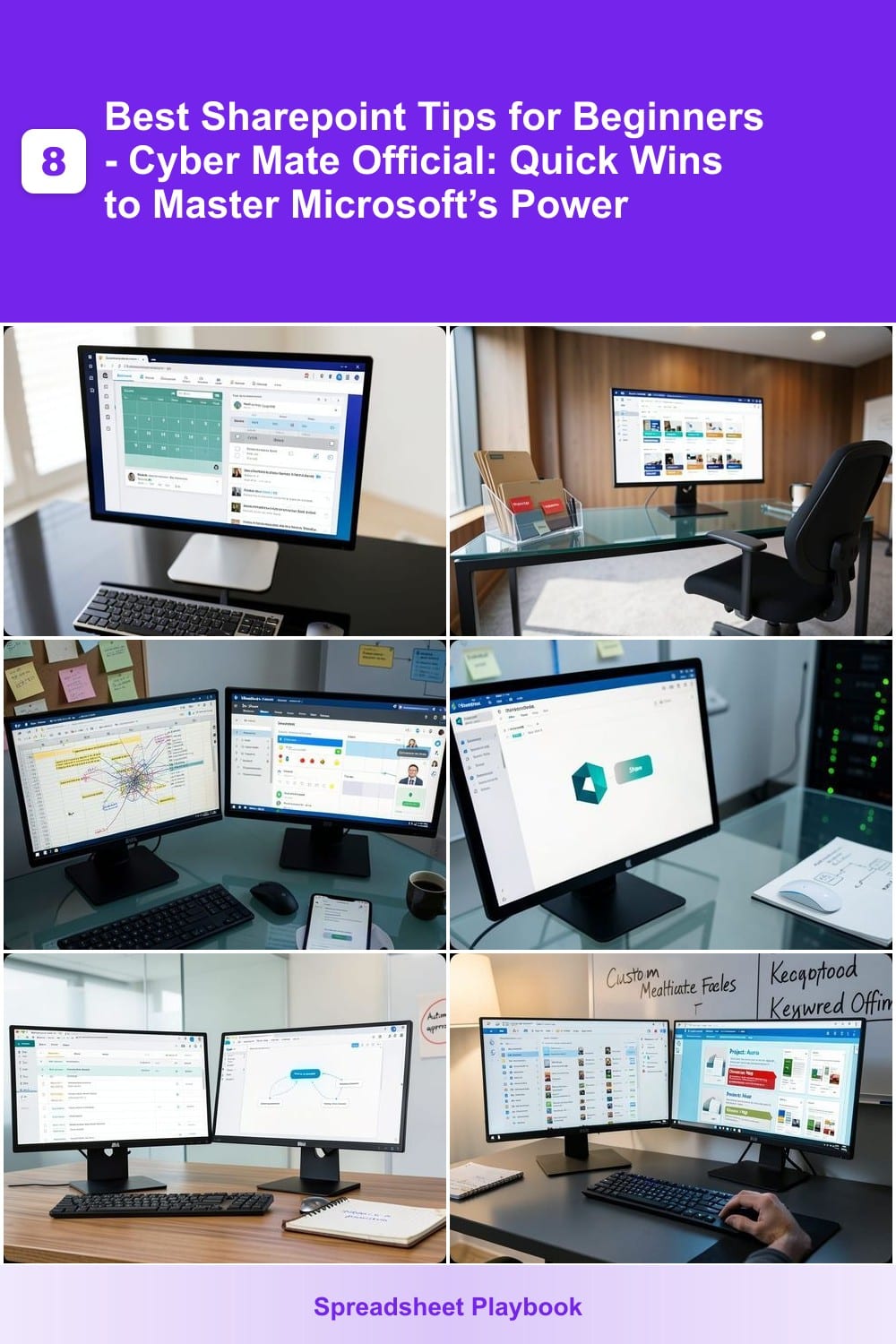
Microsoft SharePoint is a powerhouse for collaboration, but beginners often overlook its simplest features. These eight essential SharePoint tips will help you master the platform quickly, boost productivity, and avoid common pitfalls—whether you're new to Microsoft’s Power Platform or just need a refresher.
Master SharePoint Homepage Customization
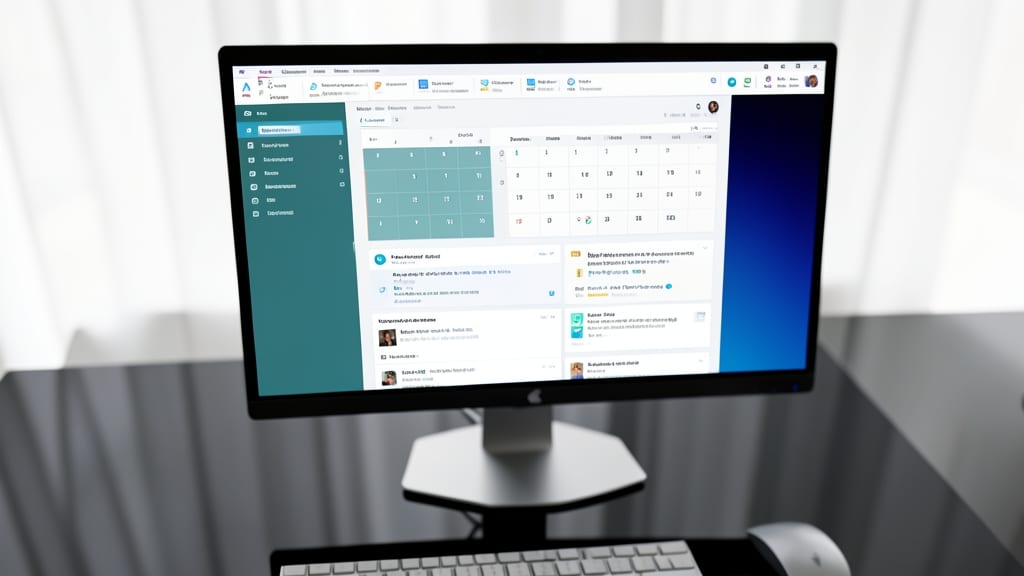
Your SharePoint homepage shouldn’t be a generic landing page—it’s your personalized productivity hub. With just a few clicks, you can turn it into a dashboard packed with quick links to your most-used sites, real-time news feeds, and custom web parts like calendars or task lists—all without digging through menus.
Start by editing your homepage (click the gear icon > Edit). Drag and drop web parts like the News web part to highlight announcements, or add the Quick Links web part to shortcut your go-to sites. Use the Search Box web part for instant file access, and embed Microsoft Teams or OneDrive for seamless collaboration. Pro tip: Pin frequently used document libraries or lists directly to your homepage for one-click access.
This trick is perfect for team leads, project managers, or anyone drowning in SharePoint tabs. Spend 15 minutes customizing your homepage today, and you’ll save hours weekly navigating away from your workflow. ✨
Use Document Libraries Effectively
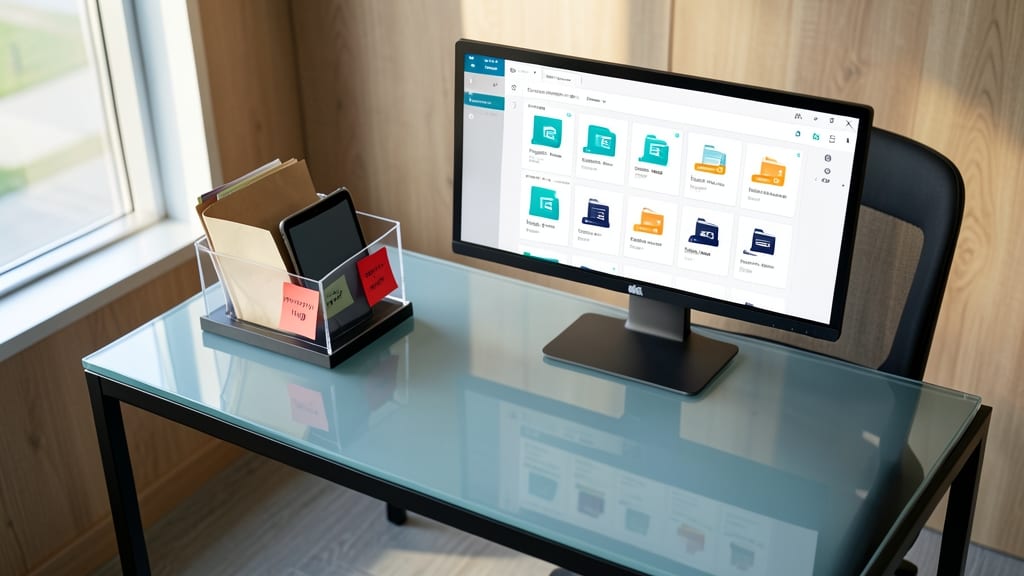
Struggling to keep track of files in SharePoint? Document Libraries are your secret weapon—turning chaos into a structured, searchable hub for teamwork. Unlike generic folders, they let you tag files with custom metadata (like project names or deadlines), so finding documents is as easy as filtering by a single click.
Enable versioning to track changes automatically, and use co-authoring to let multiple team members edit the same document in real time—no more emailing drafts back and forth. The built-in check-in/check-out system prevents conflicts, while retention policies ensure critical files stay accessible. For extra security, set permissions at the folder level so only the right people can access sensitive content.
This is ideal for marketing teams managing campaigns, HR departments handling employee files, or anyone tired of digging through endless folders. Spend 10 minutes organizing your library today, and you’ll save hours weekly. 💻
Leverage SharePoint Lists for Task Management
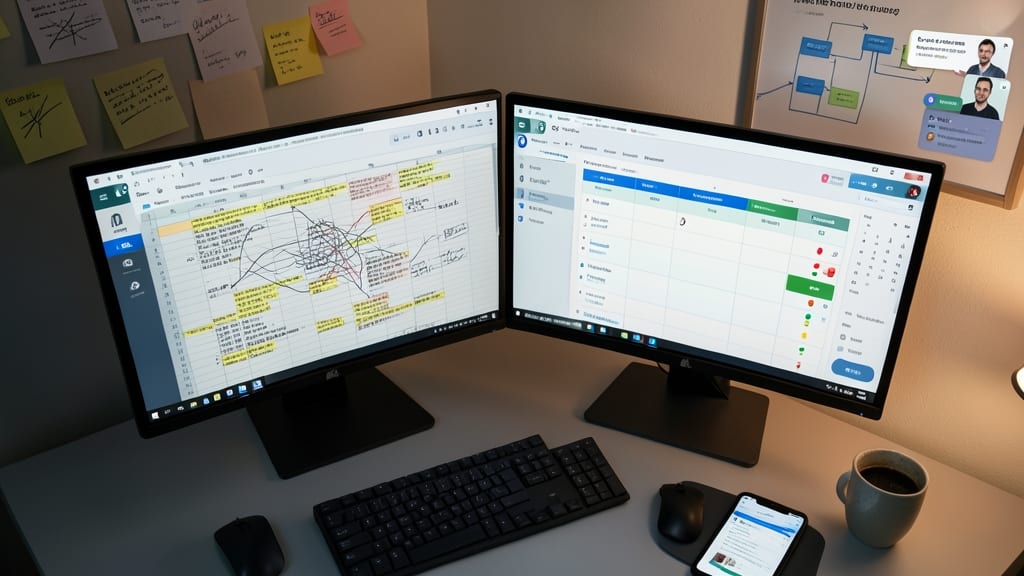
Tired of juggling Excel spreadsheets for task tracking? SharePoint Lists offer a real-time, collaborative way to manage tasks, deadlines, and assignments—without the hassle of version conflicts or manual updates.
Create custom columns for status, priority, or due dates, assign tasks to team members, and even integrate with Microsoft Planner for seamless workflows. The built-in mobile app lets you update tasks on the go, while alerts notify you of changes—no email chains required. Best of all, it syncs automatically with Microsoft 365, so your data stays up-to-date across all devices.
Perfect for project managers, small teams, or solo professionals who want a simpler, more visual alternative to Excel or Trello. Say goodbye to lost spreadsheets and hello to effortless task management! ✨
Simplify File Sharing with External Users
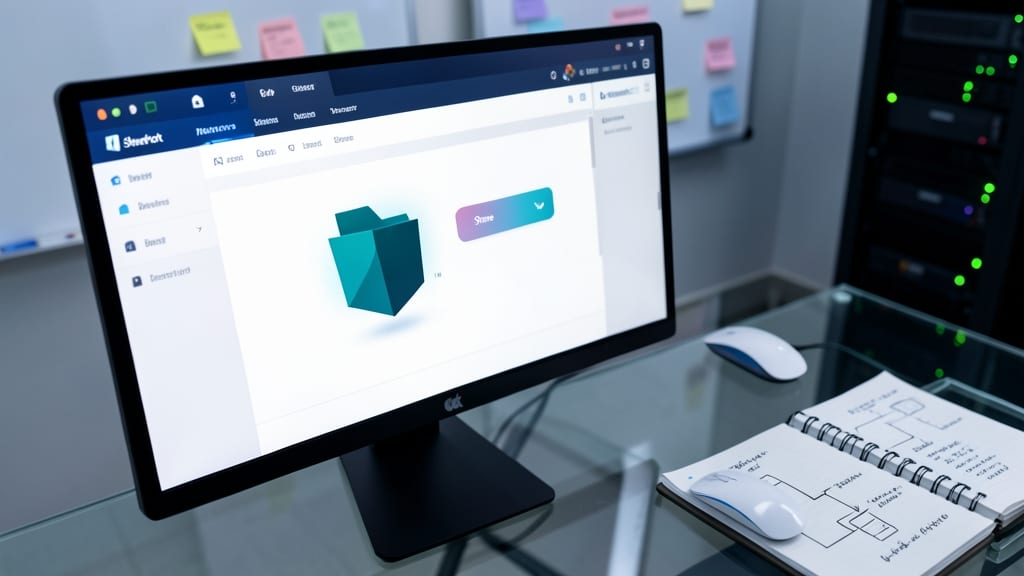
Sharing files with clients or partners doesn’t have to mean compromising security. SharePoint’s external sharing feature lets you collaborate outside your organization while keeping sensitive data protected—no third-party tools required.
Start by navigating to your document library and selecting the file(s) to share. Click the Share button, then enter the recipient’s email. Choose from view-only, edit, or custom permission levels to control access. For extra security, enable expiration dates or require multi-factor authentication for external users. SharePoint also integrates with Microsoft 365 Groups for seamless team collaboration.
This tip is perfect for freelancers, consultants, or small teams who need to share files securely without complex setup. Your data stays within Microsoft’s enterprise-grade security framework—no extra hassle. ✨
Automate Workflows with Power Automate
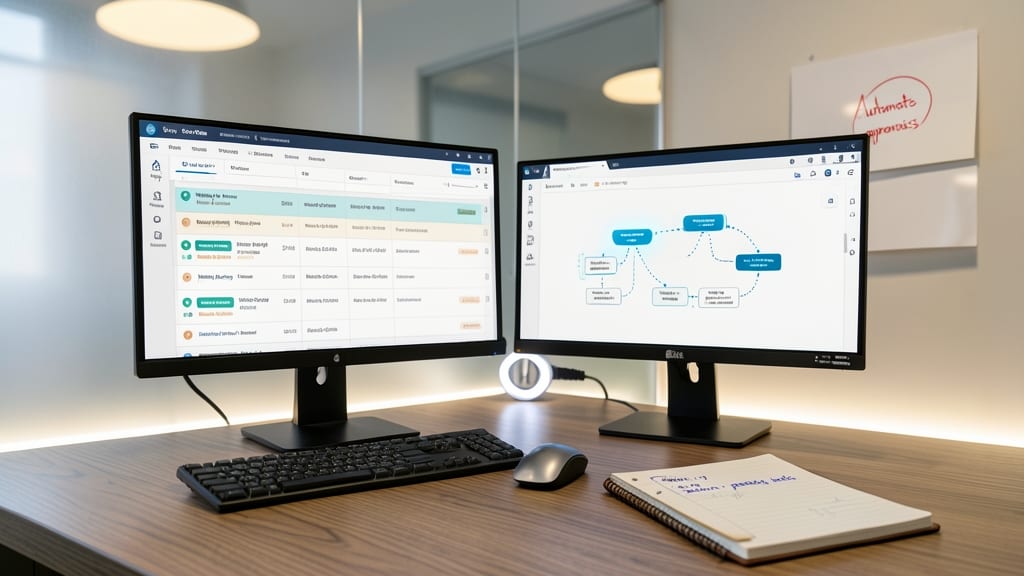
Tired of manually approving documents or chasing down team members for updates? Power Automate turns repetitive tasks into automated workflows with just a few clicks—no coding required.
Start by connecting your SharePoint lists to triggers like "when a new item is created." Then, add actions such as sending approval requests via Microsoft Teams or email, or updating a status column automatically. Pre-built templates for common scenarios (like vacation requests or invoice processing) make setup a breeze. The drag-and-drop interface ensures even non-technical users can create flows in minutes.
This is your secret weapon for busy managers, HR teams, or project coordinators who want to reclaim hours weekly. Try automating one approval process this week—your future self will thank you. ✨
Optimize Search Functionality for Faster Access

Frustrated by SharePoint searches that return irrelevant files or take forever to load? The fix is simpler than you think—metadata and keywords can transform your search experience from chaotic to instant.
Start by adding custom metadata columns (like "Project," "Owner," or "Priority") to document libraries. Then, refine searches using syntax like contentclass:="Document" or author:"John Doe" in the search bar. SharePoint’s relevance ranking also improves when you use managed metadata (dropdown lists) instead of free text. For even faster results, pin frequently used sites or libraries to your search results page—this keeps critical content just a click away.
This tip is a game-changer for marketers juggling campaigns, project managers tracking deliverables, or anyone buried under disorganized files. Spend 10 minutes setting up metadata today, and you’ll save hours weekly. ✨
Enable Mobile Access for On-the-Go Productivity

Tired of being glued to your desk? The SharePoint mobile app lets you access files, lists, and tasks from anywhere—no desktop required. Whether you're on a train, in a meeting, or working from a café, your SharePoint content stays within reach.
With the app, you can view and edit documents, create and update lists, and even approve workflows on the go. Offline mode ensures you can work without an internet connection, syncing changes automatically when you reconnect. The app also supports push notifications for alerts, keeping you updated in real time.
Perfect for remote workers, sales teams, or anyone who needs flexibility, this app turns your phone into a productivity powerhouse—no extra setup needed. ✨
Backup and Restore SharePoint Data Safely
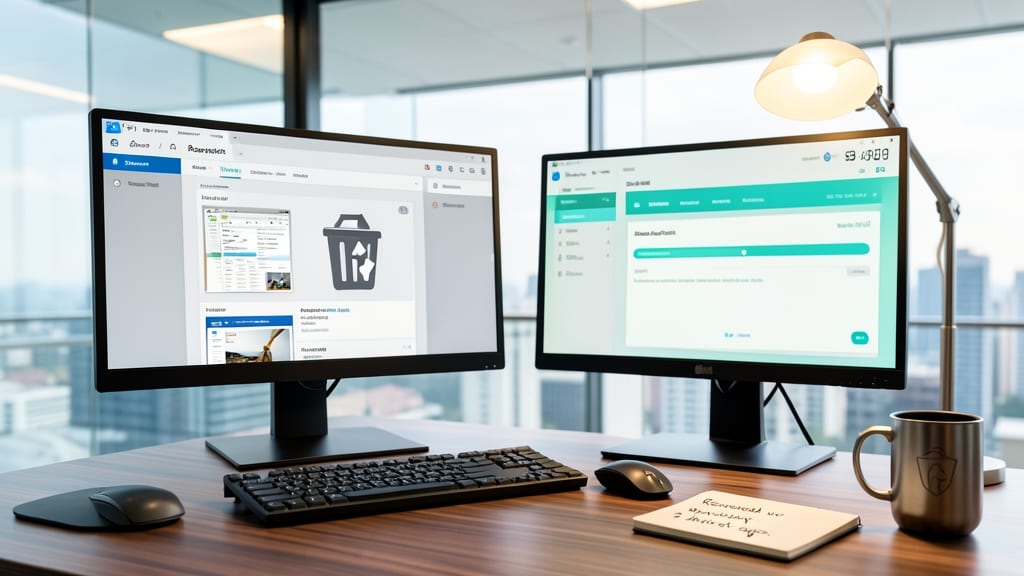
Accidentally deleted a critical file? SharePoint’s built-in Recycle Bin and Site Backup tools let you recover lost work in just a few clicks—no IT help required. Most users don’t realize they can restore deleted items for up to 93 days (or longer with admin settings), giving you a safety net for mistakes.
Start by checking the Recycle Bin in your document library (it’s hidden by default—click the gear icon > Site Contents > Recycle Bin). For deeper backups, use Microsoft 365 Backup (if available in your plan) to schedule automated exports of entire sites. Even without admin access, you can restore files from the Second Stage Recycle Bin if deleted from there within 30 days.
This trick is a lifesaver for freelancers, small teams, or anyone who’s ever panicked after hitting Delete. Just remember: prevention is key—regularly review your Recycle Bin to clear unnecessary clutter. ✨