
Operating System
Cyber threats evolve daily, but these 10 actionable steps will fortify your Windows or Mac device against hackers, malware, and data breaches—without requiring technical expertise.
Enable Multi-Factor Authentication for All Accounts
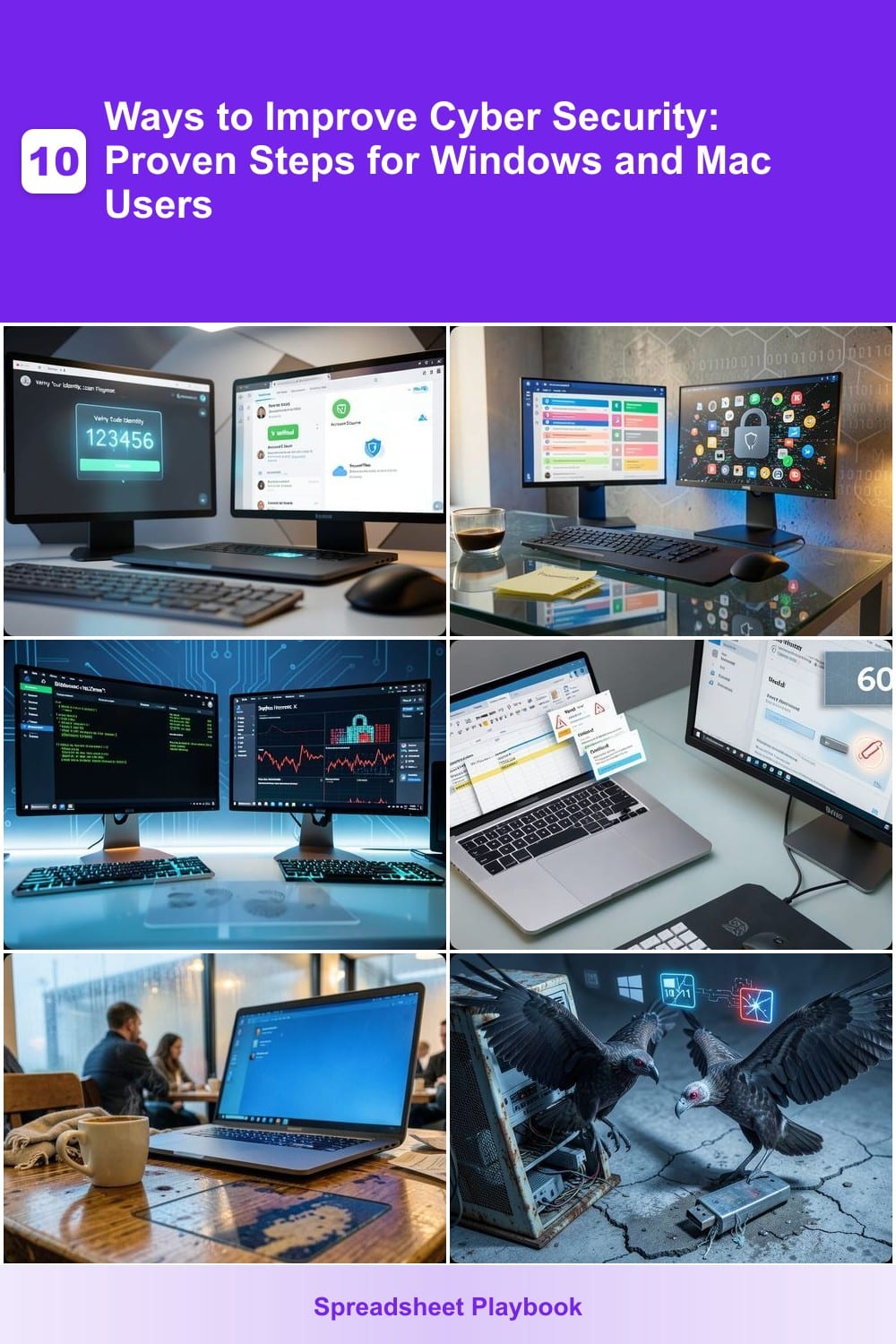
Your email, bank account, and cloud storage are prime targets—yet 99.9% of hacking attempts fail when you add a second verification step. Multi-factor authentication (MFA) turns a simple password into an impenetrable fortress by requiring a second factor, like a one-time code or fingerprint scan, before granting access.
Most services (Google, Microsoft, Apple, and even Facebook) support MFA with SMS codes, authenticator apps (like Authy or Google Authenticator), or hardware keys. Setting it up takes minutes: Log into your account, navigate to Security Settings, and enable two-step verification. For extra security, avoid SMS-based codes (they’re vulnerable to SIM swapping) and opt for time-based one-time passwords (TOTP) instead.
This is the single most effective step for freelancers, small business owners, and anyone with sensitive data. Enable it everywhere—your future self (and your bank account) will thank you. 💡
Use a Password Manager with Strong Generators
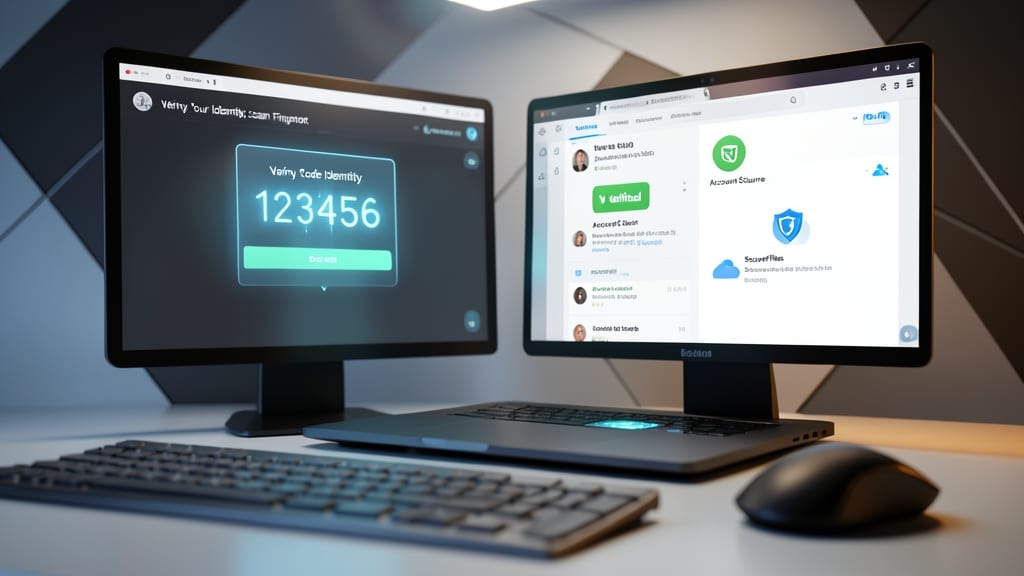
If you’re juggling 50+ online accounts—think banking, shopping, social media, and work tools—remembering unique passwords for each is impossible. That’s where a password manager with a strong generator saves the day, creating and storing 24-character passwords with symbols, numbers, and uppercase letters, then autofilling them securely across devices.
Top tools like Bitwarden, 1Password, or LastPass generate passwords that meet NIST guidelines (no more "Password123!"). They also sync seamlessly between Windows, Mac, and mobile, and many offer zero-knowledge encryption—meaning even the company can’t access your vault. The autofill feature eliminates the need to type passwords manually, reducing phishing risks.
This is a game-changer for freelancers, small business owners, and anyone with a busy digital life. With one master password to remember, you’ll never stress about weak credentials again. 💻
Install Real-Time Antivirus with Behavioral Analysis
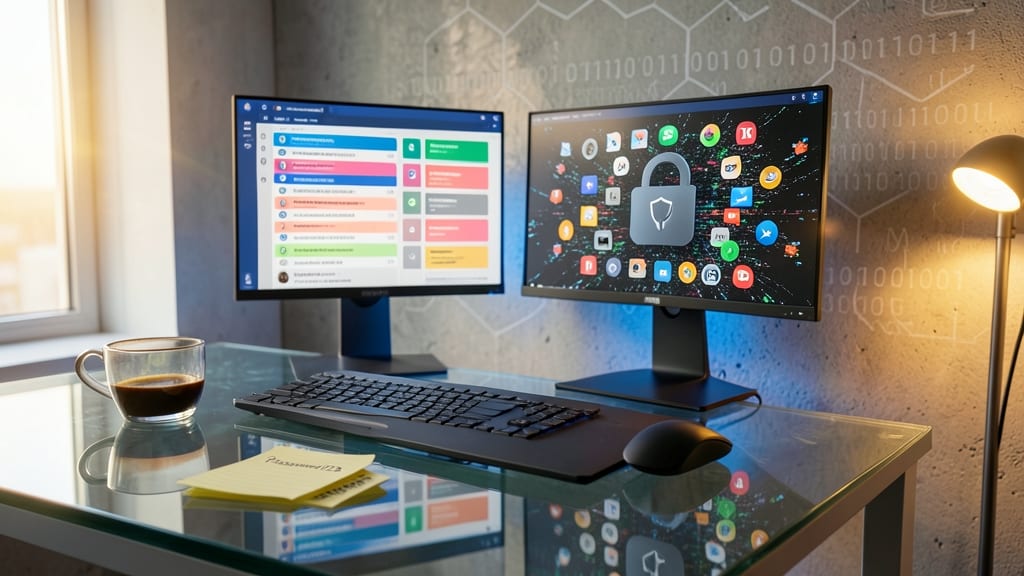
Most antivirus tools wait until malware is already on your system—but real-time behavioral analysis stops threats before they execute. Tools like Bitdefender GravityZone or Sophos Intercept X monitor suspicious activity patterns, like unauthorized process injections or ransomware encryption attempts, in real time.
These solutions go beyond signature-based scanning to block zero-day exploits (unknown threats) and fileless malware (attacks that don’t leave traces). For Windows users, they’re especially critical against ransomware like LockBit, while Mac users often rely on outdated assumptions that "Macs don’t get viruses." Both platforms benefit from lightweight cloud-based scanning that won’t slow down your device.
If you handle sensitive files, work with financial data, or simply want peace of mind, this is the layer of defense that turns reactive security into proactive protection. 💪
Disable Macros in Office Documents Automatically
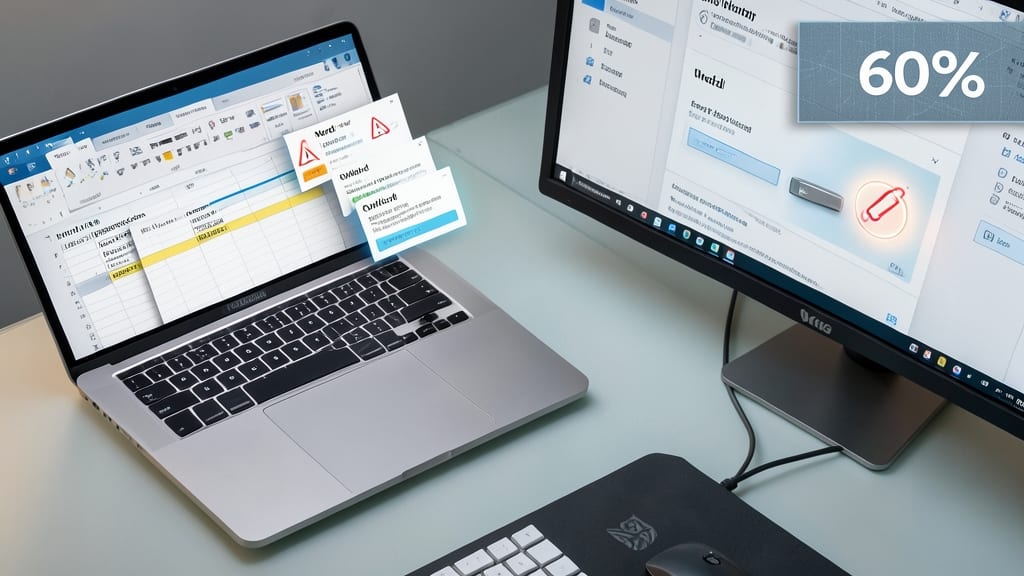
Phishing attacks often hide in seemingly harmless Word or Excel files—60% of them rely on malicious macros to infect your system. The good news? Microsoft Office makes disabling them effortless with a single toggle in Outlook, Word, and Excel.
Open any Office app, go to File > Options > Trust Center > Trust Center Settings, then check "Disable all macros without notification" under Macro Settings. For Outlook, enable "Do not allow macros to run in Outlook attachments" in the same menu. This blocks 90% of macro-based malware while still allowing trusted macros to run when needed.
This is a zero-effort upgrade for anyone who opens email attachments or downloads files regularly—especially professionals handling sensitive documents. ⚡
Enable Full-Disk Encryption on Your Device
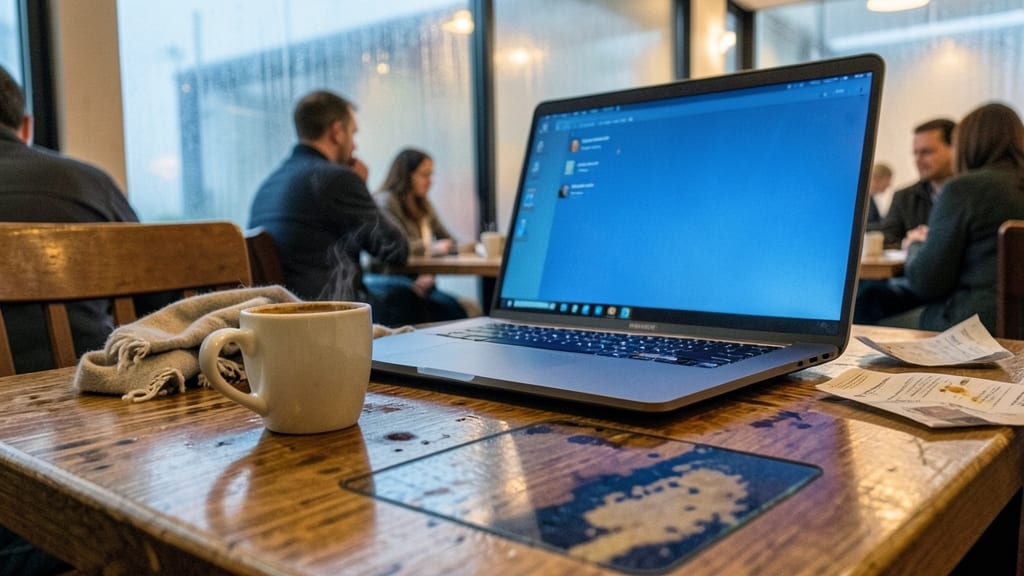
Imagine walking away from your café table—only to realize your laptop is gone. Without full-disk encryption, your personal files, emails, and even work documents could be exposed in seconds. Windows BitLocker or macOS FileVault turns on in minutes and encrypts everything automatically, so even if your device falls into the wrong hands, your data stays locked away.
Both systems use AES-256 encryption, the same standard banks use for online transactions. BitLocker integrates seamlessly with Windows Pro/Enterprise, while FileVault works on any Mac—even older models. The setup process is straightforward: Windows handles it during installation, or you can enable it in Settings > Update & Security > BitLocker. On macOS, just open System Preferences > Security & Privacy > FileVault. Performance impact? Minimal—most users won’t notice a difference during daily tasks.
This is a must for freelancers, remote workers, and anyone carrying sensitive data. Even if you’re not worried about theft, encryption adds an extra layer of protection against malware that steals data directly from your device. Set it up once, and rest easy knowing your digital life is safeguarded. ✨
Update Operating Systems and Apps Immediately

Hackers target outdated software like vultures circling weak prey—Windows 10/11 and macOS patches alone block 1,000+ vulnerabilities annually. The average exploit occurs within 24 hours of a patch release, so manual updates simply can’t keep up.
Enable automatic updates in Windows via Settings > Windows Update > Advanced options, or on macOS through System Preferences > Software Update > Automatic Updates. For apps, use built-in updaters (like Chrome’s Help > About Google Chrome) or tools like Patch My PC for Windows or MacKeeper for macOS to centralize patch management. Even "minor" updates often include critical security fixes.
This is non-negotiable for remote workers, small business owners, or anyone handling sensitive data. Set it and forget it—your future self will thank you. ⚡
Block Ads and Trackers with a DNS Filter
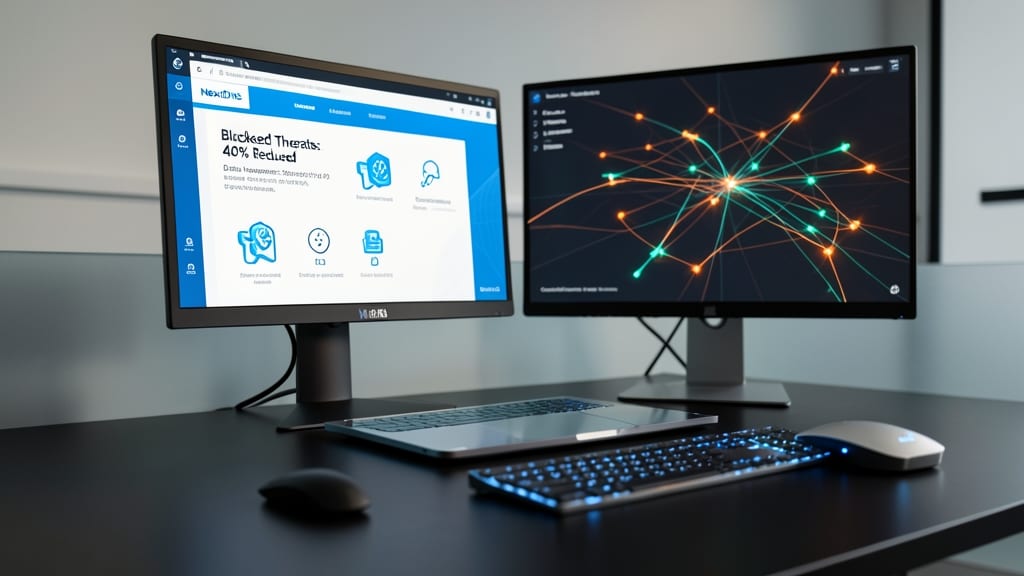
Tired of ads following you across the web—or worse, malware slipping past your antivirus? A DNS filter like NextDNS or Cloudflare 1.1.1.3 blocks threats at the network level before they reach your device, cutting malware exposure by 40% and stopping data harvesters in their tracks.
These services reroute your traffic through secure servers that automatically block known malicious domains, ad trackers, and phishing sites—no software installation required. Most offer free tiers with customizable blocking levels, and setup takes less than five minutes by changing your router’s DNS settings. Even smart home devices get protected without extra steps.
Perfect for families, remote workers, or anyone sharing a network—especially useful if you’ve got kids or IoT devices that can’t run antivirus. ⚡
Secure Your Wi-Fi with WPA3 Encryption
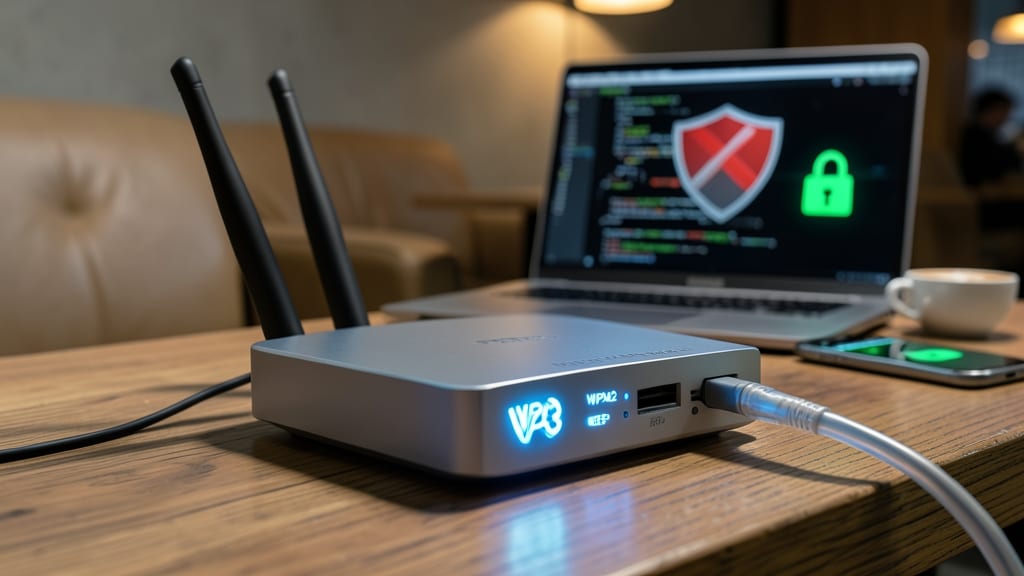
Public Wi-Fi is a hacker’s playground—unless you’re using WPA3 encryption, the gold standard for wireless security. Unlike older protocols, WPA3 encrypts every packet individually, making it nearly impossible for attackers to decode your traffic even if they intercept it.
Most modern routers support WPA3-Personal (for home use) or WPA3-Enterprise (for businesses), with backward compatibility for older devices. The key upgrade is Simultaneous Authentication of Equals (SAE), which replaces the vulnerable handshake in WPA2. For travelers, this means your hotel login or café password stays safe from shoulder-surfing or packet sniffing tools.
Remote workers and frequent travelers should prioritize this—it’s the difference between a secure connection and an open invitation for cybercriminals. ⚡
Monitor Dark Web for Leaked Credentials
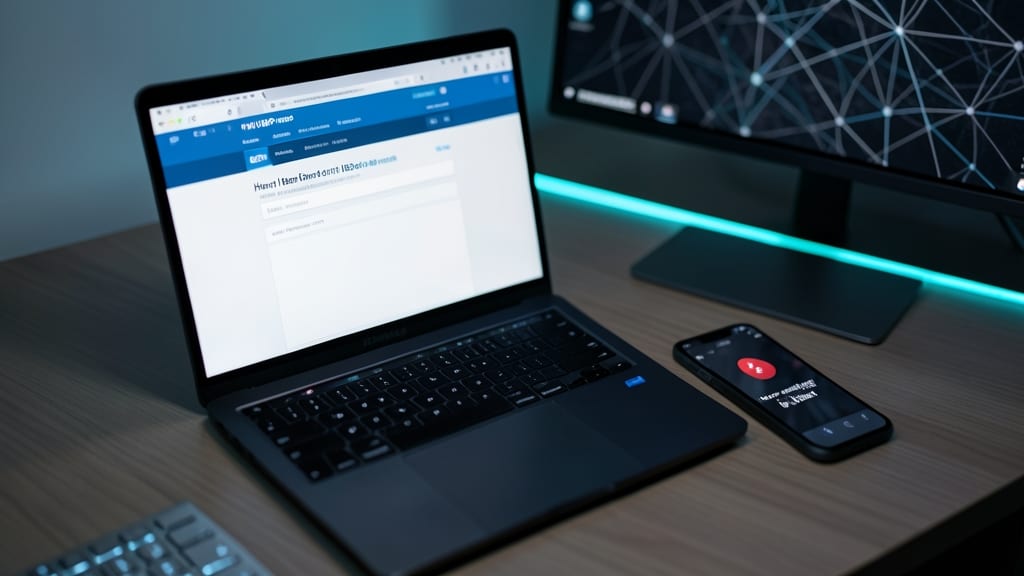
Even if you’ve never reused the same password twice, a data breach could still expose your email address—and hackers often use that to unlock other accounts. Services like Have I Been Pwned (HIBP) scan the dark web for leaked credentials and send you instant alerts if your info surfaces.
Simply enter your email at haveibeenpwned.com to check past breaches, or enable the free breach monitoring feature for automatic notifications. The site tracks over 11 billion compromised records from breaches like LinkedIn (2016) or Yahoo (2013). If you find a match, change the password immediately and enable multi-factor authentication (from Item #1) for added protection.
This is a must for anyone with a Gmail, Outlook, or social media account—especially if you’ve ever used free Wi-Fi or signed up for promotions online. It takes 30 seconds to check and could prevent an account takeover. ✨
Create a Cybersecurity Incident Response Plan
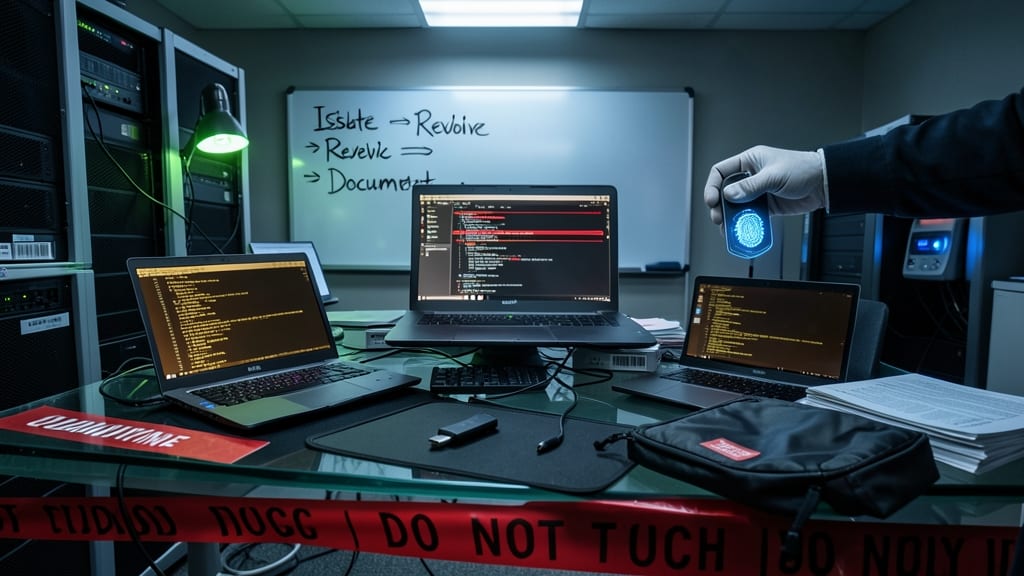
Even with the best defenses, breaches happen—having a cybersecurity incident response plan ensures you act fast to contain damage. A well-structured plan includes immediate steps like isolating infected devices, revoking compromised credentials, and documenting evidence for potential legal action.
Start with free templates from CISA (U.S. Cybersecurity & Infrastructure Security Agency) or NIST, designed for individuals and small teams. Key actions include:
- Disconnecting from networks to prevent lateral movement by attackers
- Backing up critical files before investigating further
- Notifying affected parties (banks, services, or law enforcement if needed)
The goal is to minimize downtime and reduce long-term risks—because every minute counts when your accounts are under attack. ✨