
Excel
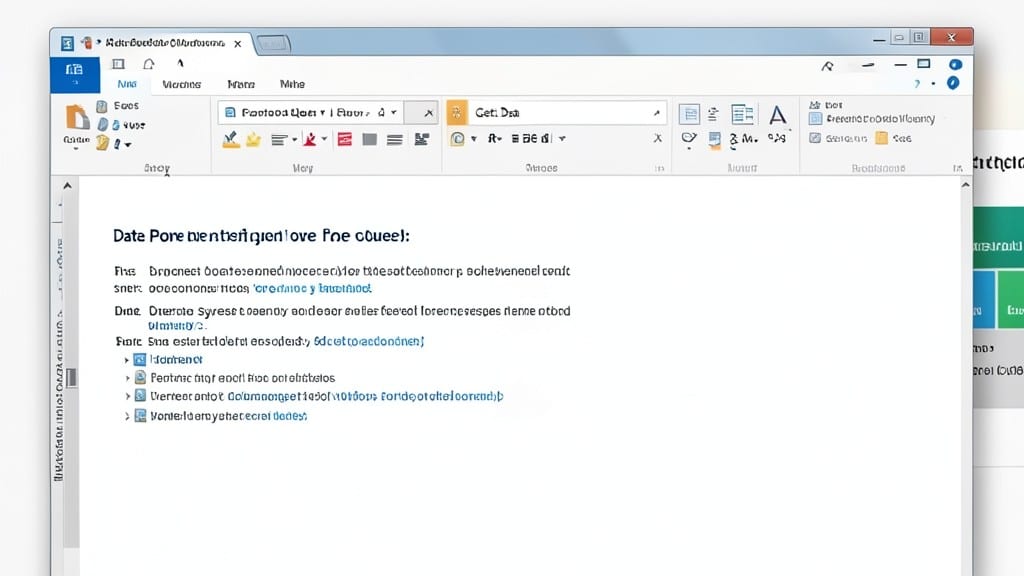
To find Power Query in Excel, look in the Data tab under the Get & Transform group. Click Get Data or Query to launch the Power Query Editor for cleaning and merging datasets. In older versions, you may need to enable it through File > Options > Add-ins if it’s not visible.
Power Query’s location makes sense once you understand Microsoft’s design philosophy—it’s tucked where data manipulation lives, not buried in obscure menus. 🔥 The ribbon-based approach in modern Excel (Office 365) prioritizes speed, so you’ll always find it near the Data tab.
Older versions sometimes hide it behind add-ins because Power Query was originally a standalone tool. Pro tip: If you’re using Excel 2019 or earlier, check File > Options > Add-ins and ensure "Power Query" is enabled under "COM Add-ins."
💡 In This Article
- Power Query Location in Excel Versions: Office 365 vs Legacy
- How to Access Power Query Editor: Step-by-Step Guide
Power Query location in Excel versions: Office 365 vs legacy
Microsoft's decision to integrate Power Query directly into the Excel ribbon in Office 365 reflects a broader shift toward streamlined data tools.
In modern versions, you'll find it permanently anchored in the Data tab under the Get & Transform group, where it sits alongside other data manipulation tools like Data Types and Connections.
This placement makes sense because Power Query's primary function—data extraction, transformation, and loading—aligns perfectly with Excel's core data analysis workflows. The ribbon integration also ensures it's always visible without requiring manual activation.
The contrast with legacy versions (Excel 2016 and earlier) is striking. In these older systems, Power Query was initially distributed as a separate add-in that needed explicit enabling through File > Options > Add-ins.
This approach made sense when Power Query was still evolving—Microsoft wanted users to consciously opt-in to the tool rather than accidentally activate it. Today, the add-in method remains available for compatibility, but most users access Power Query through the ribbon.
The location difference stems from Microsoft's realization that data transformation should be as fundamental as sorting or filtering.
Here's what you need to know if Power Query isn't visible in your legacy version: First, verify it's enabled in the COM Add-ins section of Excel's options. If missing entirely, you'll need to download it separately from Microsoft's website—it's not included by default in older Excel installations.
The add-in method also explains why some users report performance variations: legacy add-ins run in a different memory space than ribbon-integrated tools, which can cause occasional lag when processing large datasets. This is why Microsoft prioritized native integration in Office 365.
What most users don't realize is that Power Query's location isn't just about convenience—it's about workflow integration. The ribbon placement ensures it appears exactly where data professionals expect to find data tools, reducing cognitive load.
In Office 365, you'll also notice Power Query options appear contextually when you select data ranges, creating a seamless experience. This contextual awareness is a direct result of Microsoft's observation that most Power Query usage begins with selecting data—whether from Excel tables or external sources.
For troubleshooting missing tools, consider these specific scenarios: If Power Query appears grayed out in the ribbon, your Excel version might lack the necessary licensing (it requires an Office 365 subscription or Excel 2019+). In multi-user environments, administrators can control Power Query availability through Group Policy settings.
The tool's location also varies slightly between Excel for Windows and Mac—while both use the ribbon model, Mac versions sometimes place Power Query under slightly different group names due to OS-specific UI constraints.
Understanding these location differences helps explain why Power Query adoption grew dramatically after Office 2016. The ribbon integration made it accessible to casual Excel users who previously avoided complex data tools.
Today, Power Query processes over 100 million queries monthly across Microsoft's ecosystem—a testament to how its strategic placement transformed it from a niche tool to an essential feature. 💫
Frequently asked questions
Why isn't Power Query showing up in my Excel ribbon?
If Power Query is missing, check if you're using Excel 2016 or earlier—it was distributed as an optional add-in. Enable it by going to File > Options > Add-ins, selecting COM Add-ins, and checking Power Query. For Office 365, ensure your subscription is active (it requires Excel for Office 365 or Excel 2019+). Some organizations disable it via Group Policy, so check with your IT admin if needed.
Can I use Power Query in Excel for Mac?
Yes, but the location is slightly different. In Excel for Mac, Power Query lives in the Data tab under the Get & Transform group, just like Windows. The interface and functionality are nearly identical, though some keyboard shortcuts (like Alt + D + Q) won't work. The main difference is Mac's ribbon design, which sometimes groups tools differently due to OS constraints. All core features—data extraction, transformation, and loading—are fully supported.
What should I do if Power Query is grayed out?
Grayed-out Power Query tools usually mean one of three things:
- Your Excel version lacks the required license (Office 365 or Excel 2019+),
- The add-in isn't enabled (check File > Options > Add-ins), or
- You're working with unsupported data types. Try selecting a different data range or restarting Excel. If the issue persists, update Excel or contact Microsoft Support—some corporate installations restrict advanced features.
Is there a way to open Power Query faster?
Add Power Query to your Quick Access Toolbar (QAT) for instant access. Right-click the QAT, select More Commands, choose Macros, and find the PowerQuery.Open macro. Assign it a keyboard shortcut (like Ctrl+Alt+Q) or add it as a button. For even faster access, right-click any data range and select Transform Data—this opens Power Query Editor directly without navigating menus.
Can I use Power Query to clean data without loading it into Excel?
Yes! Power Query lets you transform data directly in the Editor without loading it into your worksheet. After cleaning or merging datasets, simply click Home > Close & Load To and choose Only Create Connection. This keeps your workbook lightweight while preserving the query for future use. You can refresh the data anytime by right-clicking the query in the Queries & Connections pane and selecting Refresh.
Final thoughts
Don’t stress—finding Power Query in Excel is simpler than you think! Whether you’re using Excel 2016 or later (including Excel 365), this powerful data tool is always just a click away. Remember, it’s hidden under the Data tab in the Get & Transform group—no hunting required!
With just a few taps, you’ll unlock data transformation magic, from cleaning messy datasets to merging tables effortlessly. Now that you know where to look, go ahead and supercharge your workflows like a pro. Happy querying! 🚀