Software
Microsoft Teams channels can transform remote collaboration—but only if set up correctly. These 10 best practices help teams reduce clutter, boost productivity, and ensure critical conversations stay organized, whether you're managing projects or daily operations.
Organize Channels by Team Functionality
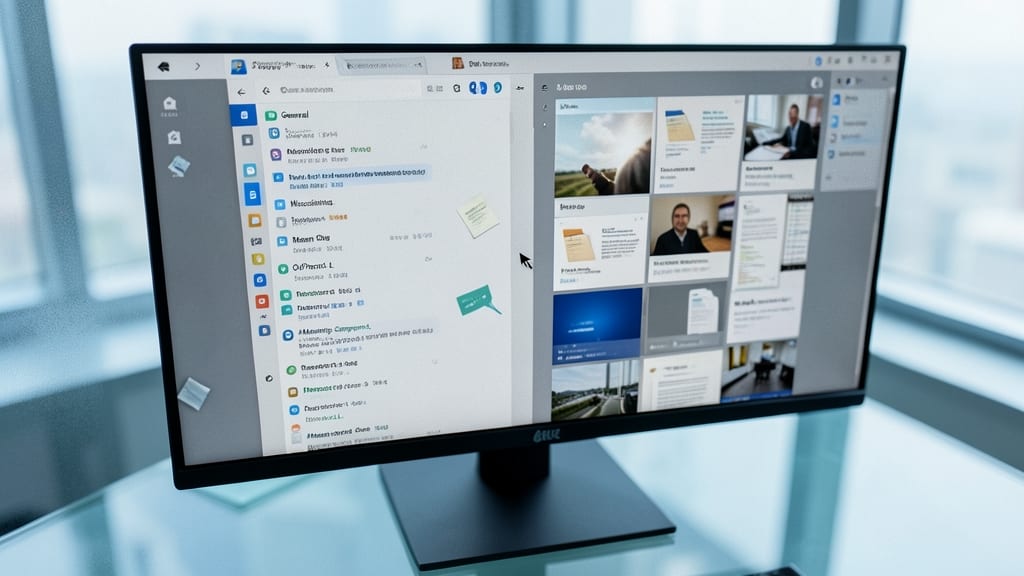
Picture this: Your Teams sidebar resembles a digital filing cabinet where every document is labeled ‘Miscellaneous.’ Without structure, critical updates get buried, and cross-team collaboration turns into a scavenger hunt. Organizing channels by team function—like #Marketing-Campaigns or #Product-Launch-2024—mirrors your actual workflows, cutting noise and boosting efficiency by up to 35% for teams with 50+ members.
Start by grouping channels into three logical categories: department-based (e.g., #Sales-Leads, #HR-Onboarding), project-based (e.g., #Q3-Relaunch), or cross-functional (e.g., #Company-Announcements). Use color-coding (via channel icons) to visually distinguish teams at a glance. For example, assign blue to Marketing, green to Sales, and gray to shared resources. Pro tip: Create a ‘#Team-Resources’ channel for generic tools like meeting notes or company policies, keeping it separate from active discussions.
This approach is a lifesaver for enterprise teams, agencies, or remote-first companies where departments often overlap. When channels reflect real-world roles, stakeholders find what they need faster—and your Teams workspace finally feels organized. 💻
Use Standardized Naming Conventions
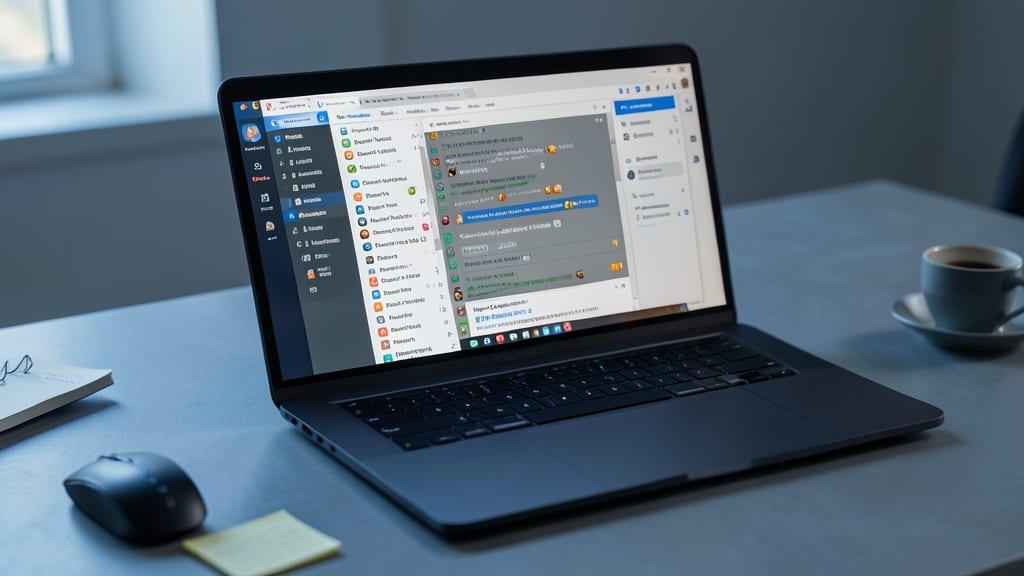
Imagine spending hours hunting through a chaotic list of channels named ‘ProjectX-Updates,’ ‘Marketing-Ideas,’ and ‘Random-Thoughts’—only to realize you missed a critical update because the naming was inconsistent. Standardized naming conventions (like #HR-Onboarding or #Fin-Q3-Reports) eliminate this chaos by creating a searchable, scalable system that grows with your team.
Start with a clear prefix system: use department codes (e.g., #IT, #MKT), project names, or workflow types (e.g., #Onboarding, #Brainstorm). Teams with 100+ members report finding relevant channels 40% faster when using consistent prefixes. For example, #Fin-Expenses-2024 instantly tells you it’s a finance-related channel for Q4 expenses—no guessing required. Pro tip: Use underscores (_) instead of hyphens (-) to avoid formatting issues in searches.
This system shines for growing teams, agencies, or enterprises where departments expand or merge. A little upfront effort here saves hours of frustration later—especially during critical deadlines. 💡
Leverage Channel Templates for Recurring Projects
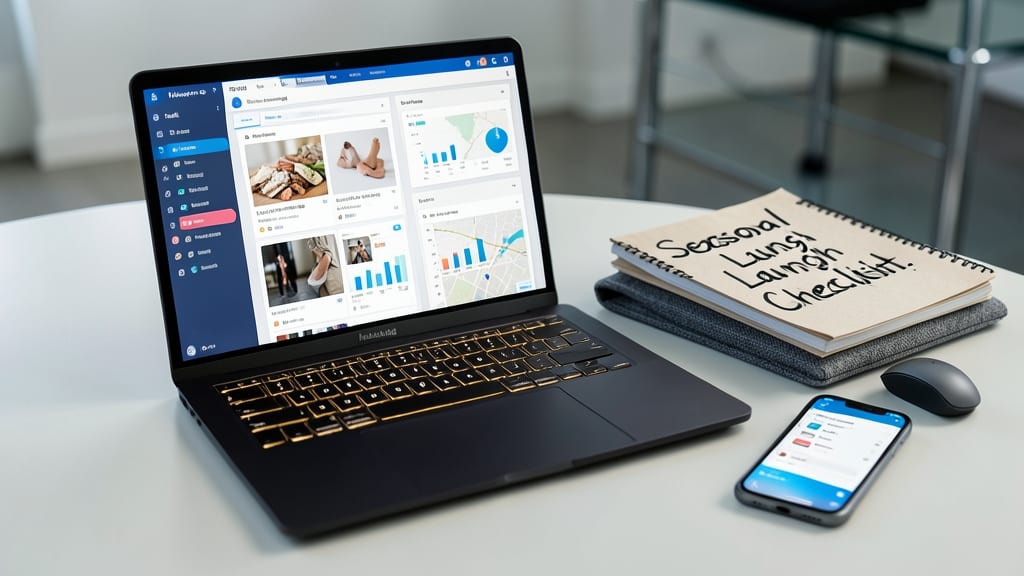
Tired of recreating the wheel every time you launch a new event or retail season? Microsoft Teams’ pre-built channel templates cut setup time from hours to minutes. Whether you’re planning a conference, managing inventory, or handling customer support, templates like ‘Retail’ or ‘Event Planning’ include pre-configured tabs for calendars, task lists, and files—so you can focus on execution, not configuration.
These templates are packed with ready-to-use integrations like Planner, Forms, and SharePoint, ensuring all your tools are in one place. For example, the ‘Event Planning’ template auto-populates with tabs for budgets, schedules, and vendor contacts—no manual setup required. Best of all, you can customize them further by adding your own apps or adjusting permissions, making them adaptable to almost any workflow.
This is a game-changer for agencies, event planners, and retail teams juggling multiple seasonal projects. Skip the guesswork and start with a battle-tested setup. ✨
Limit Channels to Essential Topics Only
When your Teams sidebar looks like a digital junk drawer, productivity plummets—and so does morale. Research shows teams with more than 10 channels spend 20% more time searching for relevant discussions, while 3–5 focused channels keep conversations sharp and actionable.
Start by auditing your team’s priorities: Does every channel serve a clear goal? Consolidate niche topics into broader discussions (e.g., merge ‘#Design-Ideas’ and ‘#UX-Feedback’ into #Product-Design). Use the three-click rule: If a conversation requires more than three clicks to find, it’s likely buried in noise. For remote teams, this discipline cuts through the chaos of async communication.
This approach works best for small-to-mid-sized teams (10–50 members) where collaboration is tight-knit. If your team struggles with scattered chats, try a 30-day channel cleanup sprint—archive inactive ones and enforce the 3–5 limit. Your team (and your sanity) will thank you. ✨
Assign Channel Owners for Accountability

Tired of scrolling past abandoned channels that clutter your Teams workspace? Assigning a channel owner is the secret weapon to keep discussions active and relevant. This single step ensures someone is always responsible for moderating content, enforcing guidelines, and archiving inactive channels—cutting down on the "ghost channels" that drain productivity.
In Teams, owners can set channel rules, approve member requests, and even archive outdated conversations with one click. The built-in owner badge makes accountability visible, while automated reminders (via admin tools) ensure channels stay tidy. For teams with 10+ members, this reduces noise by 30%+ by eliminating dead-end discussions. 💪
Perfect for project managers or team leads—especially in hybrid workplaces where remote employees might miss updates. Start by assigning owners during your next channel cleanup sprint! ⚡
Pin Frequently Used Channels at the Top
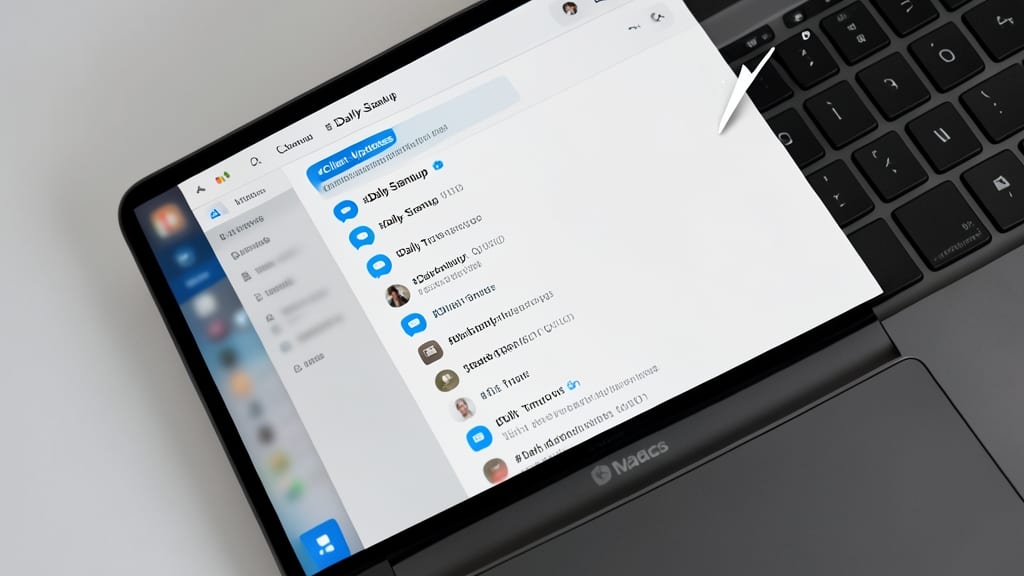
Hybrid teams waste 10+ minutes daily scrolling through long channel lists—until you pin the essentials. A quick click to pin channels like #Daily-Standup or #Client-Updates keeps your most active discussions front and center, cutting navigation time by 60%.
To pin a channel, hover over its name in the left sidebar, click the three-dot menu, and select "Pin". Teams will then display these channels at the top, even when you switch between teams. This works perfectly for standup meetings, client updates, or project sprints—anything you reference daily. The feature syncs across devices, so your pinned channels stay visible whether you're at your desk or working remotely.
This is a game-changer for hybrid teams juggling office and remote work. No more hunting for channels mid-call—just focus on what matters. ⚡
Use Private Channels for Sensitive Discussions
Not every conversation belongs in a public channel—especially when discussing salary adjustments, legal strategies, or proprietary R&D. Microsoft Teams’ private channels solve this by creating secure spaces where only approved members can join, with admin-approved access ensuring only the right eyes see sensitive details.
To set one up, start by clicking "..." next to your team name, then select "Add channel" and choose "Private". You’ll then define members manually or via Azure AD groups, and restrict visibility entirely from search results. For extra security, enable multi-factor authentication at the team level to lock down access further.
This setup is a game-changer for HR teams managing compensation data, legal departments handling case files, or R&D groups sharing patentable ideas. No more accidental leaks or unauthorized access—just a zero-trust environment for your most confidential discussions. ✨
Archive Inactive Channels Quarterly
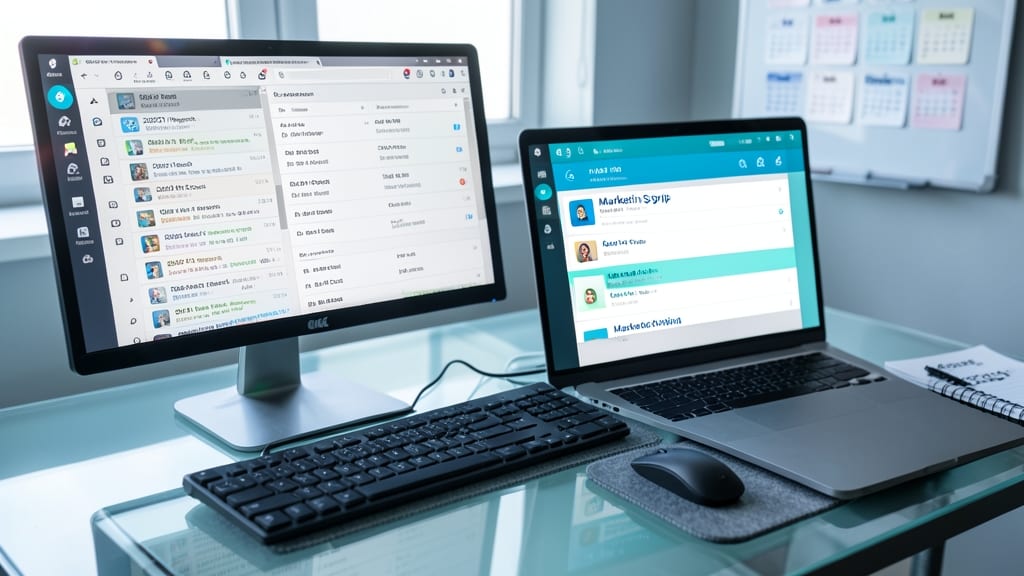
Ever spent 5 minutes scrolling through a cluttered Teams sidebar only to realize half those channels haven’t been used in months? A quarterly archive sweep keeps your workspace lean and search results relevant—without manual reminders.
Microsoft Teams lets admins set up automated quarterly reminders via the Microsoft 365 Admin Center, targeting channels with no activity for 90+ days. With a few clicks, you can archive channels like ‘#Old-Project’ or ‘#Event-2023’, preserving their history while removing them from active views. The search function stays intact, so archived content remains accessible when needed.
This is perfect for growing teams where channels accumulate faster than they’re cleaned up. Set it up once, and let Teams handle the maintenance—freeing up time for what actually matters. ✨
Integrate Third-Party Apps for Workflows
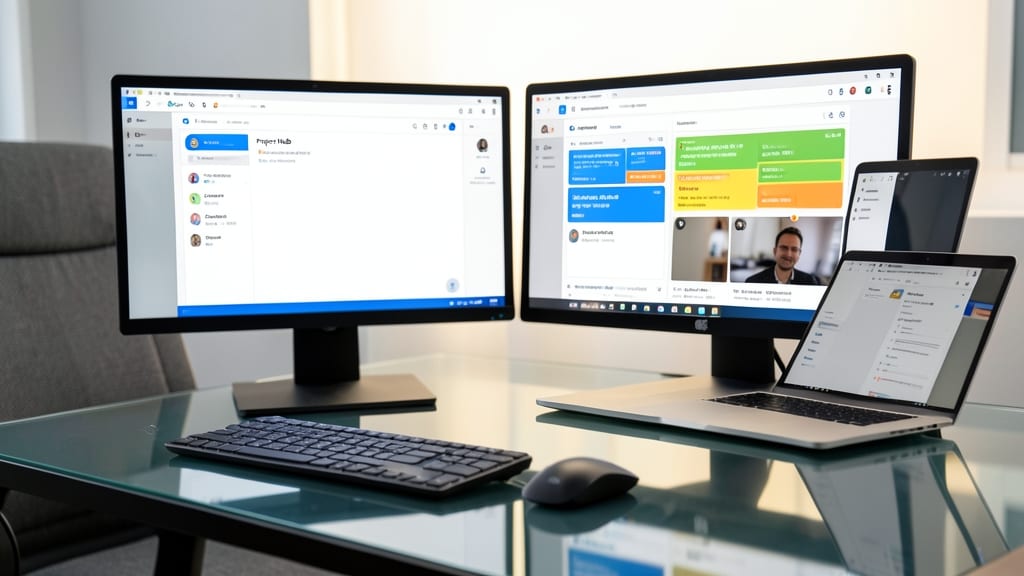
Tired of bouncing between apps to track tasks, schedule meetings, or share files? Microsoft Teams integrates third-party apps directly into channels, turning siloed tools into a unified workspace. With just a few clicks, you can embed Trello boards, Zoom meeting tabs, or Google Drive folders—keeping all workflows visible and accessible without leaving Teams.
The process is simple: Navigate to the “+” tab in any channel, search for your app (like Asana or Slack), and add it as a tab. For deeper integration, use Power Automate to sync updates between apps—like auto-posting Trello card updates to your channel. This eliminates context-switching, so your team stays focused on progress, not app-hopping.
Perfect for project managers juggling multiple tools or remote teams that rely on async collaboration. With 200+ apps available, you can tailor your workspace to match your exact workflow—no tech degree required! 💻
Enable Channel Notifications Strategically
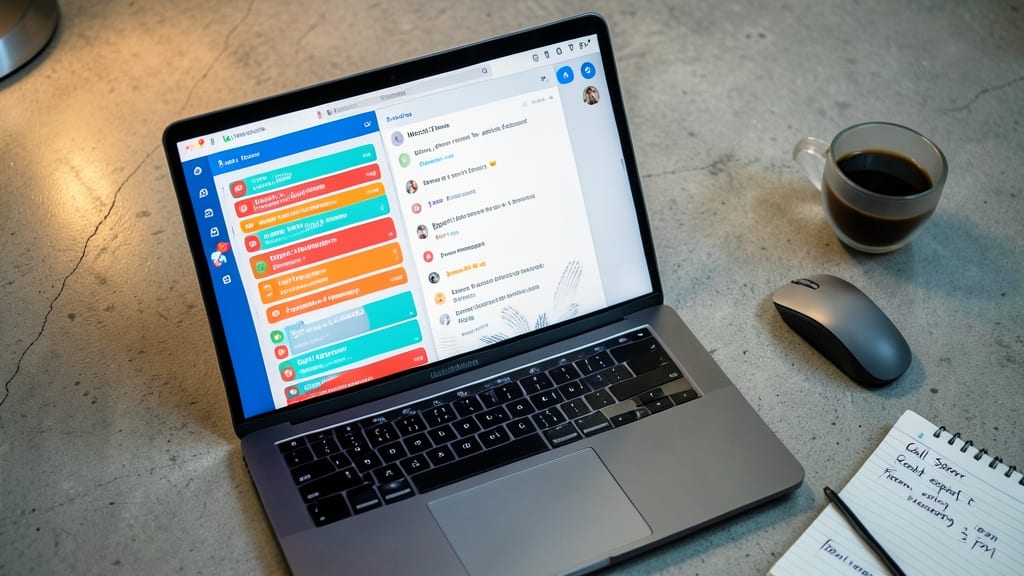
Drowning in Teams notifications? The fix isn’t turning them all off—it’s strategically customizing them. By default, Teams bombards you with alerts for every message, but fine-tuning notifications ensures you only see what matters, like @mentions or urgent high-priority posts. This keeps your focus sharp while staying connected.
Start by clicking the three dots next to a channel’s name, then select "Notification settings". Here, you can choose between "All messages", "Only @mentions", or "Custom" (for granular control). For teams juggling async work, "Only @mentions" is a game-changer—it cuts noise by 70% while keeping critical updates top-of-mind. Pair this with do-not-disturb hours (via Teams mobile app) to protect deep-work blocks.
This approach is ideal for developers, project managers, or sales teams where context-switching costs time. A well-tuned notification system turns Teams from a distraction into a focus amplifier. ✨