
Software
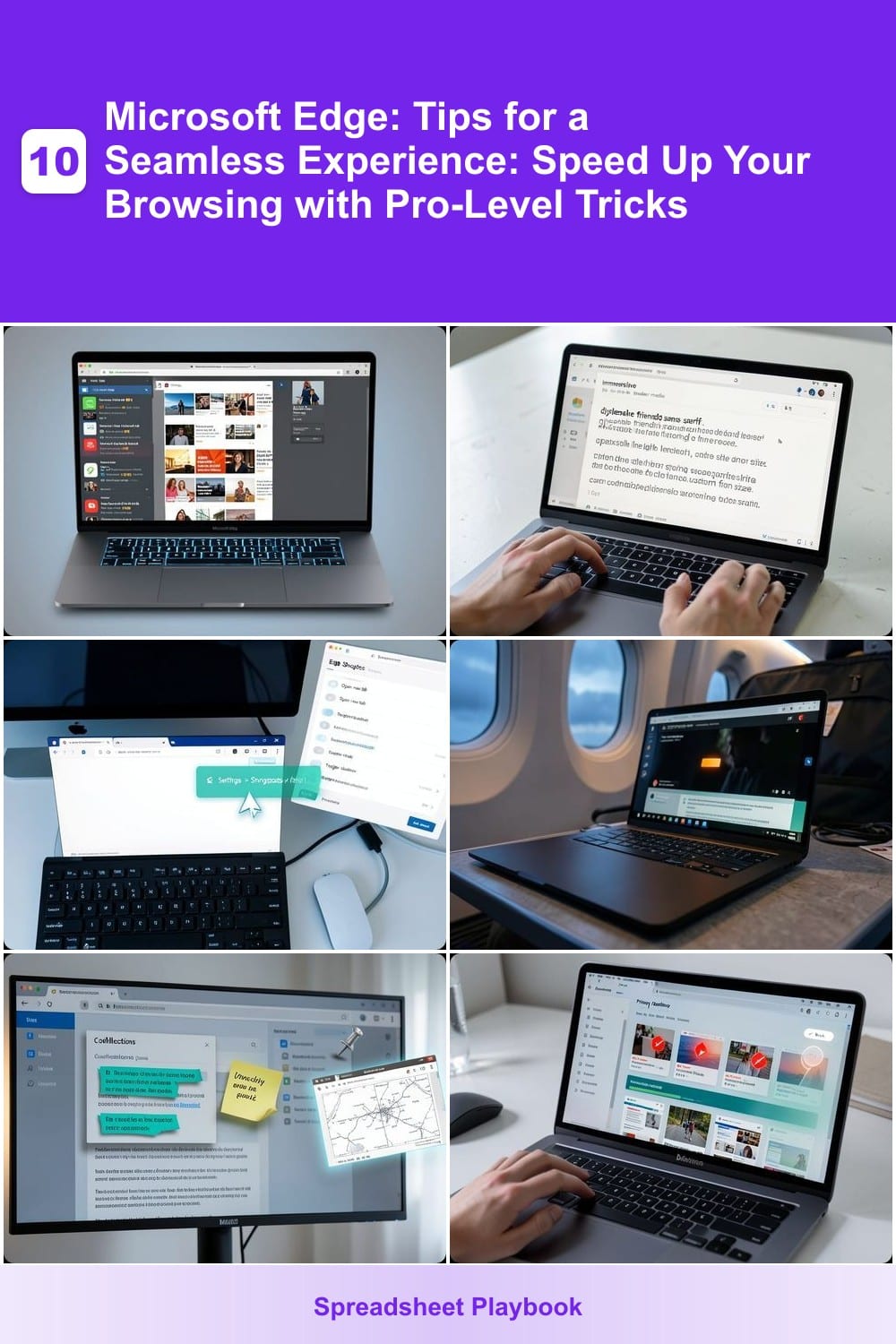
Want to unlock Microsoft Edge’s full potential? These pro-level tips will transform your browsing experience—boosting speed, security, and productivity without technical hassle. Perfect for power users and casual surfers alike.
Enable Edge’s Vertical Tabs for Faster Navigation
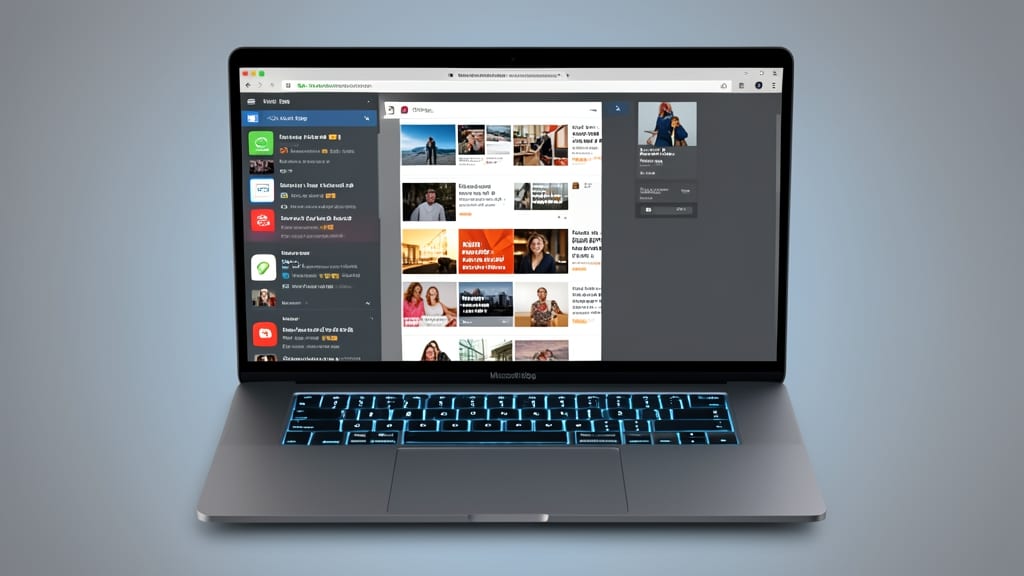
If you juggle multiple tabs daily but hate the cluttered top-of-screen chaos, Microsoft Edge’s vertical tabs are your new best friend. This hidden feature transforms your browsing into a sleek, space-saving experience by stacking tabs neatly in a sidebar—no more tab overload at the top!
To enable it, click the three-dot menu → Settings → Appearance → toggle “Show vertical tabs”. Once active, you’ll access all open sites with a single click, and the sidebar collapses when unused. The one-click switching and screen real estate savings make this perfect for developers, researchers, or anyone drowning in tabs. ⚡
Use Immersive Reader for Distraction-Free Reading

Struggling to focus while reading long articles or documents? Microsoft Edge’s Immersive Reader transforms your screen into a distraction-free zone with customizable text and layout options.
This built-in tool lets you adjust font size, spacing, and line length for comfort, while dyslexia-friendly modes (like OpenDyslexic font) reduce eye strain. It also highlights text by syllable or part of speech—perfect for language learners. Simply right-click any webpage and select "Immersive Reader" to dive into a clutter-free reading experience.
Ideal for students, researchers, or professionals who need to absorb dense content without losing focus, this feature works across devices and integrates seamlessly with Microsoft 365 apps. ⚡
Customize Keyboard Shortcuts for Power Users
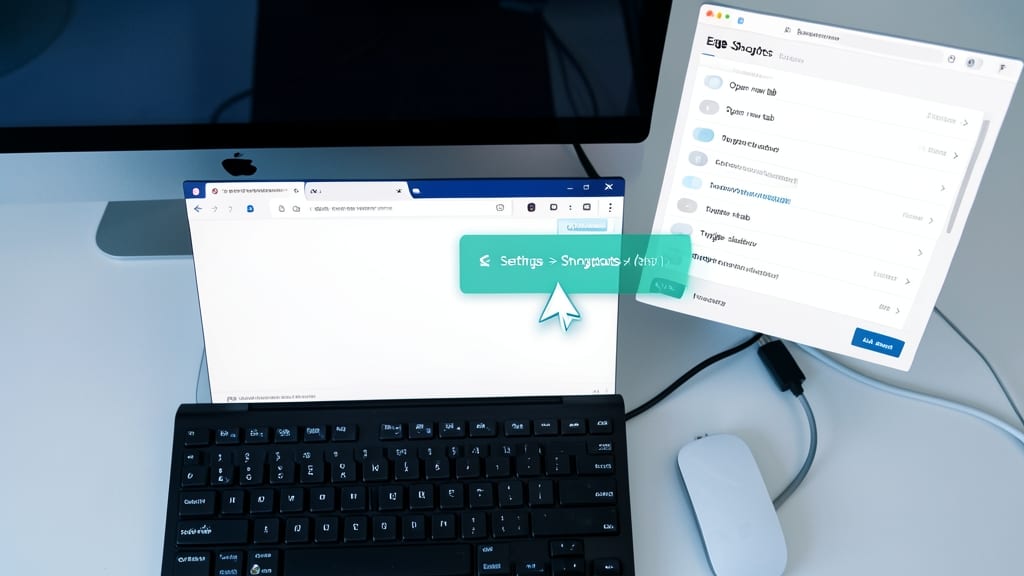
Tired of fumbling through menus to access your most-used tools? Microsoft Edge’s built-in keyboard shortcut customization lets you assign commands to bookmarks, extensions, or even Edge’s built-in features—no extensions required.
Open Settings > Shortcuts to start. You can map actions like opening specific bookmarks (e.g., Ctrl+Alt+1) or triggering extensions (e.g., a one-click screenshot tool). The system even lets you override default shortcuts for tasks like reopening closed tabs (Ctrl+Shift+T). Save your customizations to a JSON file for easy sharing across devices.
This is a game-changer for developers, writers, or anyone who relies on repetitive tasks—eliminate mouse fatigue and speed up workflows in seconds. ⚡
Enable Battery Saver Mode for Laptops
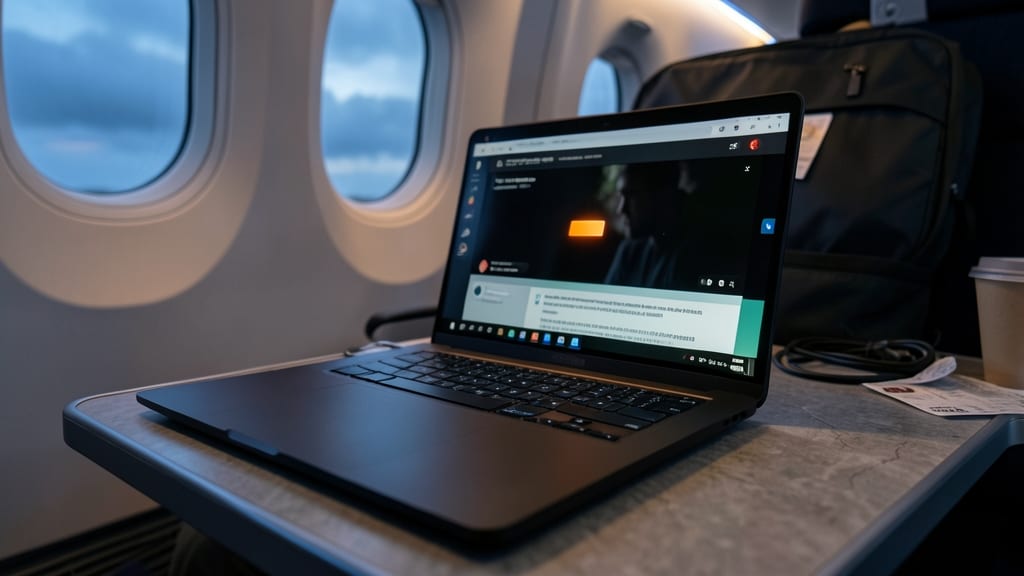
Struggling to make it through a long flight or remote workday without hunting for a charger? Microsoft Edge’s Battery Saver Mode is your secret weapon—it intelligently throttles CPU usage and limits background processes (like auto-play videos and ads) while keeping essential functions like browsing and typing fully functional.
To enable it, head to Settings > System > Battery Saver and toggle it on. You’ll see a 15% battery threshold by default, but you can adjust it to 10% or 5% for aggressive power savings. The mode also reduces screen brightness and pauses non-critical updates, extending your laptop’s life by up to 2 hours on a single charge in tests with mixed workloads.
This trick is perfect for travelers, remote workers, or anyone with limited access to power outlets. Just remember to disable it once you’re plugged in to restore full performance. ✨
Use Collections to Organize Research Instantly
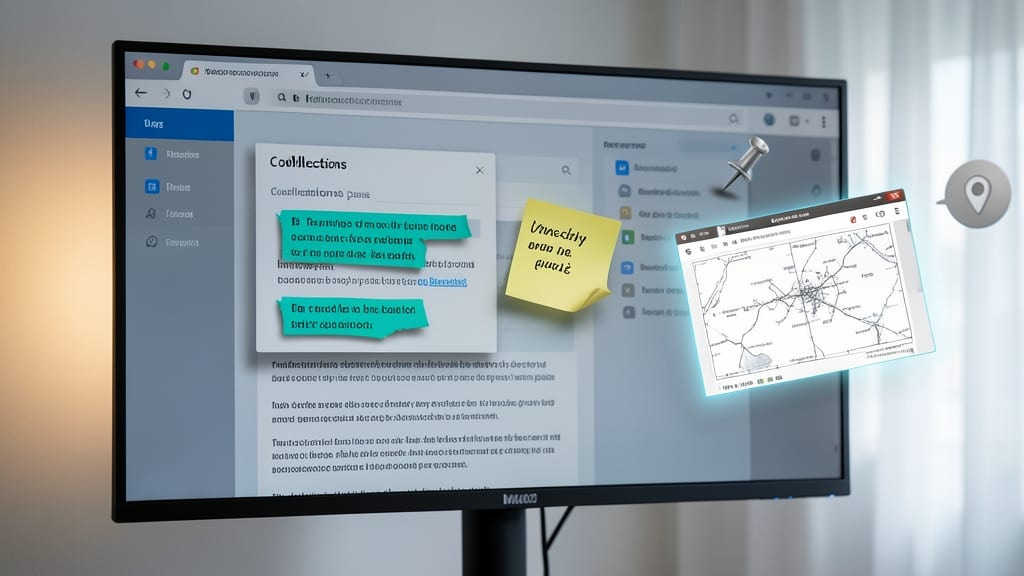
Tired of losing research notes or bookmarks in a sea of browser tabs? Microsoft Edge’s Collections lets you clip articles, save images, and jot down notes—all in one place—without ever leaving the page.
With a single click, you can pin web content, add sticky notes, and even drag-and-drop images into a customizable dashboard. The feature syncs across devices, so your research stays accessible whether you’re at your desk or on the go. Best of all, it’s zero-config setup—just enable it in Edge’s settings.
This is a lifesaver for journalists, students, or anyone drowning in digital clutter. Organize your thoughts faster than ever with a tool built right into your browser. ✨
Block Trackers with Privacy Dashboard
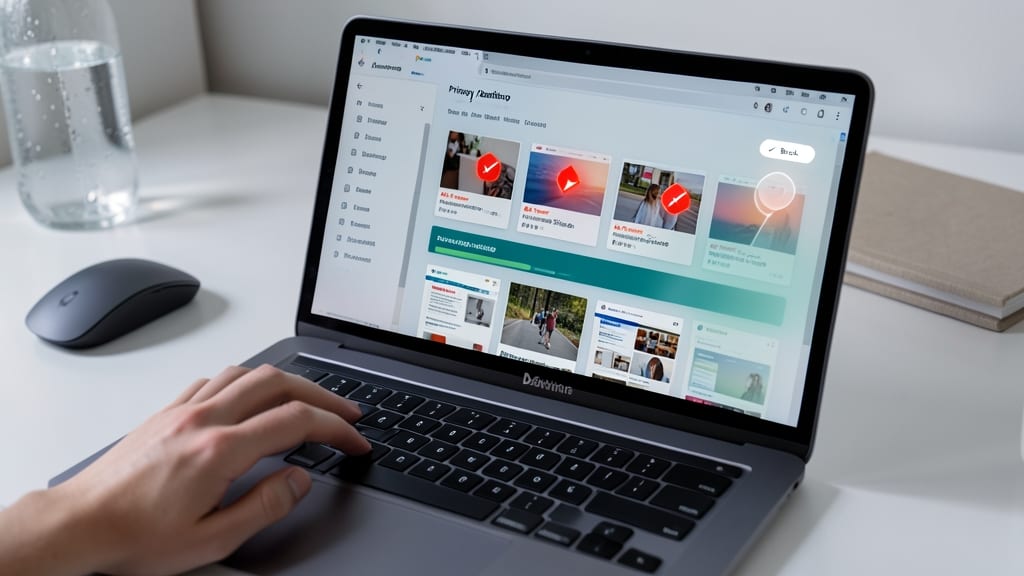
Worried about websites tracking your every move? Microsoft Edge’s Privacy Dashboard puts you in control—no extensions or third-party tools required. This built-in feature scans pages in real-time, flagging hidden trackers (like ads or analytics scripts) and lets you block them with a single click.
With zero-config setup, it automatically categorizes trackers by type (e.g., advertising, social media) and shows how many were blocked per site. The dashboard also provides a privacy score (0–100) for each page, helping you spot the most invasive sites instantly. Best of all, it syncs across devices if you’re signed into your Microsoft account.
This is your go-to for anyone who values privacy but hates complex VPNs or ad-blocker setups. Just enable it in Settings > Privacy, search, and services, and browse with confidence. ✨
Sync Settings Across Devices Automatically
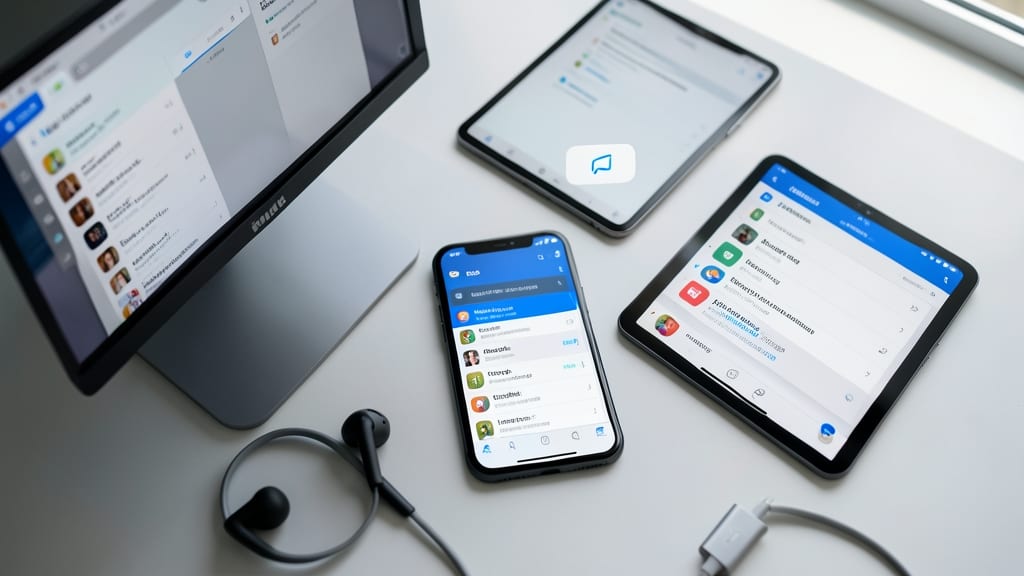
Tired of juggling bookmarks and settings across your phone, tablet, and PC? Microsoft Edge’s cross-device sync turns your browsing into a unified experience—no more manual transfers or lost tabs.
With a Microsoft account, you can sync bookmarks, browsing history, extensions, and even open tabs instantly across Windows, macOS, and mobile. The setup takes less than a minute: just enable sync in Edge’s settings, and your preferences follow you seamlessly. No third-party tools or complex configurations needed—just pure convenience.
This is a must for digital nomads, remote workers, or anyone with multiple devices. Whether you’re switching from your laptop to your phone or picking up where you left off on a different OS, your browsing stays consistent. ⚡