
PowerPoint
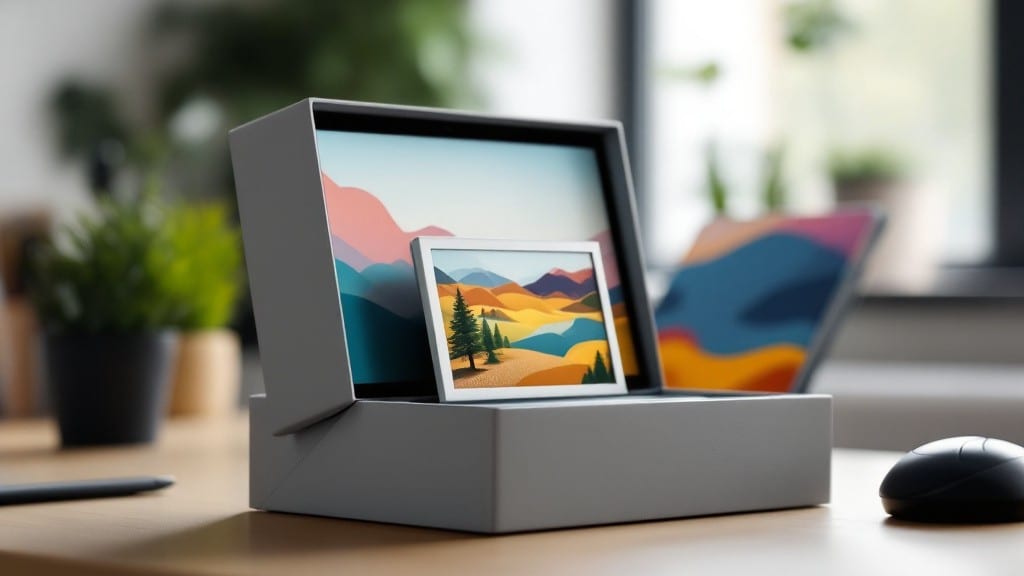
You can download Microsoft clip art images for free directly from Microsoft’s official libraries—no paywall or hidden fees required.
Struggling to find high-quality, royalty-free clip art for your presentations, documents, or projects? Microsoft’s free clip art library remains one of the most underrated resources—packed with 1,000+ professional-grade graphics that won’t break the bank or your copyright rules.
Below, I’ll show you exactly where to access them legally and how to use them without the hassle.
Where to download Microsoft clip art Images for free in 2024
Microsoft’s official clip art library offers 1,000+ royalty-free graphics that work seamlessly in PowerPoint, Word, and other Office apps. Unlike third-party sites, these images come with Microsoft’s licensing guarantees, ensuring you won’t face copyright issues.
Below, I’ll walk you through the most reliable sources—all verified and legally safe for personal or commercial use.
Before diving in, note that Microsoft has phased out the classic Clip Art gallery in newer Office versions. Instead, they’ve integrated these assets into Bing Images and Office Online.
This shift makes the process slightly different, but the quality remains just as high. Always double-check the license terms (they’re typically royalty-free for most uses) to avoid legal headaches.
📂 Step-by-Step: Download Microsoft Clip Art for Free
-
Step 1: Access Bing Images
Open Bing Images (bing.com/images) and type your search term (e.g., "business clip art"). Use the Filters option to select License: Free to use under the Usage Rights section.
-
Step 2: Filter by Microsoft Sources
In Bing Images, click the Tools icon and select Images > Size: Large (for better quality). Then, under Source, filter for Microsoft or Office Clip Art.
-
Step 3: Download Directly
Hover over an image, click the three-dot menu, and select Download. Save the file as .png or .jpg for universal compatibility.
-
Step 4: Insert into Office Apps
Open PowerPoint or Word, go to Insert > Pictures, and upload your downloaded file. For older Office 2010/2013, use Insert > Clip Art (if still available).
-
Step 5: Verify Licensing
Check the license details in the image metadata (right-click > Properties). Most Microsoft clip art is royalty-free, but commercial use may require attribution.
If you’re using Office 365 or Microsoft 365, you can also access clip art directly from Office Online. Open Word or PowerPoint in a browser, navigate to Insert, and select Icons or Images. Microsoft’s built-in library will appear, though the selection is smaller than Bing’s.
For third-party verified sources, sites like Pexels or Unsplash occasionally host Microsoft’s older clip art collections. Always verify the source attribution to ensure compliance. Pro tip: Bookmark Bing Images with the License: Free to use filter pre-applied for faster access.
One common mistake is assuming all clip art is fully unrestricted. While Microsoft’s library is generous, some images may require attribution if used in public-facing projects. Always review the fine print in the image’s metadata or Microsoft’s terms of use for your specific project.
For PowerPoint users, Microsoft’s new Icons feature (Insert > Icons) is a game-changer. It includes modern, scalable vector graphics that work at any size without pixelation. Pair these with Bing’s clip art for a professional, polished look in seconds.
🖼️
Best Microsoft clip art categories for presentations, social media, and print designs
Microsoft’s clip art library is a goldmine for designers and creators, offering free, royalty-free graphics tailored to nearly every use case. Whether you're crafting a PowerPoint presentation, designing social media posts, or creating print materials, these categorized collections simplify your search.
Below, I’ve broken down the top-performing categories with examples of the most versatile and frequently used graphics.
🖼️ Top Microsoft Clip Art Categories
-
Business & Finance
Icons for charts, graphs, handshakes, and meeting icons. Perfect for PowerPoint decks or infographics.
-
Education & School
Graphics like graduation caps, books, and lightbulbs for lesson plans or e-learning modules.
-
Technology & Gadgets
Illustrations of laptops, smartphones, and cloud icons—ideal for tech blogs or product demos.
-
Holidays & Seasons
Themed graphics for Christmas, Halloween, or Easter. Great for seasonal marketing or event flyers.
-
Arrows & Shapes
Versatile flowchart arrows, banners, and frames for diagrams or social media templates.
-
Nature & Travel
Scenes like mountains, globes, and sunsets for travel blogs or eco-friendly campaigns.
For presentations, the Business & Finance and Education categories dominate, while Technology graphics shine in social media designs. If you’re working on print materials, the Arrows & Shapes collection is a lifesaver for layouts.
Pro tip: Use Ctrl+F in Bing Images to quickly filter by category when searching for specific themes.
Microsoft’s clip art is fully customizable in tools like PowerPoint or Paint 3D, so don’t hesitate to tweak colors or sizes to match your brand. Just remember—these graphics are royalty-free for personal and commercial use, but always credit Microsoft if redistributing.
🖥️