
PowerPoint
PowerPoint transitions can transform a dull presentation into a polished, professional slideshow. These seven transition effects help you control pacing, emphasize key moments, and keep your audience engaged without distracting from your content.
Fade Slide Transition for Minimalist Elegance
Struggling to keep your corporate presentation polished and distraction-free? The Fade transition in PowerPoint delivers minimalist elegance with zero visual clutter—just a seamless dissolve between slides that feels professional and intentional.
Available in all modern versions (including PowerPoint 2016, 2019, and 365), this transition works with zero sound effects by default and syncs effortlessly with your pacing. The subtle crossfade ensures no abrupt shifts, making it ideal for data-heavy decks or client-facing pitches where focus should stay on content, not flash.
Perfect for executives, consultants, or educators who prioritize clarity over spectacle. Pair it with a solid color background or minimalist fonts for maximum impact. ✨
Push Slide Transition for Dynamic Movement
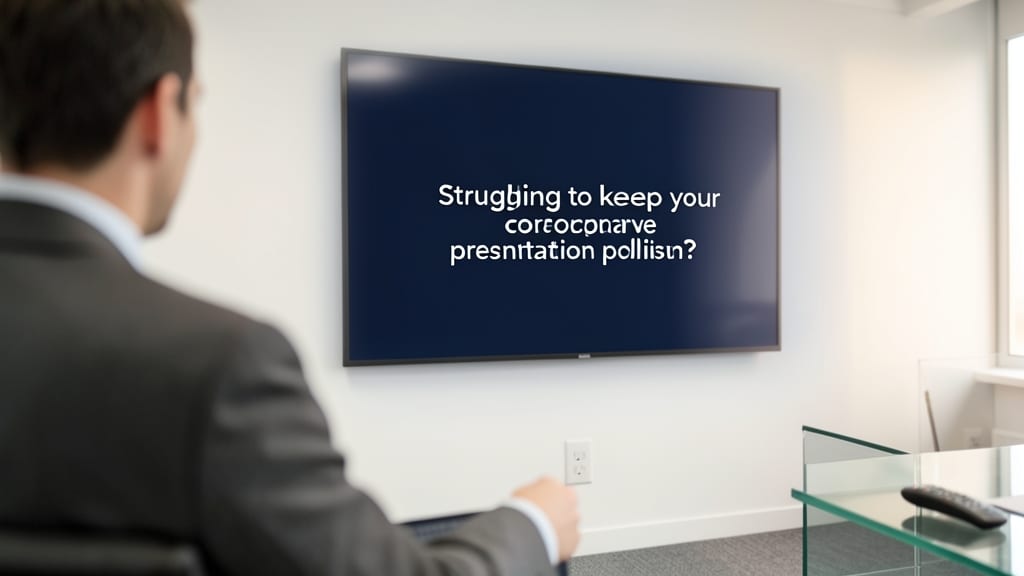
When you need to guide your audience through a narrative or walk them step-by-step, the Push Slide Transition in PowerPoint becomes your secret weapon. Unlike static fades, this effect mimics real-world motion—one slide literally pushes the next into view, creating a natural flow that feels intentional and engaging.
Available in PowerPoint 2016 and later (including the 365 subscription), the Push effect offers horizontal or vertical sliding directions, letting you control whether content moves left, right, up, or down. Pair it with sound effects (like subtle whooshes) or timing adjustments to match your pacing—ideal for tutorials where clarity matters most. The cinematic quality makes it stand out in data-driven presentations too.
Perfect for educators, trainers, or anyone breaking down complex topics, this transition keeps focus sharp while adding a dynamic touch. Try it for your next "how-to" or storytelling deck! ✨
Zoom Slide Transition for Emphasis
Need to make your final slide or call-to-action stand out? The Zoom transition in PowerPoint does exactly that by zooming in on the next slide, creating a natural focal point that draws the audience’s eye. Unlike subtle fades or pushes, this effect feels intentional—like a spotlight highlighting your most important message.
Available in PowerPoint 2016 and later (including Office 365), this transition works best with high-contrast slides—think bold titles, key stats, or closing arguments. You can adjust the zoom speed (slow for drama, fast for energy) and even add a sound effect to reinforce the emphasis. Pro tip: Pair it with a dark background to make the zoomed-in slide pop even more.
This is your go-to for keynote speeches, sales pitches, or data-driven conclusions where you want to ensure your audience remembers the takeaway. 💡
Wipe Slide Transition for Clean Segmentation
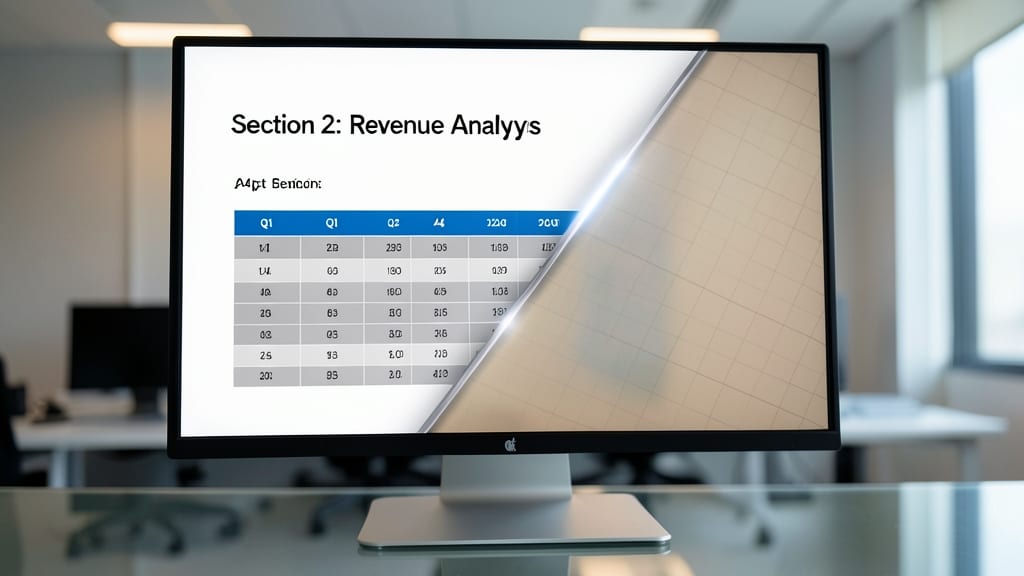
Need a transition that signals a clear break between sections without stealing focus? The Wipe effect delivers a linear, directional shift that feels purposeful—perfect for academic papers, financial reports, or structured business decks where organization matters most.
Available in vertical, horizontal, or diagonal variants, this transition uses a sharp, clean line to reveal the next slide, creating visual separation without animation distractions. It’s also lightweight, ensuring smooth playback even on older systems. Pro tip: Pair it with matching slide layouts to reinforce section transitions.
Academics, consultants, and trainers will appreciate how this effect subtly guides audiences through structured content. For presentations where clarity trumps flash, it’s the unsung hero. ✨
Morph Slide Transition for Seamless Updates
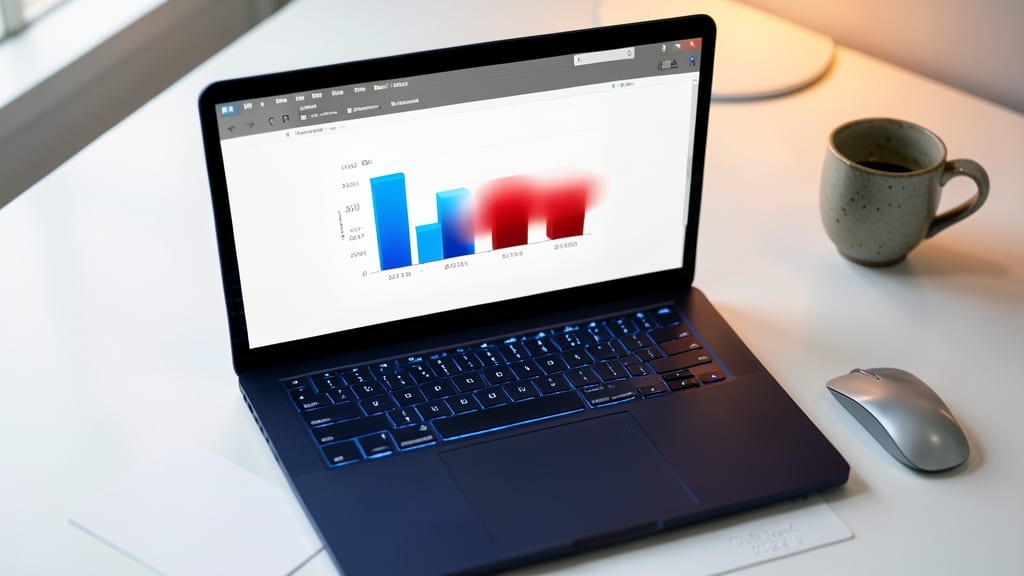
Tired of jarring slides that snap your audience out of data-driven focus? The Morph transition in PowerPoint (available in 2016 and later) is designed specifically for seamless updates—like evolving bar charts or shifting tables—so your audience stays locked into the trends, not the transition.
This AI-powered effect intelligently animates changes between similar slides, adjusting shapes, colors, and layouts in real-time. Unlike other transitions, it requires minimal setup—just ensure your slides share a similar structure (e.g., identical axes for graphs). The result? A fluid, almost invisible shift that keeps your presentation’s momentum intact.
Perfect for analysts, educators, or anyone presenting data-heavy content—think financial reports, scientific comparisons, or progress trackers. It’s the secret weapon for keeping your audience’s eyes on the numbers, not the flash. ✨
Box In/Out Slide Transition for Theatrical Reveal
Want to make your next big reveal feel like a Hollywood moment? The Box In/Out transition creates a dramatic spotlight effect, framing slides with a cinematic box that slides in or out to unveil content. Unlike simpler transitions, this one builds anticipation by isolating the slide like a stage reveal.
Adjust the box size, speed, and direction (in or out) to control the reveal intensity—ideal for keynotes or product launches. Works seamlessly in PowerPoint 2016+ and 365, with optional sound effects to amplify the theatrical feel. Pair it with a dark background for maximum impact.
Perfect for speakers who want to command attention—think product demos, investor pitches, or creative portfolios where you’re introducing a game-changing idea. 🌟
Random Bars Slide Transition for Creative Energy
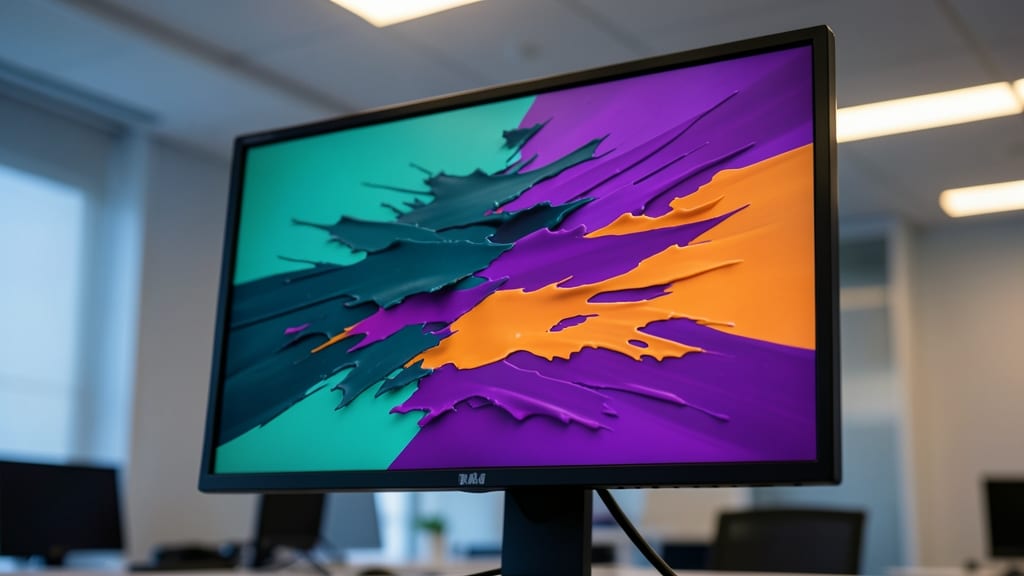
Tired of predictable slide transitions that put your audience to sleep? The Random Bars effect injects visual energy with abstract, shifting bars that dissolve between slides—perfect for breaking the monotony in brainstorming sessions or youth-focused talks.
Unlike sleek fades or structured wipes, this transition uses dynamic, irregular bars that create a sense of movement and spontaneity. You can tweak the duration and direction (horizontal/vertical) to match your vibe, and it works seamlessly in PowerPoint 2016, 2019, and 365. The effect even plays nice with custom animations, letting you layer it with other creative elements.
This is your go-to for casual, innovative, or high-energy presentations—think startup pitches, creative workshops, or classroom discussions where you want to spark engagement. Just don’t overuse it in formal settings! ✨