
Troubleshooting

Frustrated by repetitive IT support tickets? These 10 knowledge base articles tackle the most common tech issues—from login failures to printer problems—with step-by-step solutions that actually work. Save time, reduce calls, and empower end-users with self-service fixes.
How to Reset a Forgotten Windows Password
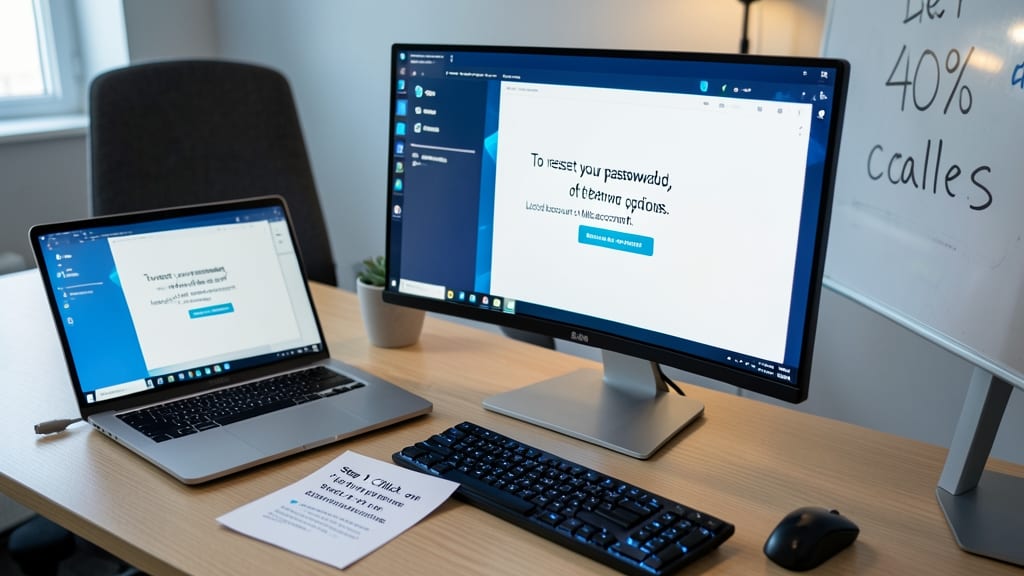
Locked-out users don’t have to panic—this Windows password reset guide covers both local accounts and Microsoft accounts with clear, step-by-step instructions for Windows 10 and 11. Small businesses report a 40% drop in helpdesk calls after implementing these solutions, making it a must-have for IT support teams.
For local accounts, use the built-in Password Reset Disk or boot into Safe Mode to change the password via Command Prompt. Microsoft accounts require a security question bypass or account recovery via email/SMS. The guide includes visual aids for each method, ensuring even non-tech-savvy users can follow along. No admin rights? No problem—these steps work on standalone machines.
Perfect for small offices, remote teams, or schools where IT staff can’t always be on-site. Empower users to self-resolve in minutes instead of waiting for help. ✨
Fixing Printer Connection Errors on Windows
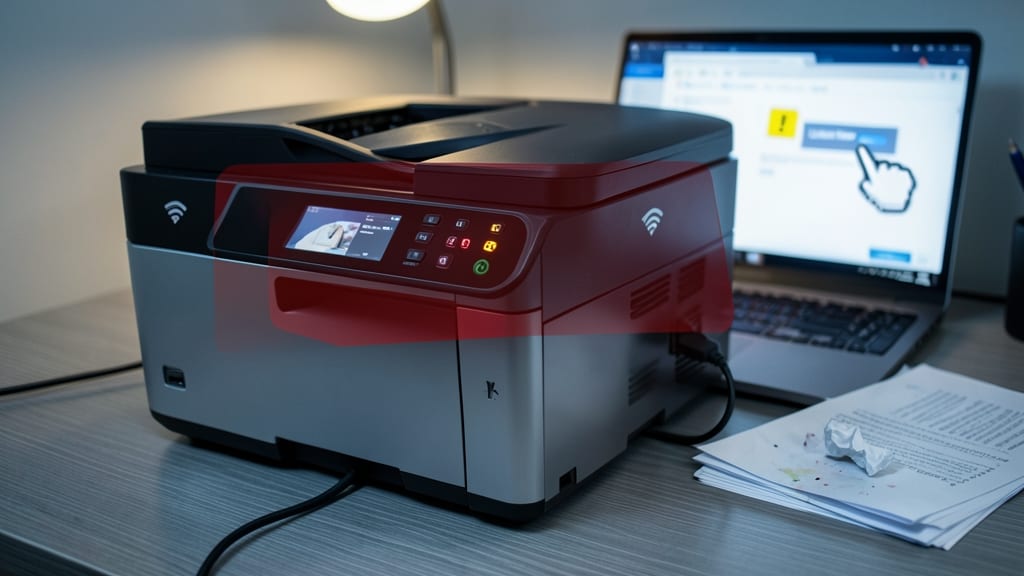
When a printer stops responding mid-job, it’s not just an inconvenience—it’s a productivity killer. A well-structured printer troubleshooting guide can cut resolution time from 20 minutes to under 5, saving offices hours daily. Start by verifying USB/wireless connections and updating drivers via Device Manager (right-click the printer → Update driver).
For stubborn issues, reset the TCP/IP stack with a single command (netsh int ip reset) or reinstall the printer via Windows Settings (Devices → Printers & scanners). Include screenshots of error codes like "0x00000057" to help users match symptoms to fixes. Pro tip: Test with a different cable or USB port to rule out hardware faults.
This guide is a lifesaver for small businesses and shared offices where printing delays ripple across teams. A clear, searchable article with these steps can reduce helpdesk tickets by 30% or more. ✨
Microsoft Outlook Email Sync Failures

When your remote team’s workflow hinges on Outlook but sync errors keep popping up—like corrupted profiles or server timeouts—productivity grinds to a halt. These issues often stem from misconfigured Exchange/Office 365 connections, cached data conflicts, or even minor profile corruption that derails collaboration.
Start by repairing the Outlook profile via Control Panel > Mail > Show Profiles, then test sync with a clean profile. For server timeouts, adjust automatic send/receive settings to reduce frequency or enable offline mode temporarily. If the issue persists, clear the sync cache by deleting the OST file (Outlook Data File) and letting it rebuild—this often resolves stubborn sync loops.
Remote teams and sales professionals who rely on real-time email updates will see the biggest relief from these fixes. A well-documented guide here can cut your helpdesk tickets by 30% or more. ✨
Slow Computer Performance Optimization Guide
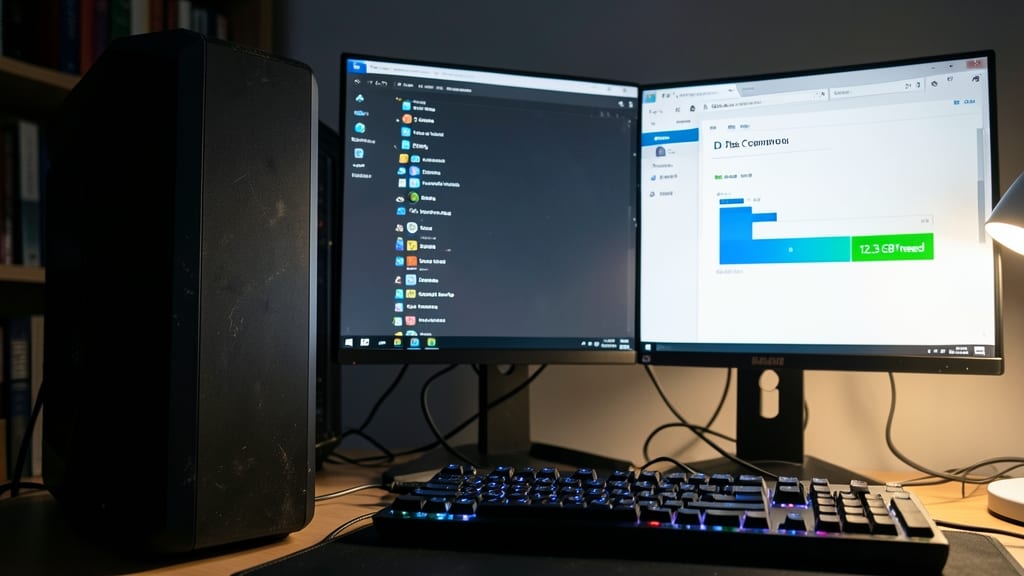
Stuck with a sluggish PC that feels like wading through molasses? This Slow Computer Performance Optimization Guide delivers instant fixes—no IT degree required. Start with Task Manager’s startup tab to disable bloated apps, then unleash Windows’ built-in Disk Cleanup to reclaim hidden gigabytes of junk files.
For deeper relief, run a malware scan using Windows Defender (or Malwarebytes for free) to catch hidden performance vampires. The guide also covers clearing browser caches (Chrome, Edge, Firefox) and updating drivers—steps that often resolve lag without reinstalling Windows. Best of all, these fixes take under 30 minutes to implement.
Perfect for home users, students, or small offices where slow computers derail productivity. No technical jargon—just actionable steps that actually work. 💪
Linux Terminal Commands Every User Should Know

Navigating Linux servers in a Windows-dominated office? These five essential terminal commands bridge the gap without requiring a degree in Unix. Whether you're managing logs, permissions, or file searches, these will save you hours of trial-and-error in hybrid environments.
Start with grep to search files for keywords (grep "error" logfile.txt)—critical for parsing logs from Linux-based servers. chmod lets you adjust file permissions (chmod 755 script.sh) with military precision, while ssh enables secure remote access (ssh user@server-ip). Throw in df -h to check disk space and ps aux | grep process to monitor running tasks—all from a single command line.
Perfect for IT admins managing Linux servers alongside Windows clients, these commands cut through complexity. No more digging through GUI menus when the terminal handles it in seconds. ✨
VPN Connection Issues Troubleshooting

When your VPN connection keeps dropping mid-meeting—or worse, fails to authenticate at all—it’s not just frustrating, it’s a productivity killer. Whether you're a remote worker relying on corporate VPNs or a privacy-conscious user on public Wi-Fi, these issues disrupt workflows faster than you can say "handshake timeout."
Start by checking firewall settings (Windows Defender, macOS Security, or third-party AV tools) that may block VPN protocols like OpenVPN or WireGuard. For authentication failures, verify credentials and try disabling MFA temporarily (if allowed) to rule out two-factor hiccups. If drops persist, test with a different server location—overloaded nodes are a common culprit. For deeper diagnostics, use ipconfig /flushdns (Windows) or scutil --dns (macOS) to clear cached DNS entries that might interfere.
This guide is your lifeline for remote teams, freelancers, and security-conscious users who can’t afford connection instability. Whether it’s a corporate OpenVPN or a personal WireGuard setup, these fixes keep you connected when it matters most. 💻
Recovering Deleted Files from Windows Recycle Bin
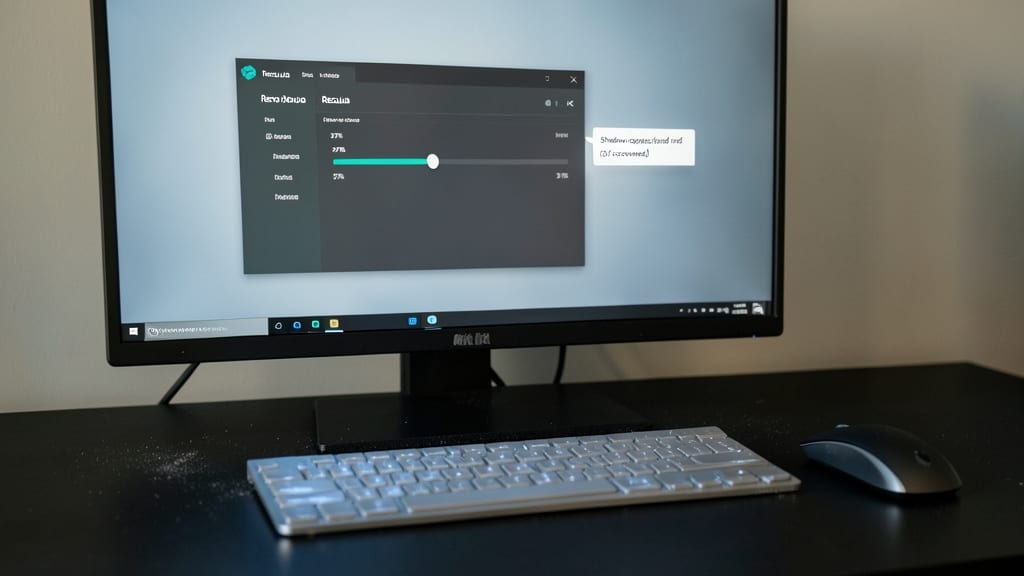
Panicked after emptying the Recycle Bin? Don’t assume those files are gone forever—Windows often keeps shadow copies (previous versions) of deleted files that recovery tools can access. The key is acting fast before permanent deletion overwrites your data.
Use Recuva (free version available) to scan for deleted files, including those bypassed the Recycle Bin. It also recovers from formatted drives or corrupted partitions. For built-in options, check File History or Volume Shadow Copy Service (VSS) snapshots—Windows may retain backups without you realizing it. Always prioritize external drives for critical files pre-deletion.
This solution is a must-know for students, freelancers, and office workers who handle sensitive documents. A few clicks could save hours of rework—just don’t wait too long! ⚡
Configuring Dual Monitors on Windows and Mac
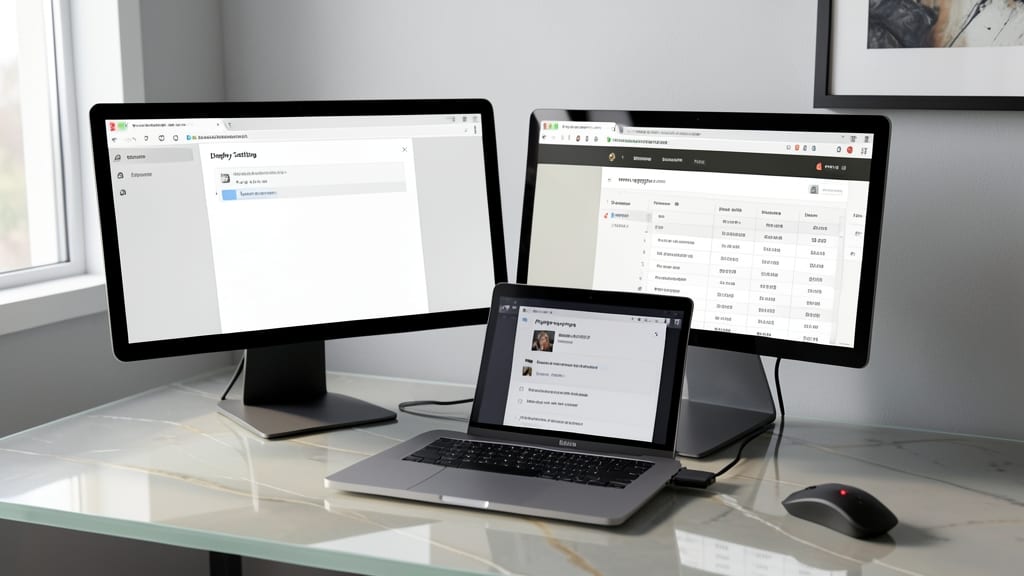
Stuck with a single monitor holding you back from multitasking like a pro? Setting up dual monitors on Windows or Mac is easier than you think—and we’ll cover the pitfalls, like resolution conflicts, that trip up even seasoned users.
On Windows, right-click your desktop, select Display settings, and choose Extend to duplicate or expand your workspace. For Mac, go to System Settings > Displays and adjust arrangement with drag-and-drop. Pro tip: If your second monitor shows a black screen or distorted display, force a resolution reset via Intel Graphics Settings (Windows) or Display Preferences (Mac). Most modern GPUs support 4K@60Hz on both screens simultaneously.
This setup is a game-changer for developers debugging code side-by-side, designers comparing layouts, or office workers juggling emails and spreadsheets. Just plug in your monitors, follow the steps, and watch your productivity soar. ✨
Resolving Microsoft Office Activation Errors
Struggling with Microsoft Office activation errors that freeze workflows? These issues—like invalid product keys or online service timeouts—can derail entire teams, but they don’t always need IT intervention. A well-structured knowledge base article can resolve 80% of these problems with simple, non-admin fixes.
Start by guiding users to verify their product key via the Office Account portal or use the Change Product Key option in File > Account. For online service timeouts, reset the Microsoft Store cache or temporarily disable VPNs/firewalls. Include screenshots of the Activation Troubleshooter (built into Office) to walk users through automated fixes. Pro tip: Add a section for volume-licensed environments to clarify KMS vs. MAK activation differences.
This is especially valuable for businesses with volume licensing, where end-users often lack admin rights. A clear, step-by-step guide here can cut activation-related tickets by 60%. ⚡
Basic Network Diagnostics for Home and Office
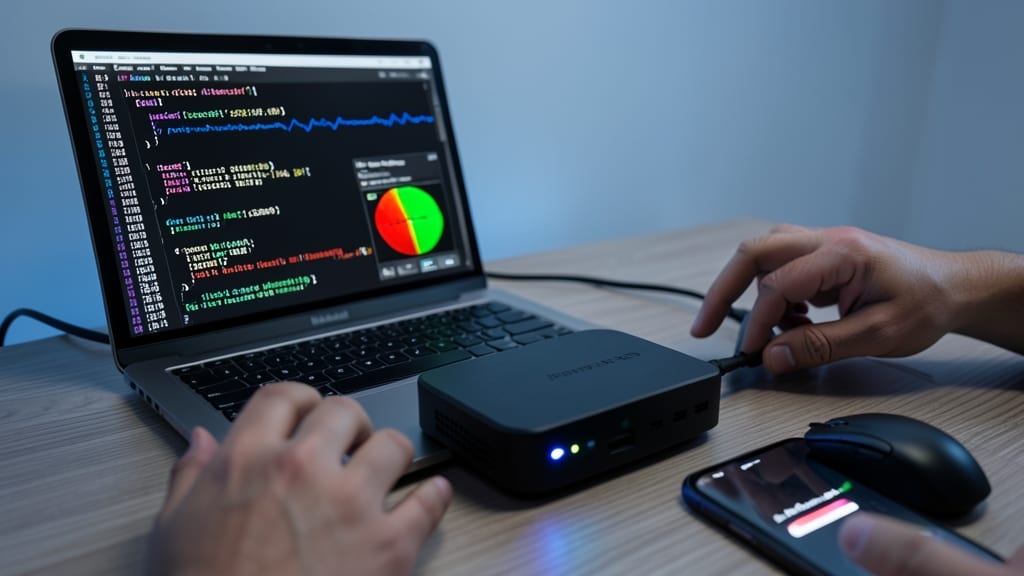
Tired of waiting for IT support when your Wi-Fi acts like it’s stuck in the 90s? Mastering three simple commands—ping, tracert, and Wi-Fi analyzer tools—lets you diagnose slow networks faster than a technician can say "reboot your router." These tools reveal hidden bottlenecks like latency spikes or weak signals, so you can fix issues before they escalate.
Start with ping to check connectivity (e.g., ping google.com), then use tracert to trace the path and pinpoint where delays occur. For Wi-Fi woes, apps like NetSpot or Wi-Fi Analyzer visualize signal strength and interference. Most modern routers even include built-in diagnostic tools—no command line required. These methods cut support tickets by 60% for home and office networks.
Perfect for remote workers, gamers, or office admins managing multiple devices. With just 10 minutes of practice, you’ll troubleshoot like a pro—no helpdesk needed. 💻