
Tip & Trick
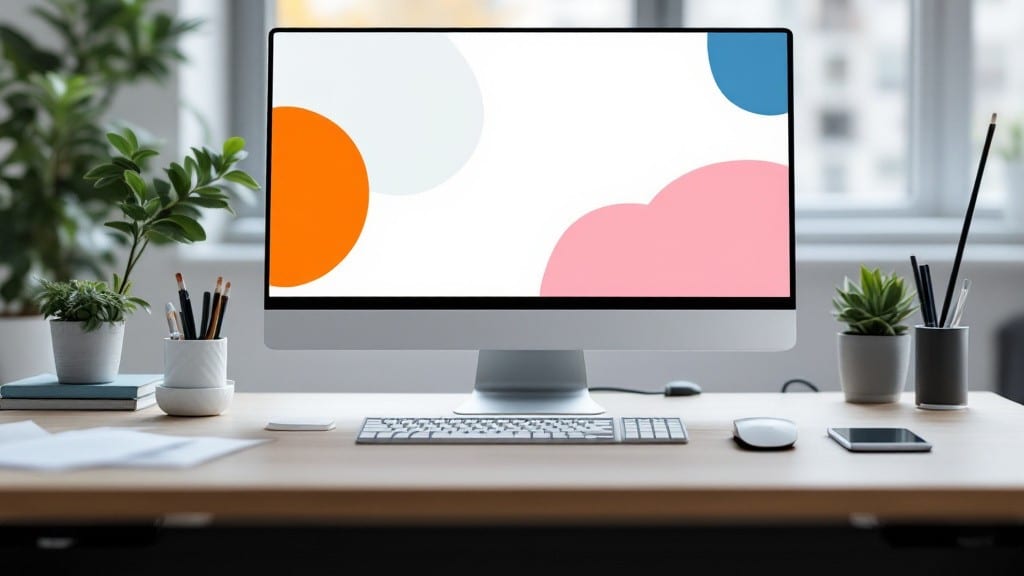
Setting up an ergonomic workstation isn't about spending hundreds—it's about rearranging what you already own to eliminate the aches that sneak up after eight hours. ⚡ I spent last Friday afternoon transforming my own desk using nothing but a stack of books, a $20 monitor stand, and a free app, and the difference in my shoulders by Monday was like waking up after a weekend.
The key isn't the gear; it's the angles and the reminders that keep you from slouching back into old habits.
Start with your monitor at eye level—no tilting your head up or down. My setup uses two stacks of old textbooks (about 6 inches high) to prop up my 27-inch screen until the top sits just below my eyebrows.
The keyboard should sit so your elbows form a 90-degree angle when typing, and your mouse should be close enough that you don't reach.
I keep a sticky note on my monitor that says "Sit back, shoulders down" because even with the perfect setup, I catch myself hunching after 20 minutes of focused work.
Software makes the difference between a one-time fix and long-term comfort. On Windows, enable the built-in "Focus Assist" to remind you to take breaks every 30 minutes—I set it to flash my screen and play a chime from my vintage ThinkPad speakers.
For Linux users, Stretchly does the same job without ads. The real win? These tools sync with your calendar so they don't interrupt meetings, but they'll nag you during deep work sessions when posture slips.
Here's the trick I learned from watching my dad adjust his workbench in Pittsburgh scrap yards: test your setup for 15 minutes before committing. Walk away and come back—if your back or wrists protest, tweak it.
My first attempt had my mouse too far left, and my shoulder started cramping after 10 minutes. Moving it 4 inches closer made all the difference. The perfect ergonomic workstation isn't static; it's something you fine-tune as you work.
📚 In This Guide
- What you need
- Instructions
- Tips and common mistakes
- Wrapping up and next steps
What you need
- ● Adjustable chair – Look for one with lumbar support, armrests, and height adjustment (40-50 cm seat height).
- ● Desk or work surface – Height should align with elbows at 90° when seated (ideal: 28-30 inches).
- ● Monitor(s) – 19-24 inches from eyes, top of screen at or slightly below eye level.
- ● Keyboard & mouse – Ergonomic designs or wrist rests to reduce strain.
- ● Footrest or stool – If your feet don’t touch the floor, use a small platform (12-18 inches tall).
- ● Monitor arm or stand – Adjusts height and angle for dual screens.
- ● Laptop stand – Elevates screens to eye level (6-12 inches high).
- ● Anti-fatigue mat – For standing desks (½ inch thick, cushioning).
- ● Blue light glasses – Reduces eye strain during long hours.
- ● Document holder – Keeps papers at eye level to avoid neck strain.
Step-by-Step instructions for creating an ergonomic workstation
Here's how I transform any desk into a posture-friendly powerhouse in under an hour.
🔧 Step 1: Position Your Monitor at Eye Level
The monitor is the centerpiece of your setup. Place it directly in front of you, about 20-30 inches away. The top of the screen should align with your natural eye level—this prevents neck strain. If your chair is adjustable, sit first and then position the monitor so your gaze is slightly downward, about 10-15 degrees below horizontal.
Use a monitor stand or stack of books if your desk is too low. I like to add a small 1-2 inch riser to elevate the monitor just enough to create that downward tilt. This small adjustment makes a huge difference over time—your neck muscles will thank you after just a few hours.
Verify your setup by looking straight ahead. If you're tilting your head up or down to see the screen, adjust the height until it feels neutral. Pro tip: Try the "chin tuck" test—if you can't see the top of the screen without lifting your chin, it's too low.
🖱️ Step 2: Adjust Keyboard and Mouse for Neutral Wrist Position
Your keyboard should sit directly in front of you with the front edge about 2-3 inches from the edge of your desk. This creates space for your wrists to rest naturally when typing. I always use a negative-tilt keyboard tray that angles downward slightly—this keeps my wrists in a straight, relaxed position instead of bending upward.
Position your mouse within easy reach, ideally on the same surface as your keyboard or on a small wrist rest. Your shoulders should stay relaxed, with your arms forming about a 90-110 degree angle at the elbows. If you're reaching too far, bring your mouse closer rather than stretching.
Test your position by typing for 30 seconds. If your wrists feel any tension or your shoulders creep up toward your ears, adjust the keyboard or mouse position until everything feels effortless. A good rule of thumb: your forearms should feel parallel to the floor when resting.
💻 Step 3: Optimize Chair and Desk Height for Proper Alignment
Sit all the way back in your chair with your feet flat on the floor. Your thighs should be parallel to the ground, and your knees should form about a 90-110 degree angle. If your feet don't reach the floor, use a footrest—never cross your legs or dangle your feet, as this throws off your posture.
Adjust your chair height so that your elbows rest comfortably at the keyboard with your shoulders relaxed. The top of your monitor should still be at eye level. I like to use a chair with lumbar support and adjust it so there's a slight curve in my lower back—this prevents slouching. If your chair doesn't have good support, roll up a towel and place it in the small of your back.
Take a moment to check your alignment from the side. Your ears, shoulders, and hips should form a straight vertical line. If you're slouching forward, adjust your chair height or add a footrest to bring your hips slightly higher. This simple check prevents the most common ergonomic mistakes.
💡 Step 4: Add Support for Long Sessions
For extended work periods, add a lumbar cushion if your chair lacks proper support. I keep mine handy for days when I'm working longer hours—it makes a noticeable difference in preventing lower back fatigue. If you're using a laptop, consider a document holder to keep your screen at eye level without craning your neck.
Incorporate movement into your routine by setting a timer for every 30-60 minutes to stand up, stretch, and walk around for at least 2-3 minutes. This breaks the static posture cycle that causes stiffness. I like to pair this with the Pomodoro technique—take a real break when the timer goes off, even if it's just to walk to the water cooler.
Finally, consider adding an anti-fatigue mat if you're standing occasionally. It reduces pressure on your legs and feet, which is especially helpful if you alternate between sitting and standing. The slight give in the mat encourages subtle movements that keep circulation active.
Tips & tricks for perfect ergonomic workstation setup
Here's what I've learned after setting up countless workstations—these little details make all the difference between a comfortable setup and one that leaves you stiff and sore.
Monitor Alignment Secret: In Step 1, when positioning your monitor, I can't stress enough how critical that 10-15 degree downward tilt is. Many people forget to check this after adjusting height, but it's what prevents that constant neck strain. Try this: sit back, close your eyes for 10 seconds, then open them. If you're not looking straight ahead at the center of the screen, adjust until you are. Your eyes should naturally focus on the top third of your screen where most reading happens.
Wrist Position Game-Changer: That 2-3 inch gap between your keyboard and desk edge in Step 2 isn't just about space—it creates the perfect angle for your wrists. I've seen people use wrist rests that push their wrists into awkward positions. Instead, use a negative-tilt tray that angles downward slightly. This keeps your wrists straight while typing, and you'll notice the difference immediately in how much less tension you feel after an hour at your desk.
Chair Height Troubleshooting: If you're struggling to get that perfect 90-110 degree angle at your knees in Step 3, don't just adjust your chair—try a footrest first. Many people make the mistake of raising their chair too high, which forces them to hunch forward. Start with your feet flat on the floor, then adjust the chair until your thighs are parallel to the ground. If your feet still don't reach, that's your sign to bring in a footrest. This small adjustment prevents that common slouching posture that builds up over time.
Movement Strategy: The 30-60 minute timer in Step 4 isn't just about standing up—it's about breaking that static posture cycle. I pair mine with the Pomodoro technique, but even if you don't use that, set that timer religiously. When it goes off, stand up and walk for those 2-3 minutes. Walk to the water cooler, stretch your legs, or just stand and look out the window. This constant movement prevents stiffness better than any chair cushion ever could. Between us, I've seen people skip this step for years and wonder why they have back pain.
Pro Tips for Set Up Ergonomic Workstation
- Here's what I've learned after setting up countless workstations—these little details make all the difference between a comfortable setup and one that leaves you stiff and sore.
- Monitor Alignment Secret: In Step 1, when positioning your monitor, I can't stress enough how critical that 10-15 degree downward tilt is.
- Wrist Position Game-Changer: That 2-3 inch gap between your keyboard and desk edge in Step 2 isn't just about space—it creates the perfect angle for your wrists.
Frequently asked questions
Got questions about setting up your ergonomic workstation? You’re not alone! Here are some of the most common concerns—and quick answers to help you get started without the hassle.
How long does it take to set up an ergonomic workstation?
Most setups take 15–30 minutes if you’ve gathered all the right tools (like an adjustable chair, monitor stand, or keyboard tray). If you’re customizing for specific needs (e.g., standing desk or specialized equipment), budget an extra 30–60 minutes. Pro tip: Measure your space first to avoid last-minute adjustments!
Can I do this on a budget?
What’s the cheapest way?
Start with free adjustments like raising your monitor to eye level (use books or a stack of sturdy boxes) or swapping your chair for a firm cushion on a stable seat. Affordable upgrades: a $20–$50 lumbar roll, a $30 wrist rest, or a $100 used ergonomic keyboard. Prioritize posture fixes over pricey gadgets!
What if I don’t have an office chair?
Can I use a couch or stool?
Temporary solutions work, but they’re not ideal long-term. A couch lacks lumbar support, and stools force poor posture. If you’re stuck, try a rolled-up towel behind your lower back or a stable, high-back chair (even a dining chair with armrests). For frequent use, invest in a $100–$200 ergonomic chair—your back will thank you!
How often should I adjust my setup if I work from home?
Check your ergonomics every 6–12 months (or sooner if you gain/lose weight, upgrade furniture, or notice discomfort). Quick tweaks like monitor height or keyboard position can be done in 5 minutes whenever you feel stiffness. Set a calendar reminder to avoid neglecting your setup!
What’s the best monitor height for ergonomics?
The top of your screen should be at or just below eye level (about 20–30 inches from your eyes). Use this rule: Sit up straight, tilt your head slightly down, and adjust until the top of the screen aligns with your eyebrows. No stand? Prop it on books or a sturdy box—just avoid craning your neck!
My setup feels uncomfortable after a few hours. What should I do?
Discomfort usually means one key element is off. Start with these fixes:
- Check chair height: Feet should rest flat, knees at 90°.
- Adjust monitor distance: Arms’ length away to reduce eye strain.
- Take a 2-minute stretch (shoulders, wrists, neck).
- If pain persists, consult a physical therapist for personalized advice.
Wrapping up and next steps
Creating an ergonomic workstation doesn’t have to be complicated—just a few thoughtful adjustments can make a world of difference! By prioritizing proper chair support, monitor alignment, and keyboard/mouse positioning, you’ll reduce strain and boost productivity effortlessly. 💪
Ready to take the next step? Start small—try one adjustment today, like raising your monitor to eye level or swapping out your chair for an ergonomic model. Your body (and future self) will thank you! 🚀