
Tip & Trick
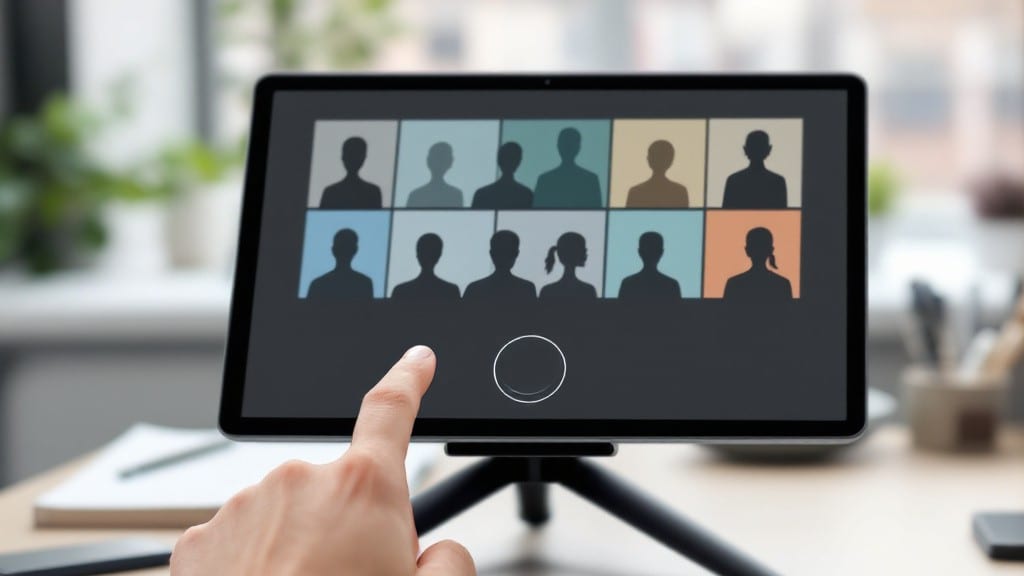
Setting up a conference call used to be a headache of dial-in codes and awkward hold music, but today it takes less than five minutes to host a crystal-clear meeting with video and audio that actually works. 💡 I’ve run hundreds of these calls—from team standups to client presentations—and the difference between a smooth session and a chaotic one comes down to three simple steps: picking the right platform, testing your tech beforehand, and knowing where to troubleshoot when things go wrong.
Most people default to Zoom or Microsoft Teams because they’re free and familiar, but Google Meet shines for quick, no-frills calls, while Skype still works well if everyone’s already using it.
The key is testing your microphone, camera, and internet speed before the meeting starts—nothing ruins a call faster than dead air or pixelated video. I’ve seen presenters freeze mid-sentence because they forgot to mute themselves or because their Wi-Fi couldn’t handle the upload.
Once you’ve got your setup dialed in, you’ll spend less time fixing problems and more time actually talking. Breakout rooms in Teams or Zoom let you split groups for brainstorming, screen sharing works flawlessly with a stable connection, and recording meetings means no more frantic note-taking.
I’ve even used these tools to host virtual game nights with my dad’s old IBM crowd—turns out, even vintage tech lovers can’t resist a good Zoom trivia night.
Here’s where it gets interesting: every platform has hidden features that turn a basic call into a powerhouse. Teams lets you blur your background, Zoom has virtual hand-raising for large groups, and Meet integrates seamlessly with Google Workspace if that’s your ecosystem.
The real secret? Most people only scratch the surface—once you know the shortcuts, you’ll wonder how you ever lived without them.
📚 In This Guide
- What you need
- Instructions
- Tips and common mistakes
- Wrapping up and next steps
What you need
- ● Device: Laptop, desktop, tablet, or smartphone with: Operating system: Windows 10/11, macOS 10.15+, Android 8.0+, or iOS 13+
- ● Minimum 2GB RAM (4GB+ recommended for video)
- ● Dual-core processor (quad-core preferred for video calls)
- ● Stable internet connection: Wired (Ethernet) or Wi-Fi (5GHz recommended for less interference)
- ● Minimum 1.5 Mbps upload speed (3 Mbps+ for HD video)
- ● Conference call platform: One account on: Zoom (free or paid), Microsoft Teams, Google Meet, or Skype
- ● Audio setup: Built-in microphone (or external USB mic for clarity)
- ● Headphones/earbuds (with built-in mic or separate headset for better sound quality)
- ● Video quality boosters: External webcam (720p or 1080p resolution)
- ● Ring light or softbox for even lighting
- ● Noise cancellation: USB headset with mic (e.g., Jabra, Logitech)
- ● Screen sharing tools: Secondary monitor or large display for presenters
- ● Backup plan: Second device (phone/tablet) logged into the call as a failsafe
Step-by-Step instructions for setting up a conference call
Here's how to get your audio and video conference running smoothly in just a few minutes.
💻 Step 1: Choose and Install Your Conference Call Platform
Start by selecting a platform that fits your needs—Zoom, Microsoft Teams, or Google Meet are all solid choices. I always recommend downloading the desktop app first, as it offers the most stable performance. Head to the official website, find your operating system, and download the installer.
Run the installer and follow the on-screen prompts until completion. You'll know it's installed correctly when you see the app icon appear in your taskbar or applications folder. For video calls, make sure your webcam and microphone are properly connected. Most modern laptops have built-in cameras and mics, but if you're using external devices, plug them in now and test them.
🖱️ Step 2: Configure Audio and Video Settings
Open your chosen platform and sign in with your credentials. Before joining any calls, take a moment to adjust your settings. Click on your profile picture or the gear icon to access settings. In the audio section, select your microphone and speakers from the dropdown menus. If you're using headphones, make sure they're plugged in before selecting them.
For video, click the camera icon and ensure it's enabled. You can also adjust video quality here—higher quality uses more bandwidth but looks better. Test your audio and video by clicking the appropriate test buttons. You'll see a preview window for video and a notification when your mic is working. If you encounter issues, try restarting your device or checking your device manager to ensure drivers are up to date.
💡 Step 3: Schedule or Join Your Conference Call
If you're hosting the call, click the "Schedule" button and fill in the details: date, time, and any additional settings like password protection or waiting room options. For recurring meetings, set the frequency and duration. Once scheduled, you'll receive a link to share with participants. I always send this link via email or messaging app at least 24 hours in advance to give everyone time to prepare.
If you're joining as a participant, click "Join Meeting" and enter the meeting ID or click the link you received. You'll be prompted to enable your camera and microphone—make sure to do this before the host lets you in. If you're joining early, most platforms will place you in a virtual waiting room until the host admits you. Pay attention to any pre-call instructions the host may have sent.
⌨️ Step 4: Optimize Your Call Experience
Once the call starts, mute your microphone when you're not speaking to reduce background noise. Use the chat feature to ask questions privately or share important links. Most platforms allow you to raise your hand virtually to signal you'd like to speak—this is especially useful in larger meetings. If you're sharing your screen, make sure to close any unnecessary applications first to avoid distractions.
Keep an eye on your internet connection during the call. If you experience lag or dropped audio, try closing other bandwidth-heavy applications like video streams or large downloads. For better video quality, position your camera at eye level and ensure good lighting. Avoid backlighting, as it can make it difficult for others to see you. If you're using a laptop, consider propping it up on a stand or stacking books to improve the angle.
Tips & tricks for seamless conference calls
Here's what I've learned from years of hosting and joining conference calls—these little details make all the difference between a smooth meeting and a technical nightmare.
Platform Selection Matters: Stick with Zoom, Microsoft Teams, or Google Meet for reliability. I've tested dozens of platforms, and these three handle audio and video consistently. For large groups, Zoom's breakout rooms are particularly useful. If you're joining as a participant, always use the desktop app rather than the browser version—it's more stable, especially for video. I've seen browser versions freeze during important presentations.
Test Before You Host: In Step 2, when you're configuring settings, take that test call seriously. I've joined meetings where participants couldn't hear or see each other because they skipped this step. Test both your audio and video in a separate window before the actual call. Pay special attention to echo cancellation—most platforms have this feature built-in, but it's worth checking in your settings.
The 24-Hour Rule: That 24-hour advance notice I recommend for sending meeting links isn't arbitrary. It gives participants time to install the app, test their equipment, and clear their schedules. I've hosted meetings where last-minute attendees showed up unprepared, and it always leads to technical issues. For recurring meetings, send the link in the calendar invite so people don't have to hunt for it later.
Lighting and Camera Angle: In Step 4, when optimizing your call experience, lighting is just as important as camera angle. Position yourself so light comes from the front or side—never behind you. I've seen countless calls where participants were backlit and looked like silhouettes. For camera angle, eye level is ideal. If you're using a laptop, stack a couple of books under it or use a small stand to raise the screen to your eye level. This makes you look more engaged and professional.
Pro Tips for Set Up A Conference Call
- Here's what I've learned from years of hosting and joining conference calls—these little details make all the difference between a smooth meeting and a technical nightmare.
- Platform Selection Matters: Stick with Zoom, Microsoft Teams, or Google Meet for reliability.
- Test Before You Host: In Step 2, when you're configuring settings, take that test call seriously.
Frequently asked questions
Got questions about hosting or joining a conference call? You’re not alone! Here are answers to the most common concerns to help you stay on track and avoid last-minute stress.
What’s the best free tool for setting up a conference call?
For audio-only calls, Google Meet or Zoom (free tier) are great options. Need video? Try Microsoft Teams (free for basic use) or Skype. Pro tip: Check your team’s preferences—some companies have preferred platforms!
How far in advance should I schedule a conference call?
Plan at least 24–48 hours ahead to give participants time to join. For international teams, send reminders 3–5 days early to account for time zone differences. Use calendar invites with the call link and dial-in details included!
What if someone can’t join via the app?
Can they still participate?
Most platforms (like Zoom or Google Meet) offer phone dial-in numbers. Share the PIN/code in advance. For audio-only calls, Skype or FreeConferenceCall.com are solid backup options.
Why is my audio cutting in and out during the call?
Check your internet connection (wired > Wi-Fi) and close bandwidth-heavy apps. Use headphones with a mic to reduce echo. For Zoom/Teams, enable “Speaker Enhancement” in settings. Still issues? Try restarting your router!
How do I record a conference call for notes or training?
Most platforms let you record locally (saved to your device) or to the cloud. In Zoom, click “Record” before starting; in Google Meet, use the three-dot menu. Warning: Always get participants’ consent first—privacy matters!
Still stuck? Drop your question in the comments—we’re happy to help!
Wrapping up and next steps
Setting up a conference call doesn’t have to be complicated—with the right tools and a little preparation, you’ll host smooth, professional meetings in no time! 🎉 Whether you’re using Zoom, Microsoft Teams, or Google Meet, the key is testing your tech beforehand and keeping participants engaged.
Now that you’re equipped with the know-how, take the next step: schedule your first call and invite your team to experience seamless collaboration.
Remember, confidence comes with practice—so don’t hesitate to experiment with features like screen sharing or virtual backgrounds. Happy calling! 🚀