
Hardware
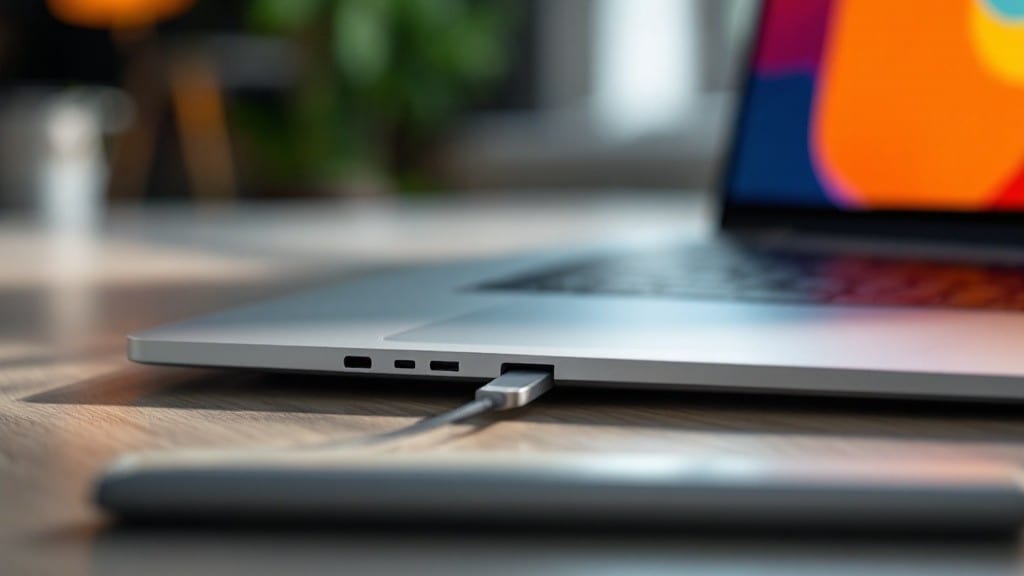
Connecting a keyboard to your computer should take less than a minute—but I’ve seen people spend hours wrestling with drivers and Bluetooth pairings. The key is knowing whether you’re working with a wired USB connection or wireless Bluetooth setup, and your operating system matters too.
Whether it’s a sleek mechanical keyboard or a basic wireless model, the process is shockingly similar across Windows, macOS, and Linux once you know the right steps.
For wired keyboards, it’s as simple as plugging in the USB cable—your computer should recognize it instantly, often with a subtle chime or notification.
Wireless keyboards require a bit more effort: turn on Bluetooth on your device, put the keyboard in pairing mode (usually by holding a button for 5-10 seconds), and let your OS scan for new devices.
On Windows, you’ll see it pop up in the Bluetooth settings; on macOS, it appears in the Bluetooth menu bar icon.
If your keyboard isn’t detected, check for driver updates (especially on Windows) or restart Bluetooth services. Some keyboards need specific software—like Logitech’s G Hub—so always download the latest drivers from the manufacturer’s site.
Once connected, test a few keys to confirm everything works before diving into setup tweaks like backlighting or macro programming.
Pro tip: If you’re using a vintage keyboard (like my uncle’s old IBM Model M), you might need a USB adapter—just plug it into any available port, and it’ll work like new.
The beauty of modern keyboards is that they’re designed to be foolproof, but a little patience goes a long way when things don’t go as planned.
📚 In This Guide
- What you need
- Instructions
- Tips and common mistakes
- Wrapping up and next steps
What you need
- ● Keyboard: A wired or wireless keyboard (USB-C, USB-A, Bluetooth, or PS/2—check your computer’s ports!)
- ● Computer: Laptop, desktop, or all-in-one PC with available ports (USB, Bluetooth, or PS/2).
- ● Power source: If wireless, ensure the keyboard has fresh batteries or is charged (for rechargeable models).
- ● Cables/Adapters (if needed): USB-A to USB-C adapter (if your keyboard is USB-A and your laptop has USB-C).
- ● USB extension cable (for hard-to-reach ports).
- ● Anti-static wrist strap (for sensitive electronics—pro tip: 💡 only needed if working in static-prone environments!).
- ● Portable USB hub (if your computer lacks open ports).
- ● Bluetooth receiver (for older keyboards that don’t support modern Bluetooth pairing).
- ● Cleaning cloth (to wipe down ports before plugging in).
Step-by-Step instructions for connecting a keyboard to a computer
Here’s how to connect a keyboard to any device—whether it’s a desktop, laptop, or even a gaming console—without missing a beat.
Identify the Correct Ports on Your Computer
Start by locating the available ports on your computer. Most modern keyboards use either a USB-A or USB-C connection, while older systems might still have a PS/2 port (a small, round, purple connector). If you’re using a wireless keyboard, ensure the receiver is plugged into a USB port or that Bluetooth is enabled.
For laptops, look for the USB-C or USB-A ports along the sides or back. Some ultrabooks may require a USB-C to USB-A adapter if your keyboard uses a standard USB-A plug. If your keyboard has a USB-C connection, you may need a USB-C to USB-A adapter for compatibility with older desktops.
Plug in the Keyboard and Power It On
If your keyboard is wired, insert the connector into the appropriate port on your computer. For USB-A keyboards, align the plug with the port and push firmly until you hear a click. For USB-C keyboards, ensure the connector is fully seated—some ports may require a slight twist to lock in place.
If you’re using a wireless keyboard, insert the USB receiver into an available port. Once connected, power on your computer. Most keyboards will automatically be recognized by the operating system. If you don’t see the keyboard working immediately, check the Task Manager (Windows) or System Information (macOS/Linux) to confirm it’s detected.
Enable Bluetooth for Wireless Keyboards (If Applicable)
For Bluetooth keyboards, ensure your computer’s Bluetooth is turned on. On Windows, open Settings > Devices > Bluetooth & other devices and toggle Bluetooth to On. On macOS, go to System Preferences > Bluetooth and enable it. On Linux, use the Bluetooth manager in your desktop environment.
Put your keyboard into pairing mode—usually by holding down the Power or Connect button until the LED starts flashing. Once in pairing mode, select your keyboard from the list of available devices. The connection should establish within 10-30 seconds, and you’ll see a confirmation message.
Test the Keyboard and Troubleshoot Common Issues
Open a text editor or a web browser and type a few words to confirm the keyboard is working properly. If keys feel unresponsive or certain characters aren’t registering, try a different USB port—some ports may not provide enough power for certain keyboards.
If the keyboard still doesn’t work, check for driver updates. On Windows, go to Device Manager, locate your keyboard under Keyboards, right-click, and select Update driver. On macOS or Linux, most keyboards work out of the box, but you may need to install manufacturer-specific drivers if issues persist.
Optimize Keyboard Settings for Your Workflow
Once connected, customize your keyboard settings for better performance. On Windows, go to Settings > Devices > Typing to adjust key repeat delay, cursor behavior, and filter keys. On macOS, open System Preferences > Keyboard to enable Key Repeat, Delay Until Repeat, and Slow Keys if needed.
For gaming keyboards, consider installing manufacturer software (like Logitech G Hub or Razer Synapse) to remap keys, adjust RGB lighting, and optimize macros. If you’re using a mechanical keyboard, ensure the keyboard switch type (linear, tactile, or clicky) matches your typing preference.
Tips & tricks for perfect keyboard connections
Connecting a keyboard shouldn't be a guessing game—these refined techniques will help you avoid common pitfalls and ensure seamless compatibility with any device.
Port Identification: When checking for USB-A or USB-C ports in Step 1, pay special attention to the orientation of USB-C connectors. Some modern keyboards use reversible USB-C cables where the plug can be inserted either way, but older devices may require precise alignment. If you're unsure, look for the USB logo molded into the port—this indicates the correct orientation for standard USB-A connections.
Power Considerations: In Step 2, if your wired keyboard isn't being recognized after connection, try a different USB port. Some USB ports, particularly those on laptops, provide limited power (USB 2.0 ports typically offer 500mA while USB 3.0 ports provide 900mA). For gaming keyboards with RGB lighting or mechanical switches, always use a USB 3.0 port to ensure proper functionality and prevent unexpected shutdowns during use.
Bluetooth Pairing Timing: For Step 3, the 10-30 second pairing window can feel frustratingly short. If your keyboard doesn't connect immediately, try resetting both devices: turn off Bluetooth on your computer, unplug the keyboard's receiver (if wired), and restart both. This fresh start often resolves hidden connection conflicts. Pro tip: Keep your keyboard within 30 feet of your computer during pairing for optimal signal strength.
Driver Troubleshooting: When following Step 4's driver update instructions, don't stop at the manufacturer's basic drivers. For gaming keyboards, visit the manufacturer's website directly (Logitech, Razer, Corsair) and download their proprietary software. These often include advanced features like macro programming, RGB customization, and performance optimization that standard drivers won't provide. Always check for driver updates even with new keyboards—manufacturers frequently release firmware updates that improve functionality.
Pro Tips for Connect Keyboard To Computer
- Connecting a keyboard shouldn't be a guessing game—these refined techniques will help you avoid common pitfalls and ensure seamless compatibility with any device.
- Port Identification: When checking for USB-A or USB-C ports in Step 1, pay special attention to the orientation of USB-C connectors.
- Power Considerations: In Step 2, if your wired keyboard isn't being recognized after connection, try a different USB port.
Frequently asked questions
Got questions about connecting your keyboard to a computer? You’re not alone! Here are some of the most common concerns—and quick fixes—to keep your setup smooth and stress-free.
Why isn’t my keyboard working after plugging it in?
If your keyboard isn’t detected, start by checking the connection. For wired keyboards, ensure the USB cable is snug in both the keyboard and your computer. For wireless keyboards, confirm the batteries are charged and the receiver is properly inserted into a USB port. Restart your computer or try a different USB port—sometimes a simple reboot does the trick!
How long does it take for a new keyboard to be recognized?
A wired keyboard should be recognized instantly once plugged in. Wireless keyboards may take a few seconds to pair, especially if it’s their first connection. If it’s still not working after 30 seconds, check the manual for pairing instructions or reset the keyboard by removing and reinserting the batteries.
Can I use a keyboard with a laptop and desktop simultaneously?
Yes! Most modern keyboards support multi-device connectivity via Bluetooth. Enable Bluetooth on both devices, put your keyboard in pairing mode, and select both the laptop and desktop when prompted. Pro tip: Some keyboards (like Logitech’s) allow you to switch between devices with a quick button press—check the manual for details.
What if my keyboard connects but keys don’t work properly?
If keys are unresponsive or typing feels off, try these fixes:
- Update drivers: Windows/macOS often auto-install drivers, but visit the manufacturer’s website to ensure you have the latest version.
- Test on another device: Plug the keyboard into a friend’s computer to rule out hardware failure.
- Clean the keyboard: Dust or debris under keys can cause lag. Gently clean between keys with compressed air.
Are there alternatives if my keyboard won’t connect?
If your keyboard is acting up, try these workarounds:
- On-screen keyboard: Windows (Win + Ctrl + O) and macOS (System Preferences > Accessibility) offer virtual keyboards.
- USB hub: If ports are limited, a powered hub can free up space for peripherals.
- External number pad: For quick data entry, a separate numeric keypad can plug into a USB port.
Wrapping up and next steps
Connecting a keyboard to your computer is simpler than you think—whether you're using a wired USB, wireless Bluetooth, or even a sleek mechanical setup!
With just a few steps, you’ll have your keys ready for typing, gaming, or work. Remember: always check compatibility, update drivers if needed, and keep your connections secure.
Now that you’re all set up, why not explore customizing your keyboard settings for an even better experience? Try adjusting keybindings, enabling backlighting, or even testing out ergonomic layouts. Happy typing! 🚀