
Tip & Trick
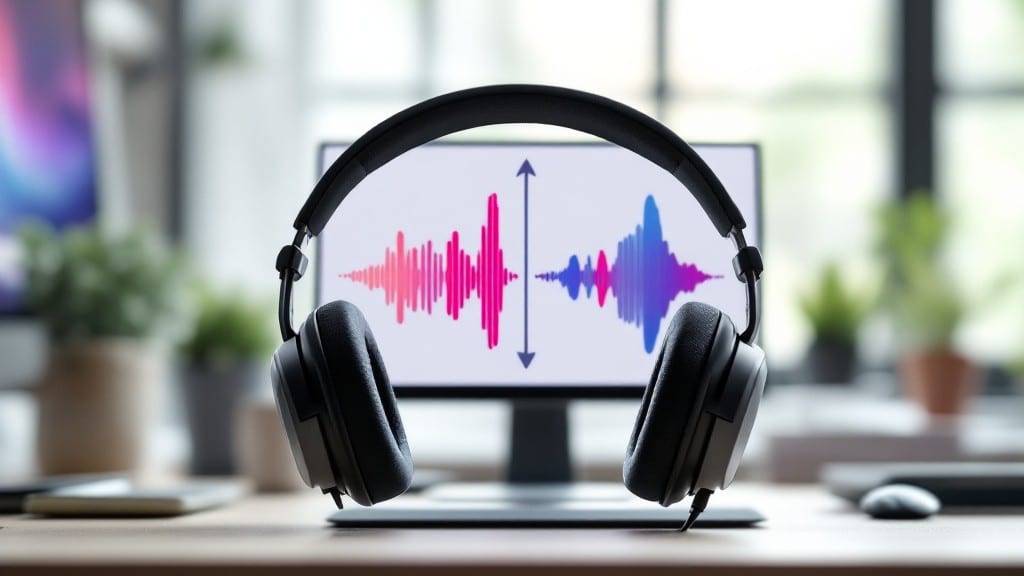
Adjusting left and right volume balance can transform your audio experience—whether you're listening to music, taking calls, or gaming. ⚡ I’ve spent years tweaking this on everything from vintage ThinkPads to modern setups, and the difference is night and day once you get it right.
The key is knowing where to look, whether it’s buried in system settings or hidden behind a headphone’s physical controls.
Most modern systems handle this through software, but hardware still matters. Windows lets you adjust balance in the Sound Settings panel, macOS hides it in Audio MIDI Setup, and many headphones have separate volume controls for each ear.
Linux users can tweak this via PulseAudio or ALSA, though it sometimes takes a few extra clicks. I’ve even fixed stubborn balance issues by resetting audio drivers—something that saved my nephew’s gaming sessions more times than I can count.
You’ll end up with crisp, balanced audio that matches your listening habits—no more booming left channel or muffled right ear. For music, this means proper stereo imaging; for calls, it ensures both sides sound clear.
The process takes just a few minutes once you know where to look, and I’ll walk you through every platform so you don’t miss a step.
Pro tip: If sliders won’t move, check for driver updates or try a different audio output. Apps like Spotify and YouTube often override system settings, so you might need to dig into their audio preferences too.
Once mastered, this tweak will stick with you for years—just like the first time I balanced audio on my uncle’s old IBM back in ’98.
📚 In This Guide
- What you need
- Instructions
- Tips and common mistakes
- Wrapping up and next steps
What you need
- ● Audio Device: A computer (Windows, macOS, or Linux)
- ● OR a smartphone/tablet (iOS or Android)
- ● Headphones/Speakers: Stereo headphones (preferred for accurate balance)
- ● OR a pair of speakers (2.0 or 2.1 setup)
- ● Audio Software/Player: Media player (Windows Media Player, VLC, Spotify, YouTube, etc.)
- ● OR a dedicated audio editor (Audacity, Adobe Audition, etc.) for advanced tweaks
- ● Equalizer app (e.g., Equalizer APO for Windows, Boom 3D for macOS, or Poweramp for Android)
- ● Audio interface (if recording or mixing professional audio)
- ● Calibration tool (e.g., SPL meter for precise volume matching)
- ● External DAC (Digital-to-Analog Converter) for high-end audio setups
- ● Basic familiarity with your device’s audio settings
- ● Patience to fine-tune (especially for critical listening)
- ● Access to a quiet environment (to hear subtle imbalances)
Step-by-step instructions for balancing left and right audio channels
Here's how to fine-tune your sound output for crystal-clear stereo balance in seconds.
🖱️ Step 1: Open Your System's Audio Settings
Right-click the speaker icon in your taskbar and select Open Sound settings. This is where you'll adjust both volume levels independently. If you're using Windows, you'll land in the Sound control panel where all audio devices are listed.
For macOS, click the speaker icon in the menu bar and choose Sound Preferences. Here's the thing—some systems hide the balance controls by default, so you may need to click the Speakers tab first to reveal the full controls.
🔧 Step 2: Locate the Balance Slider
Scroll down to find the Device properties section. Click on your active playback device (usually labeled Speakers or Headphones). In the new window, look for the Balance slider—it's typically a horizontal bar with left and right indicators.
If you don't see it immediately, click Additional device properties or Configure speaker. This ensures you're accessing the full audio control panel where the balance feature resides. Some systems may require you to enable it first through Advanced settings.
⌨️ Step 3: Adjust the Left and Right Channels
Drag the balance slider to the left to increase left channel volume, or to the right to boost the right channel. You'll hear the sound shift accordingly. Move it back to center for equal balance. For precise adjustments, use the Left and Right volume controls if available—these let you adjust each channel independently.
Here's the moment that matters: play a stereo track with distinct left and right elements (like a movie soundtrack or music with panning). As you adjust, you'll hear instruments or voices shift between channels. Stop when both sides sound equally clear and balanced.
💡 Step 4: Save Your Settings and Test
Once you've achieved your desired balance, close the audio settings window. Your changes should persist automatically, but some systems may require you to click Apply or OK to save. Play another test track to confirm the balance holds across different audio sources.
If the balance resets after reboot, check if your system has a Restore defaults option in the audio settings. Some manufacturers include this to reset all audio configurations—disable it if you want to keep your custom balance permanently.
Tips & tricks for perfect audio balance
Balancing your audio channels shouldn't be a guessing game—here's how to get it right every time without frustration.
System-Specific Navigation: Windows and macOS hide the balance controls in different ways. On Windows, look under Device properties in the Sound control panel after selecting your playback device. On macOS, the balance slider often hides behind the Speakers tab in Sound Preferences—click it to reveal the full controls. I've seen people spend 10 minutes searching when it's just one extra click away.
The Test Track Matters: Not all audio files reveal channel balance equally. Use a track with distinct left and right elements—like a movie soundtrack where voices or instruments are panned across channels, or music with clear stereo separation. Classical pieces with orchestral instruments or electronic music with wide panning work best. If you're unsure, try a test track like "The Pink Panther Theme" where the bass and drums are clearly separated.
Precision Adjustments: If your system has separate Left and Right volume controls (instead of just the balance slider), use them for finer control. Start with the balance slider centered, then adjust each channel independently by 5% increments. This gives you more granular adjustments than the single balance slider. I've found this makes a noticeable difference when fine-tuning for specific listening setups.
Save Your Settings: Don't assume your balanced settings will stick after a reboot. Some systems include a Restore defaults option that resets all audio configurations. If you want to keep your custom balance permanently, check for this option in your audio settings and disable it. I've had this happen more times than I can count—always double-check after making adjustments.
Pro Tips for Adjust Left And Right Volume
- Balancing your audio channels shouldn't be a guessing game—here's how to get it right every time without frustration.
- System-Specific Navigation: Windows and macOS hide the balance controls in different ways.
- The Test Track Matters: Not all audio files reveal channel balance equally.
Frequently asked questions
Got questions about balancing left and right volume? You’re not alone! Here are some of the most common concerns—and quick solutions—to help you master audio balance like a pro.
Why won’t my left and right volume adjust separately?
Some devices (like basic headphones or speakers) use a single volume control. For separate adjustments, you’ll need a sound card with independent channels, a mixing console, or software like Equalizer APO (Windows) or SoundSource (macOS). If using Bluetooth, check if your headphones support L/R balance controls—many gaming or premium models do!
Can I adjust left/right volume on my phone or tablet?
Most smartphones don’t natively support L/R volume adjustments, but you can use third-party apps like SoundAssistant (Android) or Soundify (iOS). For wired headphones, try the Volume Panel app (Android) to tweak individual channels. If you’re using a wired setup, some headphones (like Sony WH-1000XM4) offer balance controls via their companion app.
How do I fix uneven volume when using headphones?
Start by cleaning your headphone jacks or ports—dirt or debris can block signals. If the issue persists, check for driver updates (Windows: Device Manager > Sound, video, and game controllers; macOS: System Preferences > Sound). For Bluetooth, reset the connection or pair the device again. If one ear sounds weaker, try swapping the ear cups to rule out hardware damage.
Do gaming headsets allow left/right volume adjustments?
Many gaming headsets (like SteelSeries Arctis or Razer Kraken) include dedicated L/R balance sliders on the headband or via software (e.g., Razer Synapse). If yours doesn’t, use Windows’ Volume Mixer (right-click speaker icon > Open Volume Mixer) to mute or lower one channel temporarily. For deeper control, try Voicemeeter Potato—a free audio mixer for gamers!
What’s the best way to test if my left/right volume is balanced?
Play a test tone (try a 1kHz sine wave from YouTube or Spotify) and use a sound level meter app (like Decibel X) to measure each ear. Alternatively, cover one ear and adjust the other until both sound equal. For music, try a song with prominent stereo effects (e.g., Pink Floyd’s “Comfortably Numb”)—the balance should feel natural without one side overpowering the other.
Wrapping up and next steps
Mastering how to adjust left and right volume is a game-changer—whether you're fine-tuning your headphones, sound system, or gaming setup! With just a few simple steps, you can achieve perfect audio balance and elevate your listening experience. 🎧✨
Ready to take it further? Experiment with different audio sources or try balancing for music, movies, or calls to find what works best for you. Happy adjusting—your ears will thank you! 🎶💡