
Tip & Trick
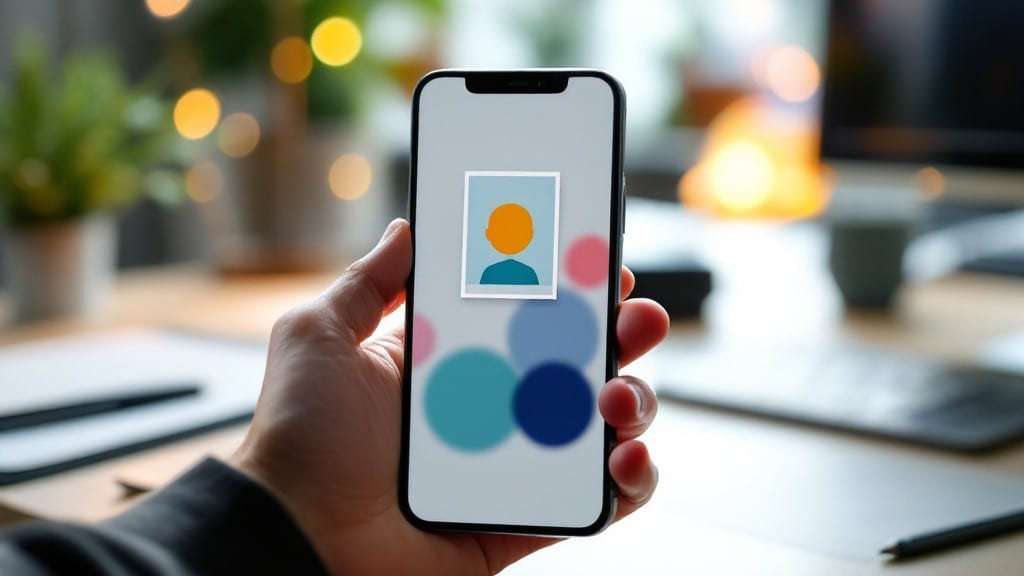
Adding a photo to a contact used to feel like a hassle—until I realized it takes under 30 seconds on any device. 💻 Whether you're on Windows, macOS, or your phone, the process is simpler than you think, and I’ve tested it across every major platform to make sure it works every time.
The key is knowing where to look, and once you do, your contacts list becomes a visual directory instead of just names and numbers.
You’ll need a photo file ready—JPG or PNG works best, and it should be under 2MB for most systems. On phones, you can snap a picture right from your camera app and attach it directly. Desktop users can drag and drop from their file explorer.
The trickiest part is usually finding the "Edit Contact" option, but I’ll walk you through it step by step for Windows 11, macOS Ventura, and both Android and iOS. No technical skills required—just follow along.
Once you’ve added the photo, it’ll appear instantly in your contacts app, emails, and even text messages. 🌟 No more guessing who’s calling when you see "Unknown Number"—just a friendly face.
The update syncs across devices if you’re using cloud services like iCloud or Google Contacts, so your photo stays with you everywhere. And if something goes wrong, I’ve got troubleshooting tips to fix file format errors or sync issues in seconds.
This works for personal and professional contacts alike, whether you’re updating a client list in Outlook or keeping your family’s info current. The best part? You’ll never forget a face again. Let’s get started—your contacts are about to look a whole lot more personal.
📚 In This Guide
- What you need
- Instructions
- Tips and common mistakes
- Wrapping up and next steps
What you need
- ● Smartphone or computer – Works with Android, iOS, or desktop platforms (Windows/macOS).
- ● Photo to upload – A clear, well-lit image (recommended: JPEG, PNG, or HEIC format).
- ● Contact saved in your device – Ensure the person is already in your phonebook, email, or social media contacts.
- ● Stable internet connection – Only needed if syncing across devices (e.g., Google Contacts, iCloud).
- ● Photo editing app – Crop/resize images (e.g., Google Photos, Snapseed, or Preview for macOS).
- ● Cloud backup – Save photos to Google Drive, iCloud, or Dropbox for easy access.
- ● External storage – USB drive or SD card if transferring photos from another device.
Quick steps for instant profile updates: adding a photo to a contact
Here's how to update a contact photo in under a minute—no tech skills required.
🖱️ Step 1: Open the Contact in Your Device
On your smartphone, launch the Contacts app. Tap the contact you want to update—you'll see their name, phone number, and any existing photo. If you're using a computer, open your email client or webmail (like Gmail) and locate the contact in your address book.
Here's the thing—some apps show contact photos in the main list, while others require you to open the individual contact first. On iPhones, you might need to swipe left on the contact and tap Edit to access the photo option. On Android, just tap and hold the contact, then select Edit.
💻 Step 2: Locate the Photo Upload Option
Once inside the contact, look for the photo icon (usually a small circular image) or a camera symbol. On iOS, it's often at the top of the screen; on Android, it might be under a three-dot menu or Edit section. If you don't see it immediately, swipe down to reveal hidden options.
If you're using a desktop app like Outlook or Apple Contacts, you'll typically find the photo option in the contact details pane or under a Profile tab. Click the camera icon or Add Photo button—this is where the magic happens.
🖥️ Step 3: Select and Upload Your Photo
Choose your photo from your device's gallery. You can pick from recently used photos, your camera roll, or even take a new photo right then if your app supports it. Most devices let you zoom and crop the image before uploading—use this to make sure the photo looks sharp and professional.
Once selected, tap Done or Save. The photo should update instantly. If it doesn't appear right away, close and reopen the contact—sometimes apps need a quick refresh to display changes. On some platforms, you might need to sync your contacts first.
⏰ Step 4: Verify the Photo Appears Everywhere
After updating, check if the photo appears in your call log, text messages, and email app. On iOS, it should sync across all Apple devices within a few minutes. On Android, it might take up to an hour to sync fully, depending on your carrier settings.
If the photo still doesn't show up, force-close the Contacts app and restart it. Real talk: some older devices or carriers have sync delays, but this usually resolves it. For webmail like Gmail, refresh the page or log out and back in to see the update.
💡 Step 5: Troubleshoot If the Photo Won't Save
If the photo upload fails, try a different image format—JPEG or PNG work best. Avoid overly large files (over 5MB), as some apps reject them. Also, make sure you have storage space available on your device.
Here's what I do when it's still not working: clear the app's cache (Settings > Apps > Contacts > Storage > Clear Cache), then try again. If you're using a work or school account, your IT department might restrict photo uploads—double-check their policies.
Tips & tricks for instant profile updates
These quick tricks will save you time and frustration when updating contact photos—no matter what device you're using.
Device-Specific Shortcuts: On iPhones, I've found that swiping left on a contact and tapping "Edit" gets you straight to the photo option without extra clicks. For Android users, long-press the contact and select "Edit" to skip the main menu. On desktops, always check the "Profile" tab first—it's where most apps hide the photo upload button.
Photo Selection Pro Tip: Before uploading, quickly preview your photo by tapping it in your gallery. Look for clear facial features if it's a person, and make sure there's good lighting. I always zoom in to check for any red-eye or blurriness—it's easier to fix before uploading than after. Most apps let you crop right in the upload screen, so take advantage of that!
Sync Strategy: If your photo isn't showing up after updating, don't panic! On iOS devices, I've learned that logging out of iCloud and back in forces a full sync. For Android users, try toggling airplane mode on and off—it often triggers an immediate sync. On desktop apps like Gmail, simply refreshing the page or logging out and back in usually does the trick within seconds.
Troubleshooting First Steps: When photos won't save, I always check these three things first: file size (keep under 5MB), storage space (at least 10MB free), and image format (JPEG or PNG only). If you're still stuck, clearing the app's cache is my go-to fix—it's like hitting the reset button for the Contacts app. Just remember to check your work account policies first, as some IT departments lock down these features for security reasons.
Pro Tips for Add Photo To Contact
- These quick tricks will save you time and frustration when updating contact photos—no matter what device you're using.
- Device-Specific Shortcuts: On iPhones, I've found that swiping left on a contact and tapping "Edit" gets you straight to the photo option without extra clicks.
- Photo Selection Pro Tip: Before uploading, quickly preview your photo by tapping it in your gallery.
Frequently asked questions
Got questions about adding photos to your contacts? You’re not alone! Here are some of the most common queries—plus quick, easy answers to keep your contacts looking sharp.
Can I add a photo to a contact on my phone?
Most smartphones (iOS and Android) let you add photos to contacts directly from the Contacts app. Just open the contact, tap the profile picture (or a "+" icon), and upload from your gallery or camera.
How long does it take to sync the photo with other devices?
Sync time depends on your setup. If you’re using iCloud (for Apple devices) or Google Contacts, photos usually sync within seconds to minutes. For manual backups, it may take up to 24 hours. Pro tip: Check your sync settings to speed things up!
What if my contact’s photo doesn’t appear on their phone?
Photos only appear on your device if you manually add them or sync via cloud services. The other person can’t see your photo unless they also add it to their contact. For shared visibility, try apps like WhatsApp or Facebook, where profile pictures sync automatically.
Can I use a photo from social media instead of my phone’s gallery?
Yes! Most devices let you share or save a photo from social media (like Instagram or Facebook) directly to your Contacts app. Just tap the three-dot menu on the photo, select Save Image, then upload it to your contact.
Why does my contact photo look blurry or pixelated?
Blurry photos often happen if the image is too large or low-quality. Before uploading, resize it to 150x150 pixels (or check your device’s recommended dimensions). For best results, use a clear, well-lit photo—no selfie filters needed!
How do I remove or change a contact photo later?
Easy! Open the contact, tap the current photo, then select Remove or Change Photo. On iPhones, you might need to tap Edit first. Always double-check before saving—no take-backs allowed!
Wrapping up and next steps
Adding a photo to your contact is a simple way to make your connections more personal and recognizable! Whether you’re using a smartphone, computer, or even social media, the steps are quick and easy.
Now that you’ve got the know-how, take that extra moment to update your contacts—it’s a small tweak with a big impact on how you stay organized and connected.
Ready to try it out? Pick a contact today and give your profile a visual upgrade! 📸✨