
Tip & Trick
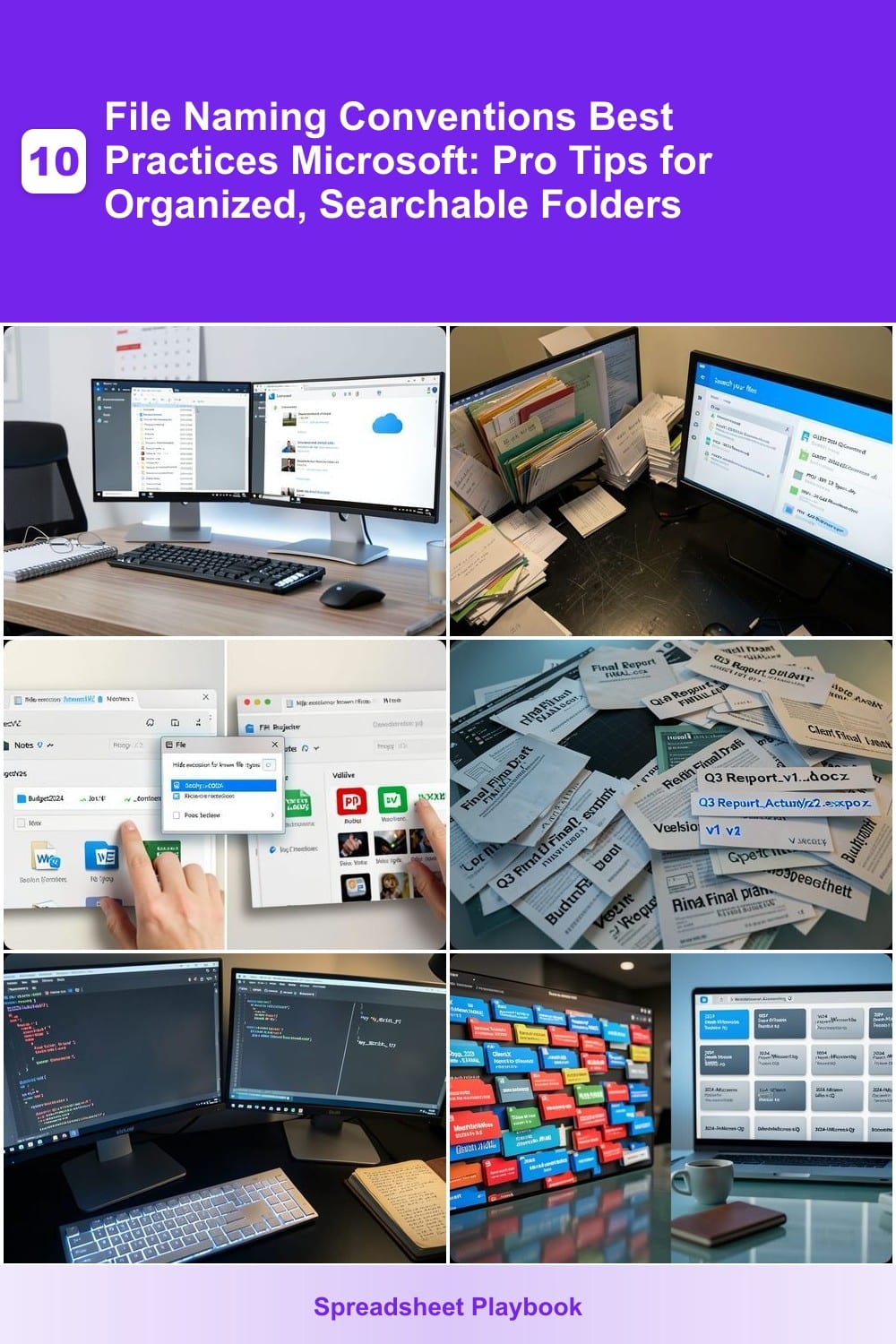
Struggling to find files in cluttered Microsoft folders? Mastering file naming conventions can save hours weekly and make your digital workspace more efficient. These pro tips ensure your files are organized, searchable, and future-proof across Windows, OneDrive, and Office Suite.
Date-Based Naming for Chronological Organization
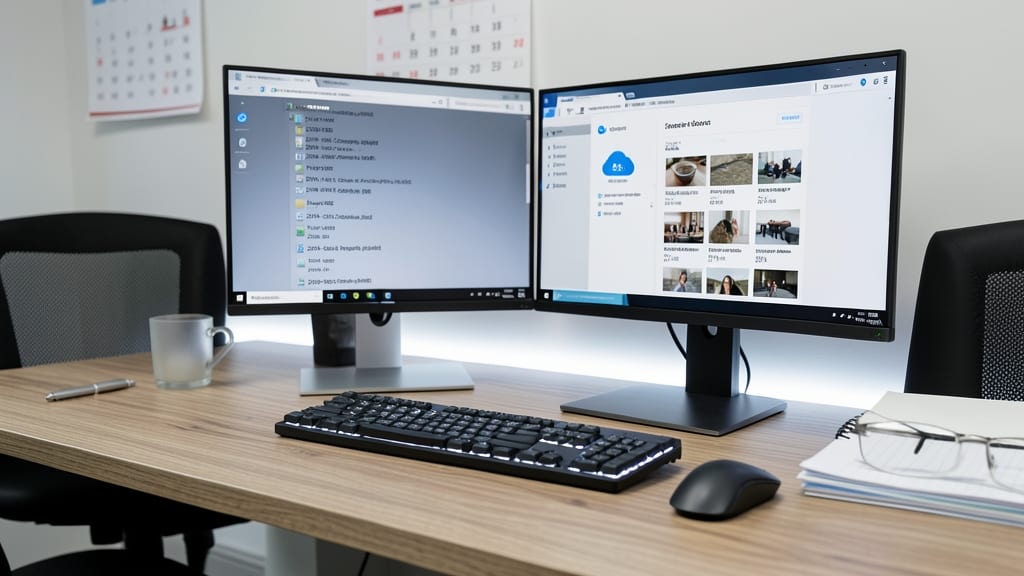
Ever wasted 10 minutes hunting for a file from last month? Date-based naming solves this by embedding timestamps like YYYY-MM-DD (e.g., 2024-05-15Contract.pdf) into filenames. This ensures chronological sorting in Windows Explorer and OneDrive, making it a lifesaver for legal deadlines or creative project timelines.
The YYYY-MM-DD format (ISO 8601 standard) sorts alphabetically as dates, unlike ambiguous MM-DD-YYYY (e.g., 05-15-2024 vs. 05-01-2024). Add a hyphen-separated suffix (e.g., ClientNameProject) for granularity. For versioning, append v1, v2—perfect for audit trails in finance or compliance-heavy fields.
This system shines for professionals juggling multiple projects. Lawyers tracking case filings or designers managing client revisions will appreciate how it turns chaos into a searchable, chronological archive. ✨
Keyword Prefixes for Instant Searchability
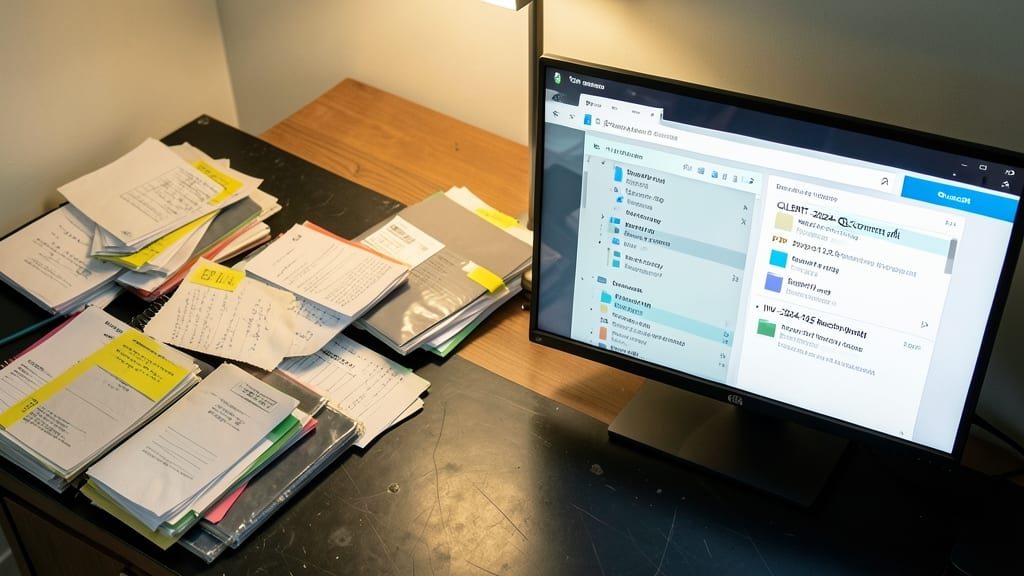
Tired of sifting through endless folders to find that one critical client file? Keyword prefixes transform your OneDrive and Windows Search into a powerhouse, turning chaotic file systems into a searchable goldmine. By embedding codes like CLIENT-2024-Q2 or PROJ-DEV-123 at the start of filenames, you instantly boost search relevance—no more scrolling through irrelevant results.
Windows and OneDrive prioritize files with prefixes in search results, making them appear first when you type keywords like "CLIENT" or "PROJ." For example, naming a file CLIENT-Acme-Contract_v3.pdf ensures it surfaces instantly when searching for "Acme" or "Contract." This works seamlessly with Windows Search and OneDrive’s AI-powered indexing, cutting retrieval time from minutes to seconds.
This system is a game-changer for agencies, freelancers, and teams juggling multiple clients—especially when files live in shared drives. Start with a 3-4 character prefix (e.g., "CLT-") for consistency, and watch your workflow transform. ✨
Consistent File Extensions for File Types
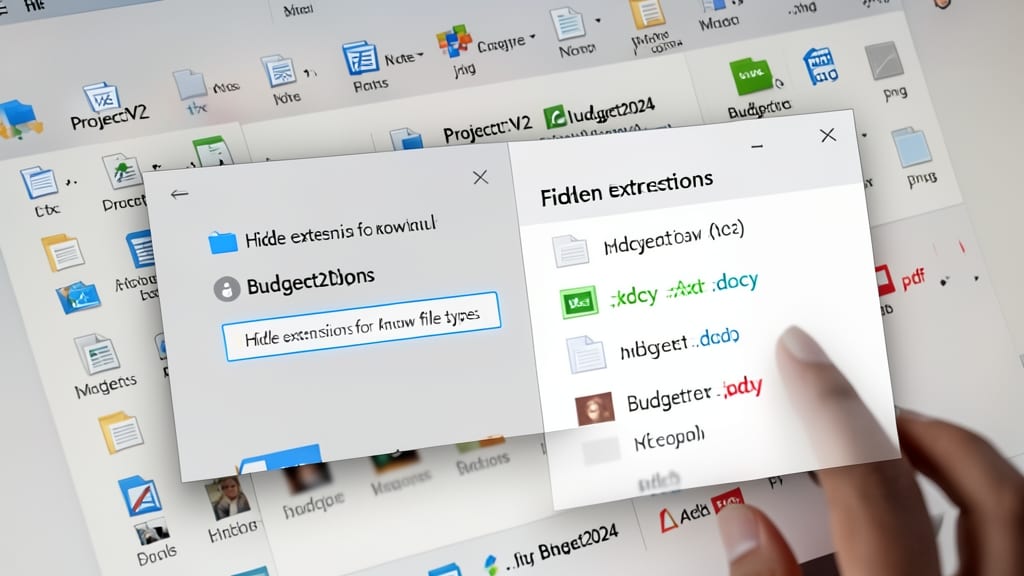
Ever wasted minutes hunting for a file because its extension was hidden or mismatched? Consistent file extensions (like .docx vs .pdf) eliminate that frustration by making file types instantly recognizable at a glance.
Microsoft’s default settings hide extensions, but enabling them in File Explorer (View > Show > File name extensions) forces clarity. Stick to standard extensions—.xlsx for spreadsheets, .psd for designs, and .py for scripts—to avoid confusion. This is especially critical for IT teams managing shared drives where developers might mix .txt logs with .csv data.
Developers and sysadmins benefit most, but even casual users avoid accidental overwrites when extensions clearly signal file types. A small tweak that pays off in shared folders! 💻
Version Control with Suffixes (v1, v2, etc.)
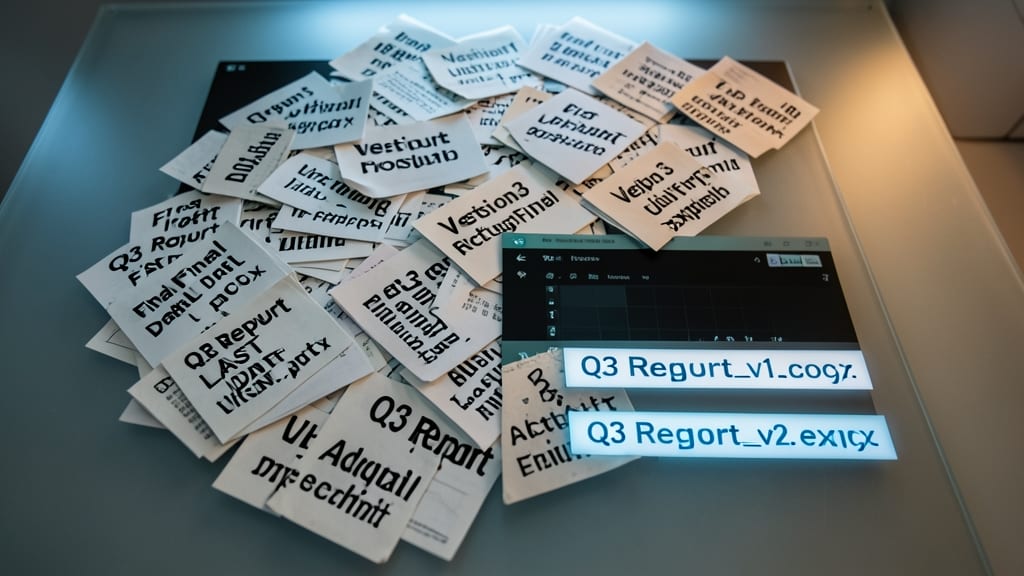
Tired of sifting through endless "FinalFinalDraftFINAL.docx" files? Version suffixes (v1, v2, etc.) turn chaos into clarity—especially for PowerPoint decks or Excel spreadsheets where stakeholders demand updates.
Start with a base name like "Q3Report" and append v1.docx, v2.xlsx to track revisions instantly. Microsoft’s search filters recognize these patterns, and tools like Power Automate can auto-sort them by version number. For freelancers, this method eliminates "Which file is the latest?" emails—just sort by name in File Explorer.
Marketing teams and freelancers collaborating with clients will love this—it’s visual, shareable, and future-proof for version history. ✨
Underscores Over Spaces for Scripts and Code

Ever spent hours debugging a script because a space in a filename broke your PowerShell or batch script? Sysadmins and developers know: underscores () are the silent heroes of Windows automation. Unlike spaces, they’re universally supported in command-line arguments, avoiding cryptic errors like "The filename, directory name, or volume label syntax is incorrect."
Windows treats spaces as separators in command-line inputs, so my script.txt becomes two arguments instead of one. Using myscript.txt ensures zero config headaches—your scripts run first try, every time. This rule is especially critical for PowerShell pipelines, where malformed filenames can derail entire workflows. Even Microsoft’s own Windows Task Scheduler handles underscores flawlessly, while spaces often trigger workarounds.
This convention is a must for anyone writing batch files (.bat), PowerShell scripts (.ps1), or automating tasks with Windows Task Scheduler. 💻
Client-Project Naming for Shared Drives
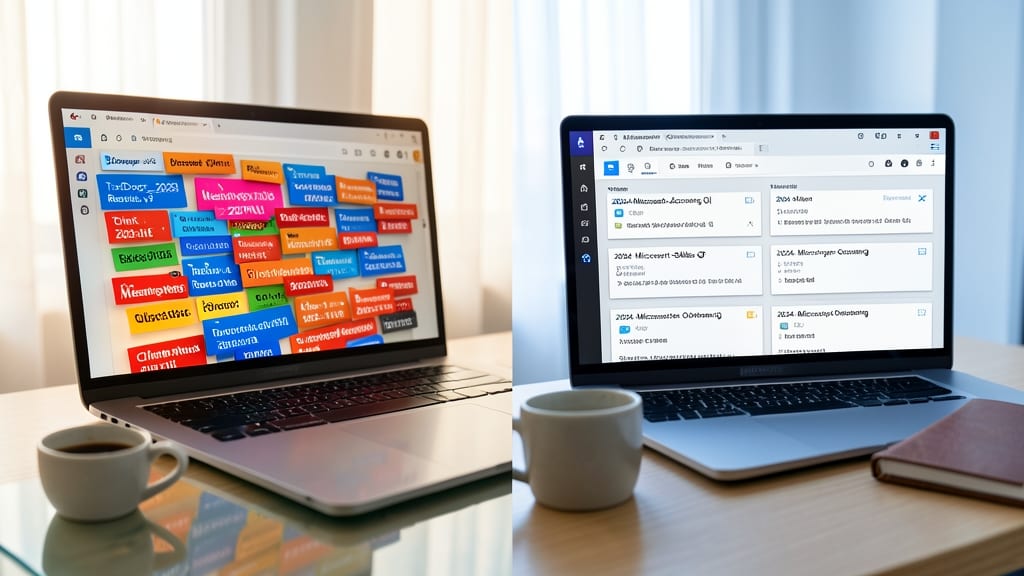
Shared drives for remote teams often become a wild west of misnamed folders—until you implement a client-project naming system. This structured approach (e.g., 2024-Microsoft-Accounting-Q1) transforms chaotic OneDrive or SharePoint libraries into searchable, scalable assets.
Start with a year-client-project-quarter format to instantly sort files chronologically and by priority. Use hyphens for readability and avoid spaces to prevent issues in scripts or PowerShell. For agencies, add a department prefix (e.g., MKTG-2024-Nike-Campaign) to filter by team.
Perfect for agencies, consulting firms, or any team juggling multiple clients—this method ensures every stakeholder finds what they need without digging through folders. ✨
Emoji and Symbol Shortcuts for Visual Cues
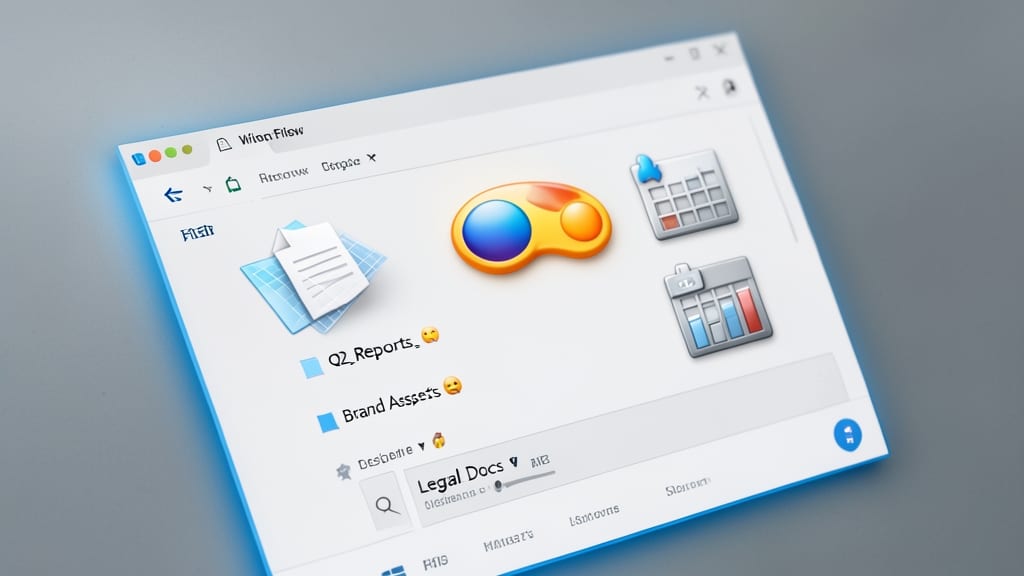
Tired of scanning long filenames to guess their contents? Emoji and symbol shortcuts transform your file explorer into a visual library—no more guessing whether a file is a 📄 document, 🎨 design, or 📊 spreadsheet. These tiny icons act as instant visual cues, making your workflows intuitive and fun.
Windows and macOS fully support emojis in filenames (tested with 📁, 🔗, ⚙️, and more), and they render consistently across OneDrive, SharePoint, and even Outlook attachments. Pair them with your existing conventions (e.g., 📄Invoice2024.pdf) for a system that’s both searchable and scannable at a glance. Pro tip: Stick to one emoji per file type to avoid visual clutter.
This approach shines for creatives, marketers, and freelancers juggling diverse file types—think 🎨BrandGuide.ai vs. 📄_Contract.pdf. Just avoid overly niche emojis (like 🦄) that might confuse collaborators. ✨