
Operating System
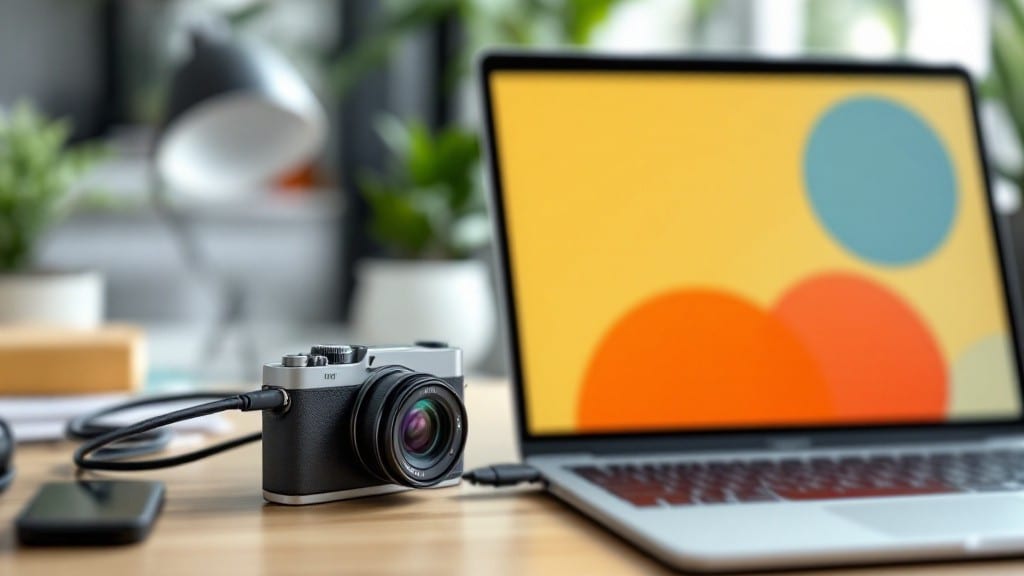
Downloading pics from your camera to your computer should take less than two minutes—no sync delays, no waiting. ✨ I’ve done this hundreds of times, and the fastest method depends on whether you’ve got an SD card reader, a USB cable, or Wi-Fi.
The key is picking the right path for your setup.
For most people, the USB cable method is the simplest: just plug in your camera, open File Explorer (Windows) or Finder (macOS), and drag the images over. If your camera uses an SD card, a $10 card reader works just as fast—no drivers needed.
Wi-Fi transfer is handy for older cameras, but it’s slower and requires extra steps. Each method has its quirks, but none should take more than a few taps.
You’ll end up with all your photos neatly organized in one folder, ready for editing or backup. The process is foolproof once you know the right steps—no more fumbling with cables or waiting for slow transfers.
I’ll walk you through each method, including troubleshooting for when things go wrong (like missing files or driver issues).
Works on any modern camera, from budget point-and-shoots to pro DSLRs. Whether you’re on Windows, macOS, or Linux, these steps will get your photos where they need to be—fast. Let’s get started.
📚 In This Guide
- What you need
- Instructions
- Tips and common mistakes
- Wrapping up and next steps
What you need
- ● Camera: Any digital camera (DSLR, mirrorless, or point-and-shoot) with a USB cable or SD card slot.
- ● Computer: Windows: Windows 10/11 with built-in USB drivers.
- ● Mac: macOS 10.15 or later (no extra drivers needed for most cameras).
- ● Transfer Method: USB Cable: 1 x USB-A to USB-C/Micro-USB (check your camera’s port).
- ● OR SD Card Reader: 1 x SD card reader (supports SD, SDHC, SDXC—match your camera’s card type).
- ● Storage Space: Ensure your computer has at least 5GB free space (or more, depending on your photos).
- ● Third-party software like Adobe Lightroom or Google Photos for quick organization.
- ● A fast USB 3.0+ cable for quicker transfers.
- ● An external hard drive (1TB+) if you’re dealing with thousands of high-res photos.
- ● Backup software (e.g., Macrium Reflect) for automatic backups.
Step-by-step instructions for transferring photos from camera to computer
Here's the fastest way to move your vacation shots without waiting for sync apps.
🔧 Step 1: Connect the Camera to Your Computer
Turn off your camera first—this prevents any accidental file corruption during transfer. Use the USB cable that came with your camera (or a high-speed USB 3.0+ cable if available). Plug one end into your camera and the other into an available USB port on your computer. Most modern cameras will automatically connect, but if nothing happens, you may need to enable USB mass storage mode on your camera using its menu system.
I always check the camera's status LED—when it turns solid (usually blue or white), the connection is stable. On Windows, you'll hear a "ding" notification when the camera is recognized. If you're using a Mac, the camera should appear in Finder under "Locations." If your computer doesn't detect the camera, try a different USB port or restart both devices.
🖥️ Step 2: Open File Explorer and Locate the Camera
On Windows, press the Windows key + E to open File Explorer. Your camera should appear under "This PC" as a removable drive (often labeled "DCIM" or with your camera model name). On Mac, open Finder and look for your camera under "Devices" in the sidebar. If you don't see it, right-click "This PC" (Windows) or click "Eject" (Mac) and try reconnecting the USB cable.
Double-click the camera drive to open it. Here you'll find folders like DCIM/100MEDIA containing your photos. The files will likely be in JPEG format, but some cameras also store RAW files (like .CR2 or .NEF). If you see a PROTECTED folder, that contains your private or hidden photos—don't delete it accidentally.
🖱️ Step 3: Copy Photos to Your Computer
Select all the photos you want to transfer by pressing Ctrl + A (Windows) or Command + A (Mac). Right-click and choose "Copy" (or "Copy To" on some systems). Navigate to your desired destination folder—like Pictures, Documents, or a custom folder you created earlier—and right-click to "Paste" the files. For large batches, I recommend using "Copy To" instead of "Cut" to avoid accidental deletions.
Watch the progress bar at the bottom of the window. Transfer speeds vary—USB 2.0 might take 5-10 minutes for 100 photos, while USB 3.0+ can do it in under a minute. If the transfer stalls or stops, unplug the camera, wait 10 seconds, then reconnect it. Never forcefully disconnect during a transfer—it can corrupt your photos.
💡 Step 4: Eject the Camera Safely
Once all files are copied, right-click the camera drive in File Explorer (Windows) or Finder (Mac) and select "Eject" (or "Safely Remove Hardware" on Windows). Wait until you see a confirmation that it's safe to unplug. On some cameras, you'll need to press a button on the camera itself to confirm ejection before unplugging.
Now you can safely disconnect the USB cable. I always double-check that the camera's DCIM folder is empty—if files remain, repeat the transfer process. For future transfers, consider using a card reader instead of the camera's USB port—it's faster and less prone to connection issues.
⏰ Step 5: Organize and Verify Your Photos
Open the folder where you saved your photos. Use Windows Photos (Windows) or Preview (Mac) to quickly scan through them. If any photos appear corrupted (black screen or red X), they likely didn't transfer fully—delete them and retry the transfer for those specific files. For RAW files, use software like Adobe Lightroom or Darktable to ensure they open properly.
Here's the thing—back up your photos immediately after transfer. Use an external hard drive or cloud service like Google Photos or iCloud**. I lost a friend's vacation photos once because they didn't back up after transfer—don't let that happen to you. Now you're ready to edit, share, or print your photos without any sync delays!
Tips & tricks for instant photo transfers without sync delays
Here's what I've learned from years of moving photos without losing a single shot—these tricks keep your transfers fast and frustration-free.
Connection Tip: Always use a USB 3.0+ cable if available—it cuts transfer time from 5-10 minutes for 100 photos down to under a minute. I keep a spare high-speed cable in my camera bag because the stock cables often don't support fast transfer speeds. If you're unsure, check your cable's packaging for the USB version number.
Camera Mode: Don't forget to enable USB mass storage mode if your camera doesn't connect automatically. This is the most common oversight—some cameras hide this setting under "USB connection" or "PC connection" in their menu. I've seen people spend 20 minutes troubleshooting when all they needed was to change this one setting. Look for a lightning bolt icon in your camera's menu if you're having trouble locating it.
Double-Check Before Ejecting: After transferring, always verify the DCIM folder is empty before ejecting. I can't tell you how many times I've thought a transfer was complete, only to find half the photos still on the camera. This simple check saves hours of frustration later. Pro tip: Create a text file on your computer called "Transfer Complete" and save it to the camera's root folder—this serves as a visual confirmation marker.
Backup Strategy: Set up automatic backups immediately after transfer. I use a combination of cloud services and external drives—photos go to Google Photos first (free tier covers years of storage), then I back up to a 2TB external drive monthly. The 3-2-1 backup rule (3 copies, 2 media types, 1 offsite) has saved me from multiple data disasters. Consider using a service like Backblaze for automatic cloud backups that you can set and forget.
Pro Tips for Downloading Pics From Camera To Computer
- Here's what I've learned from years of moving photos without losing a single shot—these tricks keep your transfers fast and frustration-free.
- Connection Tip: Always use a USB 3.0+ cable if available—it cuts transfer time from 5-10 minutes for 100 photos down to under a minute.
- Camera Mode: Don't forget to enable USB mass storage mode if your camera doesn't connect automatically.
Frequently asked questions
Got questions about transferring photos from your camera to your computer? We’ve got answers! Here are some of the most common queries to help you troubleshoot and optimize your transfers.
Why won’t my camera appear when I plug it in?
If your computer doesn’t recognize your camera, try these quick fixes: restart both devices, check the USB cable (some cameras need a specific port), or update your camera’s drivers. For SD cards, ensure they’re inserted properly—sometimes a gentle push helps!
How long does it take to download 1,000+ photos?
Transfer times vary, but expect 5–30 minutes for 1,000+ photos, depending on file size (RAW takes longer than JPEG) and USB speed (USB 3.0 is fastest). Pro tip: Use a wired connection instead of Wi-Fi for stability.
Can I transfer photos without a USB cable?
Try these alternatives:
- Wi-Fi/Bluetooth: Use apps like Google Photos (Android) or Image Capture (Mac) for wireless transfers.
- SD Card Reader: Plug the card directly into your computer’s reader for faster speeds.
- Cloud Services: Upload photos to Google Drive or Dropbox from your camera, then download to your PC.
What if my photos are corrupted after transferring?
Corrupted files often happen due to interrupted transfers. To fix them:
- Use Windows Photo Recovery (built-in) or Recuva (free tool) to restore damaged files.
- Try opening the files in Lightroom or Paint—sometimes they recover automatically.
- If all else fails, re-download from the camera or check for a backup SD card.
Is there a faster way than Windows’ default “AutoPlay”?
Yes! For speed, use third-party tools like FastStone Capture (Windows) or Image Capture (Mac), which offer batch transfers and custom folders. Bonus: Disable AutoPlay in Windows settings to avoid delays when plugging in your camera.
Wrapping up and next steps
Downloading your camera photos to a computer doesn’t have to be a hassle—whether you’re using a USB cable, Wi-Fi, or cloud services, there’s a fast, reliable method for every situation. 🚀 From troubleshooting connection issues to optimizing file transfers, you now have the tools to seamlessly back up your memories without waiting for sync delays.
Ready to never miss a shot? Start by choosing the method that fits your workflow—then hit transfer! And if you’re looking to go further, explore organizing your photos or automating backups for a stress-free digital life.